(continued)
Screen element Description
Injection controls
Note: Buttons are inactive
if more than 1 injection is
selected or if the action
is not applicable for the
injection.
•
Inject next—Moves the injection to the next position in the list to be injected. For
information, see “Change the injection list order” on page 163.
•
Edit & Re-inject—Tap to add re-injections to the run. If needed, change the run
settings. For information, see “Cancel or add injections or specify re-injections
in the Run Queue screen” on page 165. The button is inactive if a spectral
calibration or install run injection is selected or if more than one injection is
selected.
•
Cancel injection—Stops the current injection or an in-queue injection. The
injection status after cancellation depends on when in the run the injection
was cancelled. See Injection status above. For information, see “Cancel or add
injections or specify re-injections in the Run Queue screen” on page 165.
•
Add to Queue—Active if you select a cancelled injection. Changes the status to
In queue. The button is inactive if a spectral calibration or install run injection is
selected.
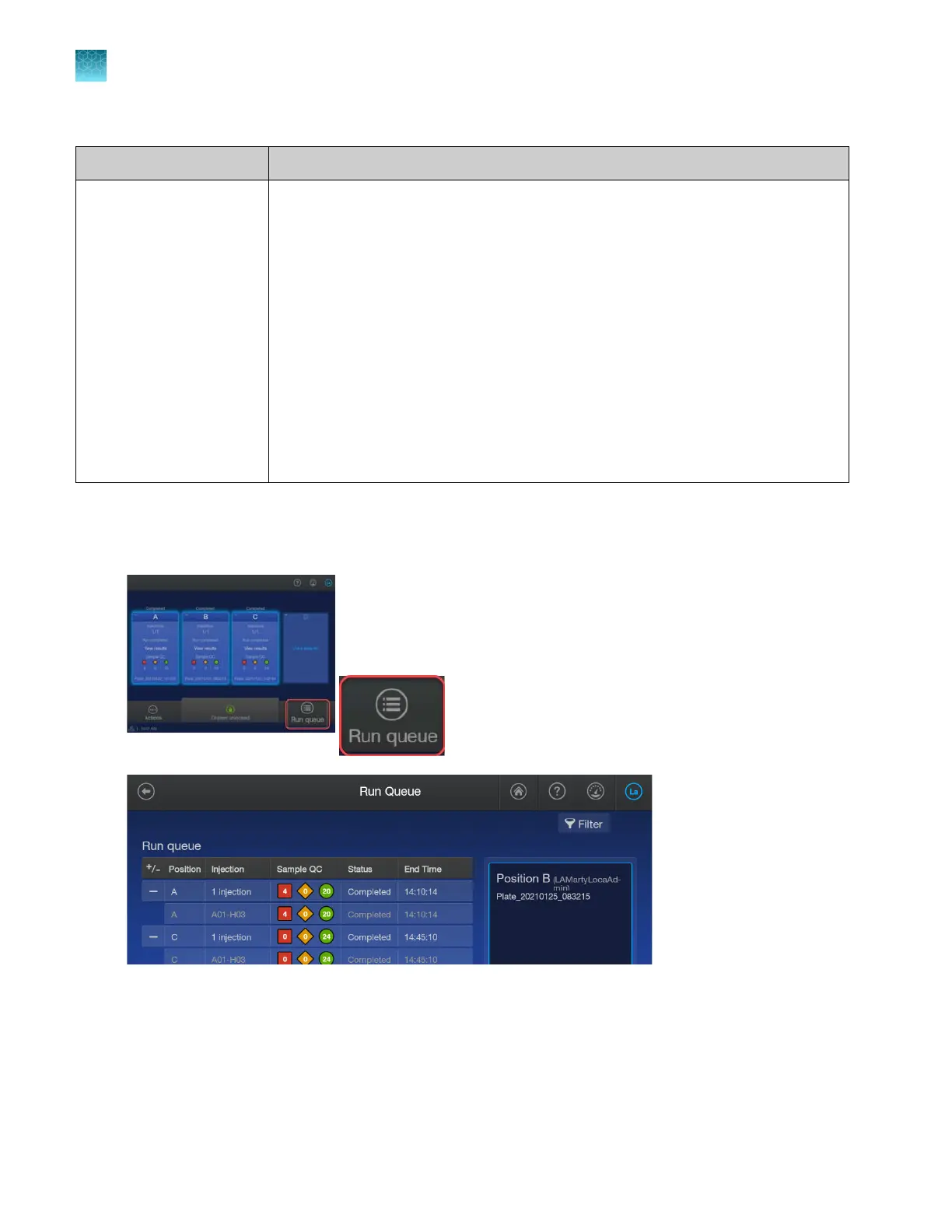
Run queue features
The Run queue is accessible fr
om the home screen.
You can perform the following tasks in the Run Queue scr
een.
Chapter 1 P
roduct information
About the SeqStudio
™
Flex Series Instrument Software v1.0
1
46
SeqStudio
™
Flex Series Genetic Analyzer with Instrument Software v1.0 User Guide













 To Next Page