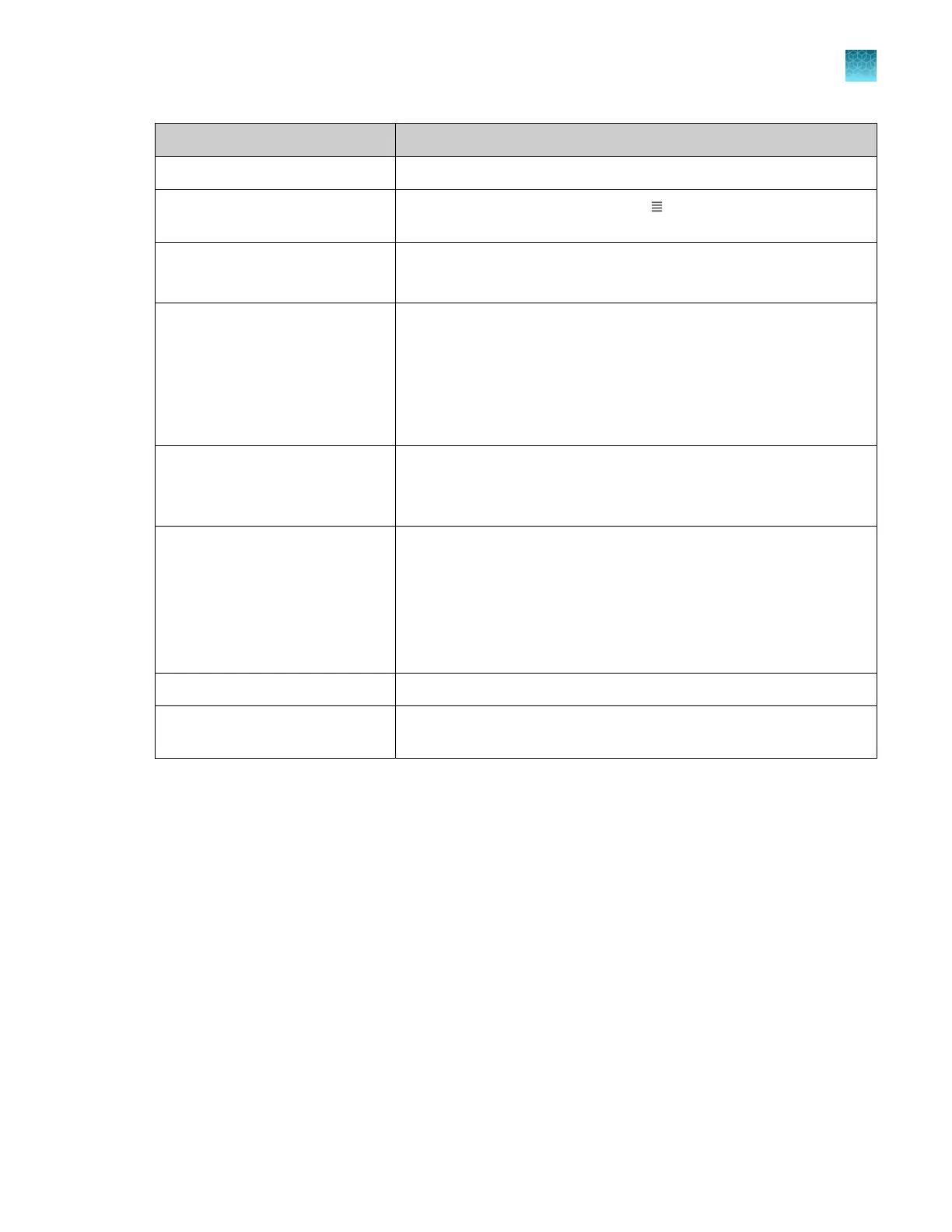
Task Action
View the injection list In the home screen, tap Run queue.
Change the order of plates and
injections
In the Run queue screen, press-drag (Move) to move a plate or
injection up or down in the list.
Select a plate or injections to run
next
This button is active in the Run queue screen during a run only.
Tap a plate or injection, then tap Inject next.
Re-inject samples In the Run queue screen, tap an individual injection, then tap Edit &
Re-inject. To inject with the same settings, tap Done. To inject with
dierent settings, change settings, then tap Done.
Note: If you select a spectral calibration or install run injection, the
Edit & Re-inject button is inactive. Re-injections are not permitted for
these run types.
Display results for a plate or
injection
Tap a plate row to display the plate view.
Tap an injection row, then tap View plate to display the
electropherogram view with analyzed data displayed by default.
Cancel injections Tap an injection, then tap Cancel injections. The status after cancelling
depends on when the cancel was done during the run.
•
If you tap when the status is Running, the status changes to
Aborted.
•
If you tap when the status is In queue, the status changes to
Cancelled.
Pause the instrument Tap Actions4Pause instrument during a run only.
Resume a run (displayed only
when the instrument is paused)
Tap Resume run at the top of the Run queue screen. You can also
resume a run from the home screen and the Instrument status screen.
Chapter 1 Product information
About the SeqStudio
™
Flex Series Instrument Software v1.0
1
SeqStudio
™
Flex Series Genetic Analyzer with Instrument Software v1.0 User Guide
47













 To Next Page