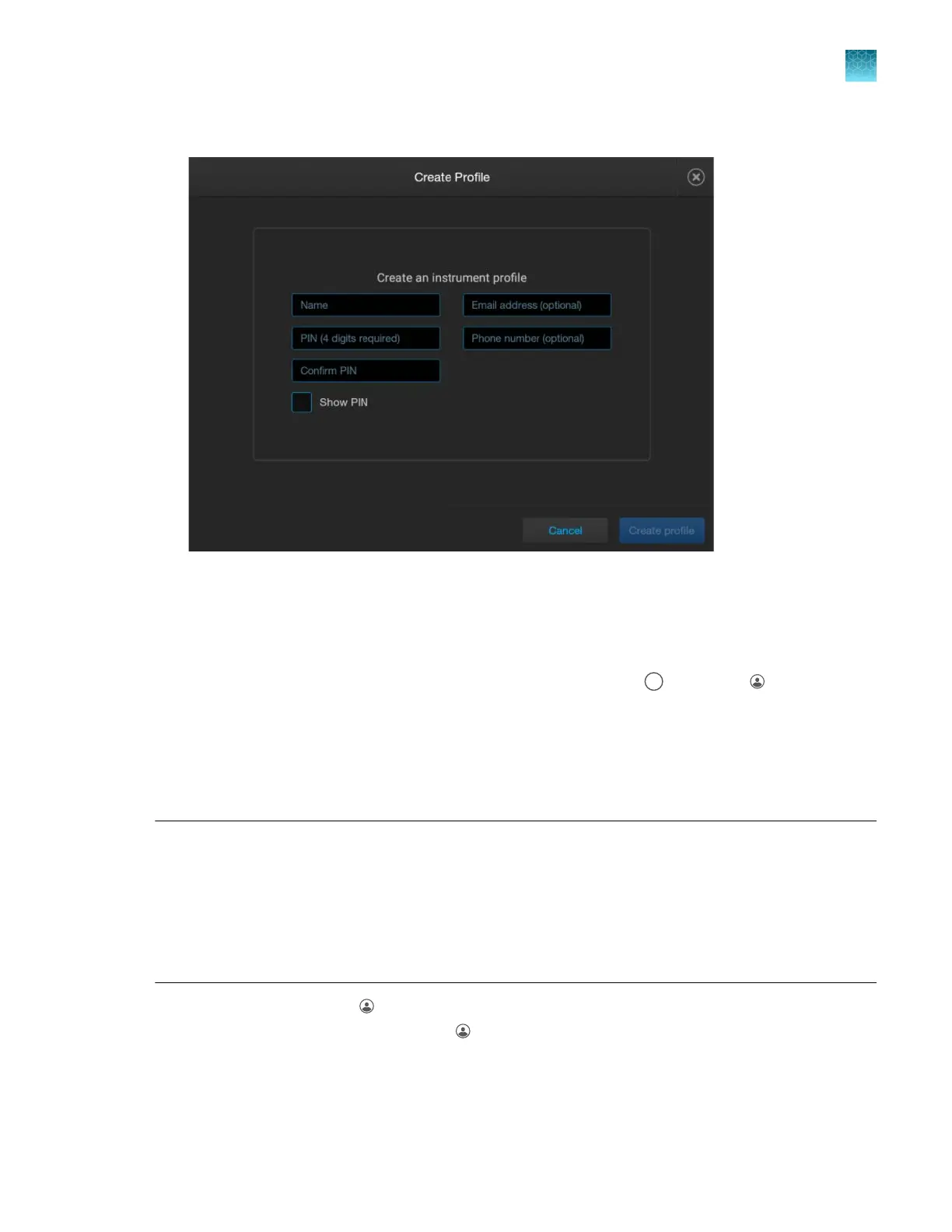
4.
Tap Name, enter a local profile name, then tap Done.
5.
T
ap PIN (4 digits required), enter a four-digit numerical PIN, then tap Enter.
6.
Tap Confirm PIN, reenter the PIN, then tap Enter.
7.
Tap Create profile.
The home screen is displayed with your user initials (for example,
) in place of (P
rofile).
For more information on profiles, see “Local profile and cloud profile: when to use, user name, and
user initials” on page 213.
Sign in
A profile is required to sign in to the instrument.
Note: If you do not have a profile, see one of the following sections:
·
If you are not using the instrument with Thermo Fisher
™
Connect, see “Create a local profile (one time
only)” on page 29.
·
If you are using the instrument with Thermo Fisher
™
Connect, see “(Recommended) Link directly to
your Thermofisher.com account” on page 217.
If the SAE Sign in screen is displayed instead of the Sign in screen, see “Sign in to the instrument with
SAE enabled” on page 244.
1.
In the home scr
een, tap
(P
rofile).
If user initials are displayed instead of
(P
rofile), see “Sign in (if another user is signed in)” on
page 34.
Chapter 1 P
roduct information
About the SeqStudio
™
Flex Series Instrument Software v1.0
1
SeqStudio
™
Flex Series Genetic Analyzer with Instrument Software v1.0 User Guide
31













 To Next Page