(continued)
Screen element Description
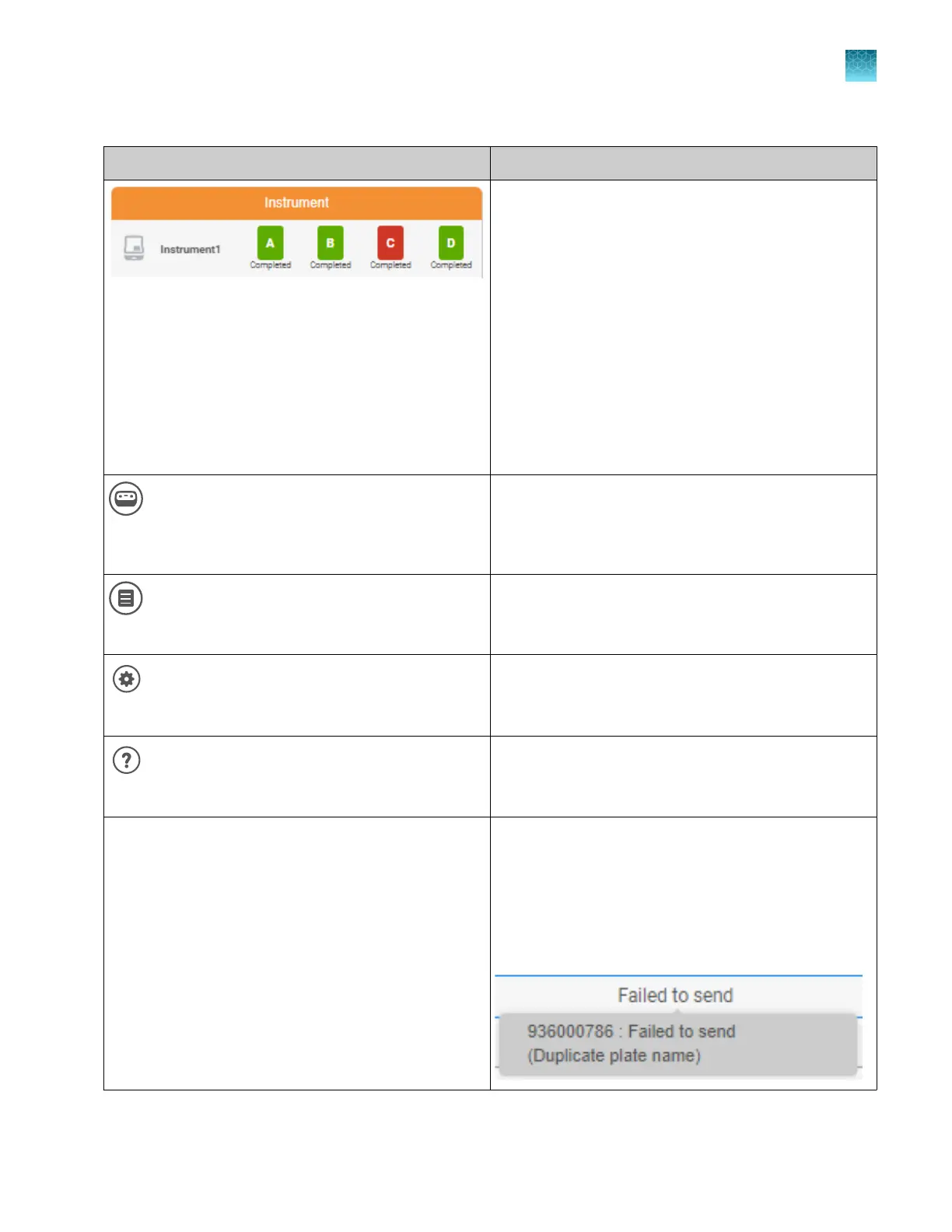
Lists the instruments that are linked to your
Thermofisher.com account or your local profile.
SeqStudio
™
Flex Series Genetic Analyzer and
SeqStudio
™
Genetic Analyzer instrument types can be
listed.
For more information, see:
•
“Connect Plate Manager software (cloud) to an
instrument” on page 114
•
“Plate position status and plate run status” on
page 39
You can click an instrument to display the SeqStudio
™
Flex Remote Monitoring main screen. For more
information, see Chapter 6, “Start and monitor a run”.
(Switch instrument)
Change instrument type between SeqS
tudio
™
Flex and
SeqStudio
™
.
The type of plate file you set up is determined by the
instrument type that is selected.
(Release not
es)
Displays release notes for the software.
(Settings)
Displays the selections for the default Save location for
plat
e files and accessing libraries.
Help
Opens the software help system.
Recent plate files list Lists the 10 most recently created or edited plate files
and their status. The status indicat
es if a plate file was
sent to an instrument. New plate files are added to
the top of the list. The oldest plate file is automatically
removed when a new plate file is added.
If a Failed to send status is shown, place the cursor over
the status to display the reason for the failure.
Chapter 5 Create a plate file in the Plate Manager software
Get started with the Plate Manager software (cloud)
5
SeqStudio
™
Flex Series Genetic Analyzer with Instrument Software v1.0 User Guide
107













 To Next Page