BPswitch Operators Manual
108 / 413
Click on OK when complete.
NOTE: These settings do not take effect until you Save the show in PixMaster, as shown in
Editing a Show.
Adding Wildcard Devices
The Broadcast Pix system has four standard content devices with four dedicated
control panel buttons: Clips (ch 1), Stills (ch 1), CG (ch 1) and Logo (ch 1). In
addition, Clips (ch 2), Logo (ch 2), Stills (ch 2) and CG (ch 2) can be accessed
through the [Shift] function and then selecting Clip, Logo, Stills or CG.
There are an additional 3 Wildcard device PixButtons, with a Shift capability for a
total of 6 Wildcard Devices, in the top right corner of the control panel which can
be assigned to external camera, server control or the second channel of devices.
On the 2000 panel only external devices may be assigned to the Wildcard
Devices.
To Add a Wildcard Device:
On the Edit Show Settings window, click
on More Devices and the Add Device
window will open.
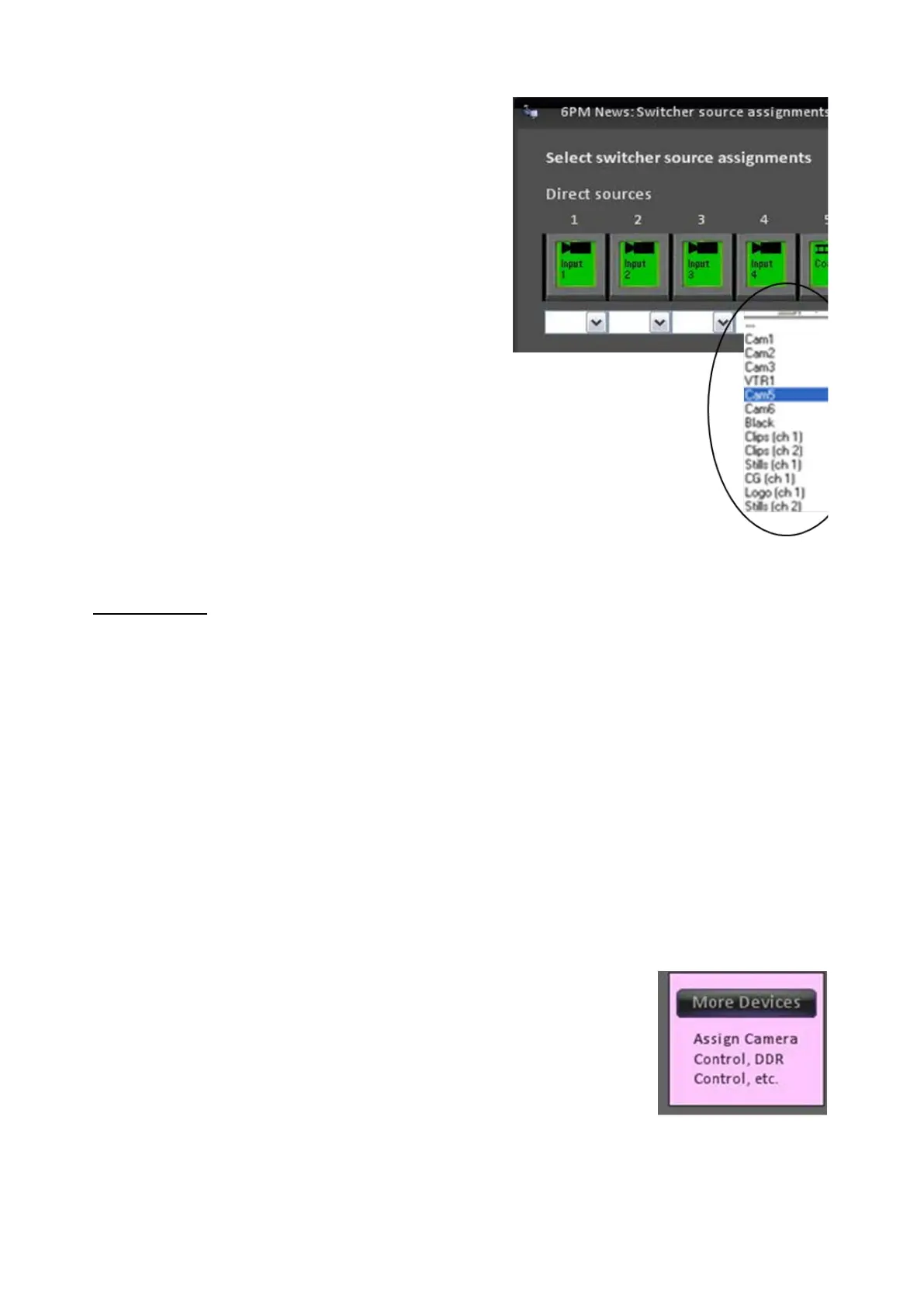
In the Add Device window, click on the
drop down menu under the wildcard
button you wish to edit. A drop down
menu containing available devices
appears, as shown on the right.



 To Next Page