BPswitch Operators Manual
143 / 413
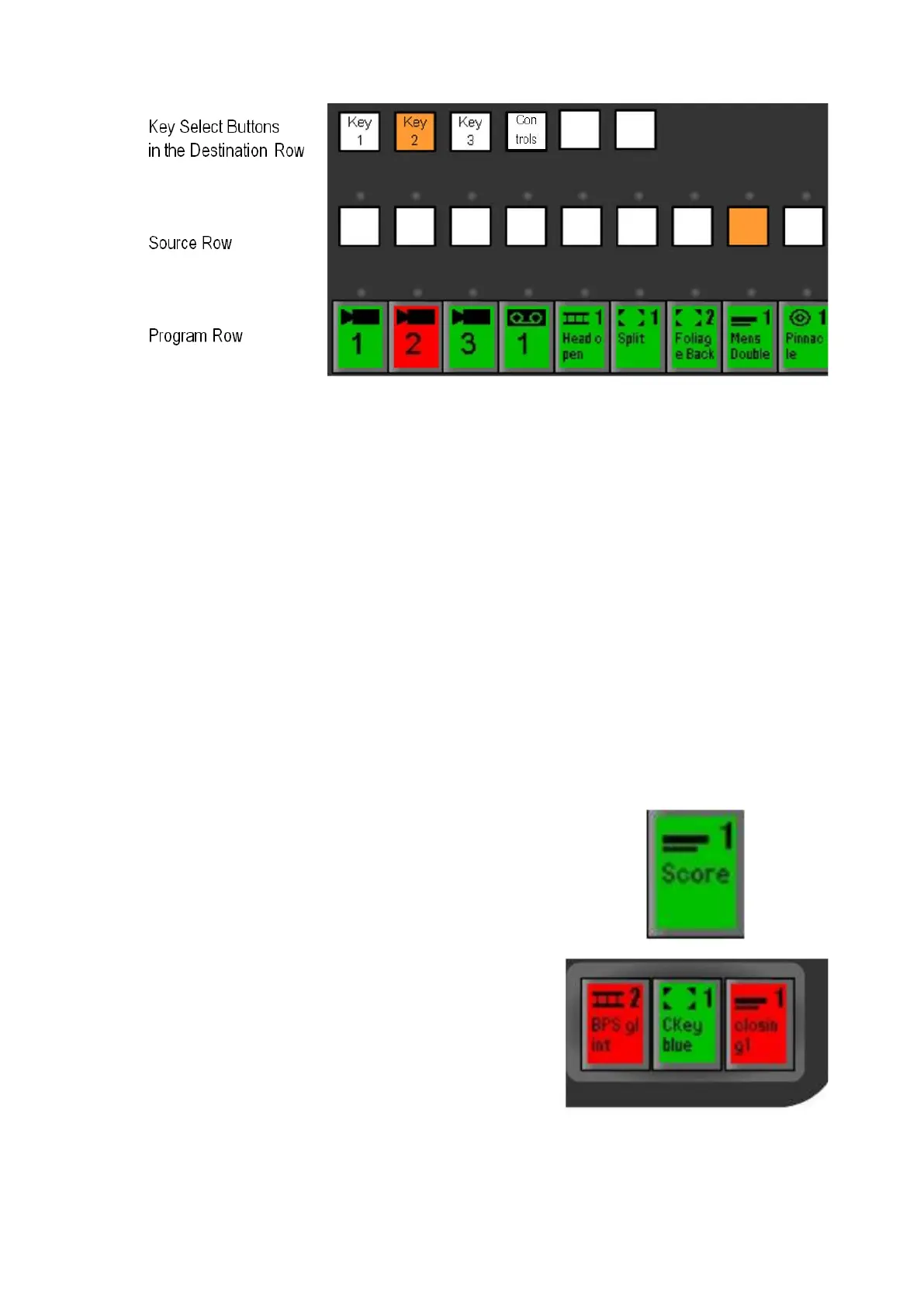
Press the desired [Source Row] button, for the source you wish to feed into
the keyer. The button pressed will illuminate orange (or red if the key is on
program), and the source row button that had been illuminated before will go
out.
Only one button in the source row may be illuminated at once. The new
source, and its current contents, will also appear in the appropriate [Key
PixButton] in the lower right corner of the panel. For example, in the
illustration shown above, to change Key 2 from Anim 1 to CG 1, press CG 1
button in the source row (the 7th button).
Direct Key Controls
The Direct Key buttons are the three buttons located in the lower right corner of
the control panel. They correspond to Key 1, 2 and 3, as shown below. In
addition to On/Off functionality, these three buttons provide a handy place to
always see key status, including:
What Device is assigned to this keyer is shown
by the icon (e.g. CG Channel 1)
What is the name of the content element
currently selected in the device (e.g. Score)
Whether the Key is
On Program: Red
On Preview: Orange
Assigned/Selected: Green (in this case)
To Manually Bring a Key On Program:
Any key that is off (green or orange), can be brought on program by pressing



 To Next Page