BPswitch Operators Manual
331 / 413
In the Record section, enter the record
Name in the text field as the default
record name for each recording. Each
recording will auto-enumerate.
Note that on KiPros, the Use Custom
Clip Take option needs to be set to On.
Under the Video and Audio Input drop
down menu, select the proper IO
settings for your records.
If desired, a specific frame number for
each record can be specified as the clip
thumbnail. Enter a number in the Frame
number for thumbnail capture text
box. Setting it to 0 will use the first frame
of the record.
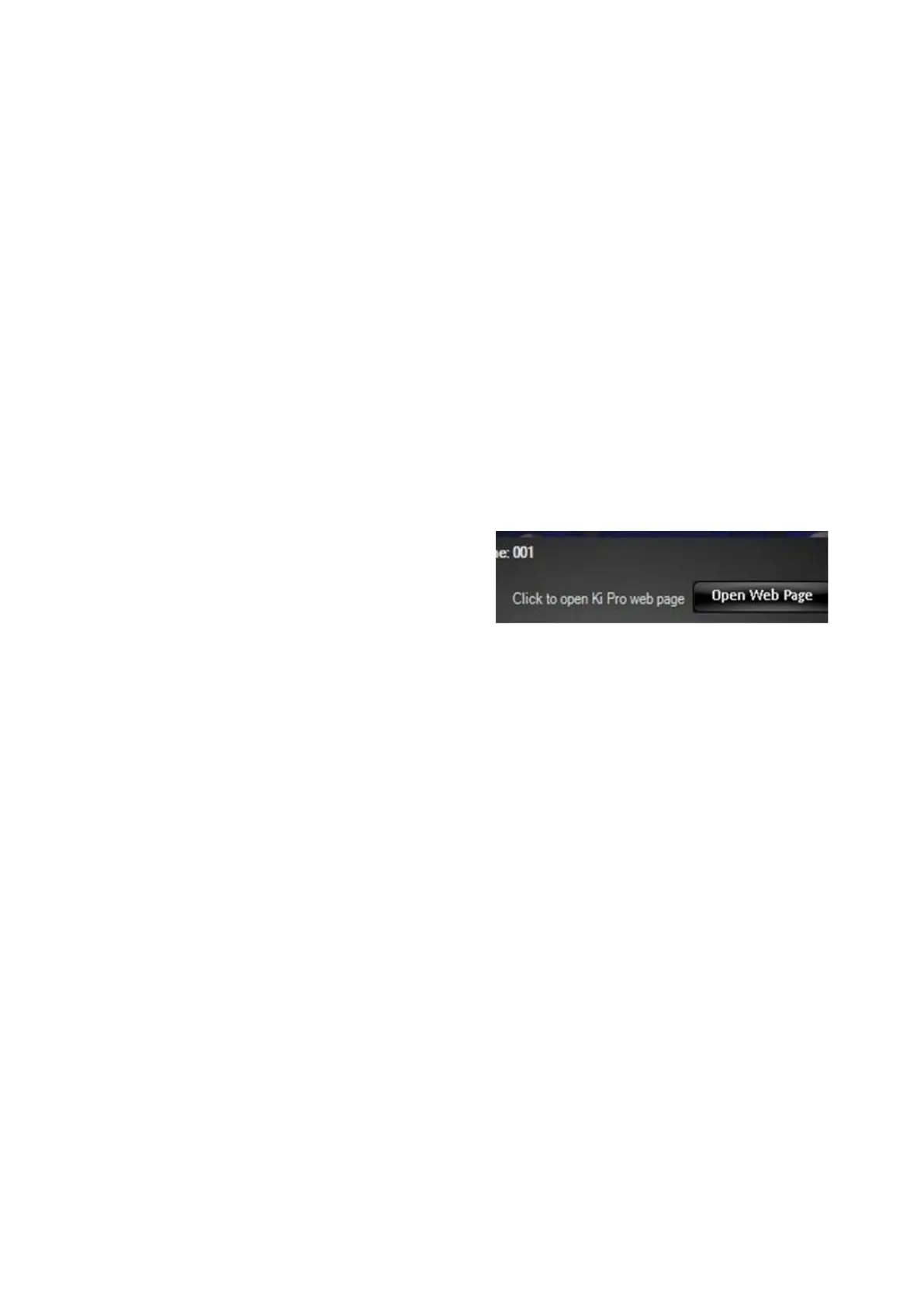
The AJA KiPro decks offer a web-based
interface to change many more menu
settings. To open this page click on the
Open Web Page button, as shown on
the right.
To close the settings window, click on
the X in the upper right corner of the
window.
Note that the settings window can
remain open while recording, this
provides an easy way to name new clip
recordings.
PixPlay
PixPlay is an optional software add-on to Deck Control, which provides an
affordable and easy to use instant replay and review system. Decks can be set to
gang and while clips are recording or playing back marks can be set during
important parts. While controlling a mark on one deck the same mark on other
decks are controlled in the same manner providing synced cueing of all your
angles. This is ideal in sports for official review stations. PixPlay can be used with
one deck or multiple decks. PixPlay can either record or playback clips and marks,
it can not do both simultaneously. For PixPlay to be enabled, an option code is
required to be entered in the Setup-Installed Option menu. Contact Broadcast Pix
Sales for more information.
Ganging Decks:



 To Next Page