BPswitch Operators Manual
205 / 413
To run a macro from the middle, select the step line
with the mouse and click on the From button in the
Control Bar.
The macro will start from the selected point and
playback all the appropriate timing.
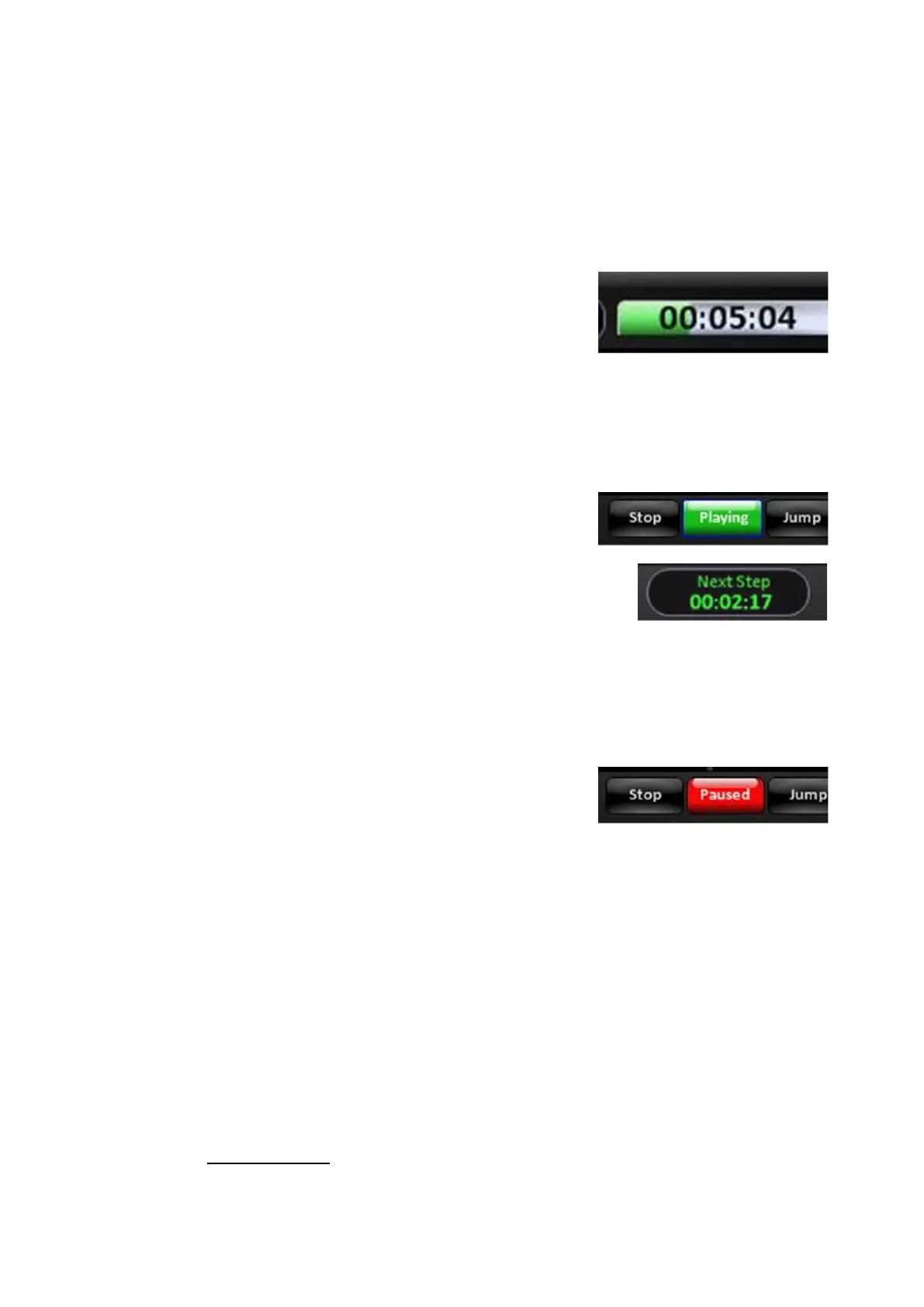
Once a macro is running the Counter will display
the elapsed time in mm:ss:ff, as shown on the right.
For macros longer than 1 hour the display will
automatically add the hours in the display.
In addition, a progress bar will appear behind the
counter representing the progress to the end of the
macro.
To skip a step or a series of steps click on the
Jump button in the Control Bar. The macro will
ignore the timing/hold duration and continue to the
next step.
The Control Bar will also display a timer
representing the time until the next step in
mm:ss:ff.
To pause a macro at the current step, click on the
green Playing button in the Control Bar.
The button will turn to a blinking red Pause button,
clicking on Paused again will resume the macro.
To end the macro entirely and return to the editor,
click on the Stop button in the Control Bar.
Assigning Macros in the Macro Player
After a macro has been created, edited and saved, it needs to be assigned to the
Macro Player to be triggered during a production. There are 4 Macro Banks, the
first 3 may hold up to 100 Macros each, while the GPI-Hi and GPI-Lo banks may
each hold up to 96 Macros.
These Macro assignments are global for the entire BPswitch system. In addition to
using the Macro Player, the MEM device on the control panel may be used to
trigger Macros. Macros assigned to the MEM device can be show based, as
described in Show Macros.
To assign a macro in the Macro Player:



 To Next Page