BPswitch Operators Manual
367 / 413
Controlling the Streamer from the Multi-View
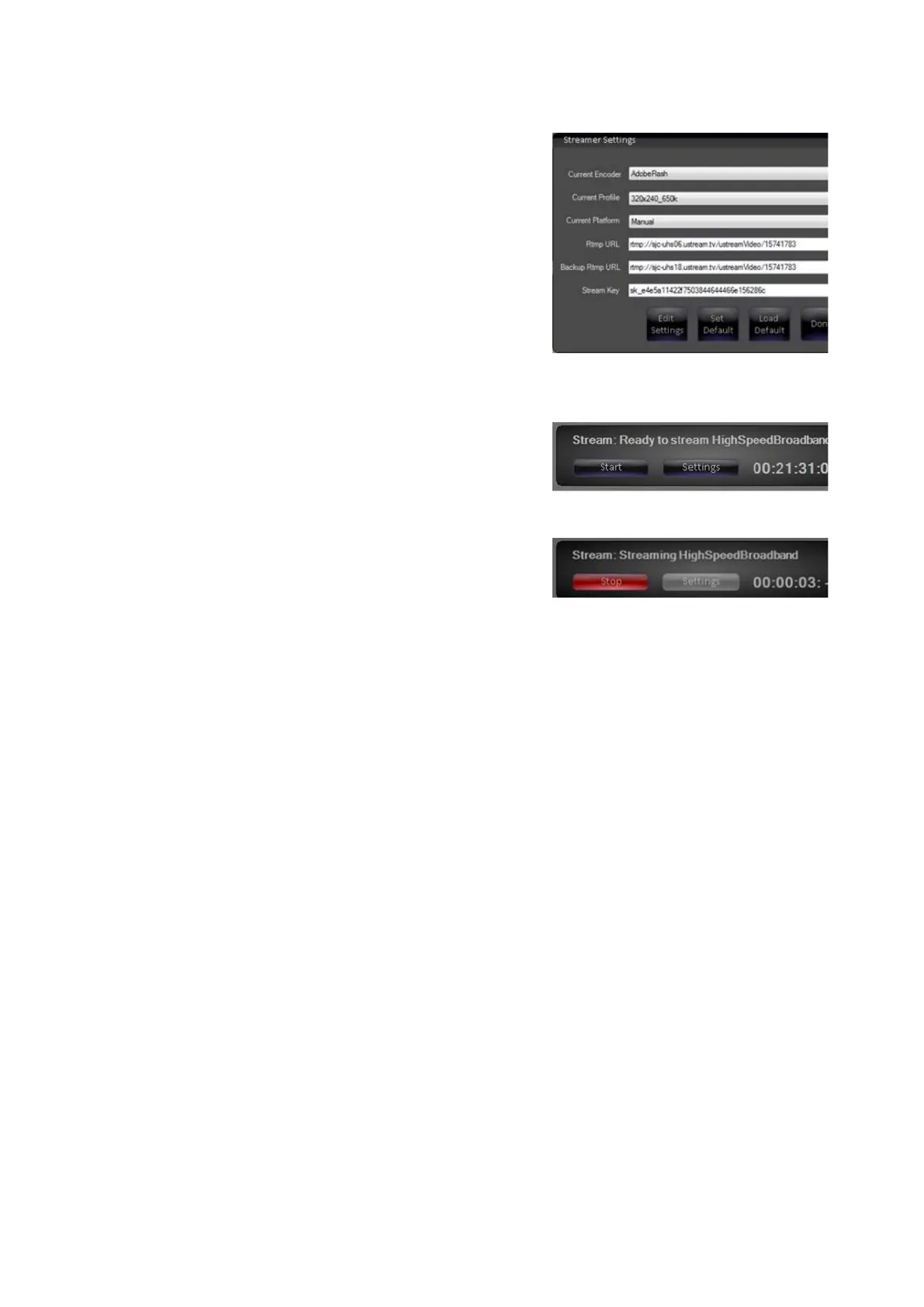
Once an Encoder and Profile/Job have been
selected from the Streamer Settings window,
click on the Done button to apply the settings.
Clicking on the Set Default button will
automatically use the selected Profile or Job at
startup every time, eliminating the need to
select a Profile or Job.
NOTE: you may only stream using a Flash
Profile or an Expression Job, not both
simultaneously.
Once a stream is ready, the Stream device
window will display “Ready to stream”, as
shown on the right. Click on the Start
button to
start streaming to your CDN/server.
The Start button will change to a Stop button
and illuminate red. In addition, the counter will
start to count up by the second, as shown on
the right.
If any of the settings in the profile or job are
not compatible with your CDN or server within
30 seconds the counter will stop and the Stop
button will turn off. Check your settings to
confirm that they are match the
recommended settings.
To stop streaming, click on the red Stop
button.
NOTE: It is not recommended to view the final stream live on the BPswitch Server as it may
exhibit performance issues. Depending on your connection speed, there will be a delay from the
time video is encoded on the BPswitch System to the time it is seen on your CDN, from several
seconds to a few minutes.
Adding Stream Control to a Show
Although you may control the Stream from the Multi-View, it may be desired to use
the Control Panel or PixPad to control the stream. In order to do so you must add
the device to a show using one of the wildcard devices on the switcher.
In BPswitcher, load the show to which you want to add stream control. Select
the File, Load Show.
Open PixMaster by selecting File, Edit Show.



 To Next Page