BPswitch Operators Manual
144 / 413
its [Direct Key Button] in the bottom right corner of the panel. This will
cause this key (such as the still in key 2 in the above example) to fade on at
the rate for that keyer, and the button will change color to red.
To Manually Take a Key Off Program:
Any key that is on-air (red), can be taken off program by pressing its [Direct
Key Button] in the bottom right corner of the panel. This will cause this key
(such as the title in key 3 in the above example) to fade off at the rate for that
keyer, and the button will change color, from red to green (or orange if its key
transition button is on).
Keys may also be transitioned from the Multi-View, see Keyer Windows
on the Multi-View.
NOTE: If the rate for a Key on the control panel display is set to 1, the Key will cut on/off program.
To change the Key rate see To Change the Key Fade Rate. There are three ways to bring Keys
on and off program: by using the Transition Controls, by clicking in the keyer window on the Multi-
View or by using the Direct Key buttons.
Transitioning Keys with Multiple Keys or with the Background
The three keys can be used with the transition controls. This enables key
transitions to be combined with background transitions. This also enables any
effects, such as a wipe or push-off, to be used for transitioning keys, either with a
background change or without a background change.
Changing a Key with a Background Change:
To add or subtract layers simultaneously with a change to the background video:
Press the [BGR] button (if it is not already illuminated)
Select the keys to transition with the background by pressing one or more of
the adjacent [Key Transition] buttons. Each button pressed will illuminate
orange (or red if the key is already on program). As each Key Transition
button is pressed, the Key content will appear as an addition to the preview
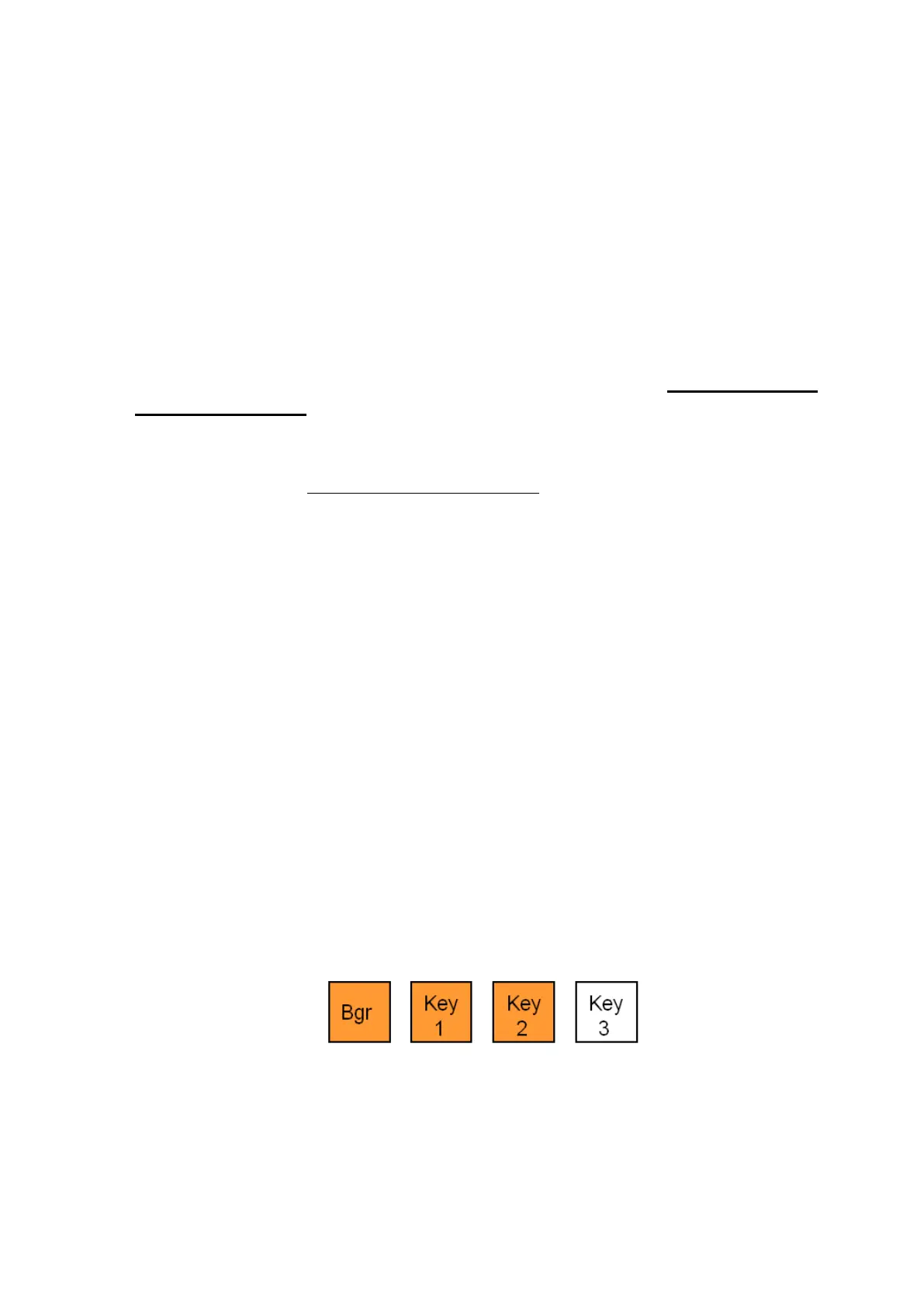
monitor. For example, to transition on program Key1 and Key2 along with a
background change, press:
As each of the above [Key Transition] buttons is pressed, its corresponding
[Direct Key] button in the lower right corner of the panel will change from
green to orange.
Press [Cut] (or Auto, or use the fader arm) and the background video will
change, the illuminated keys will come on program, and their [Direct Key]



 To Next Page