BPswitch Operators Manual
56 / 413
on the Multi-View. This will cause this key to fade off-air at the rate for that
keyer, and the tally underneath will change color to red (or orange if its key
transition button is on).
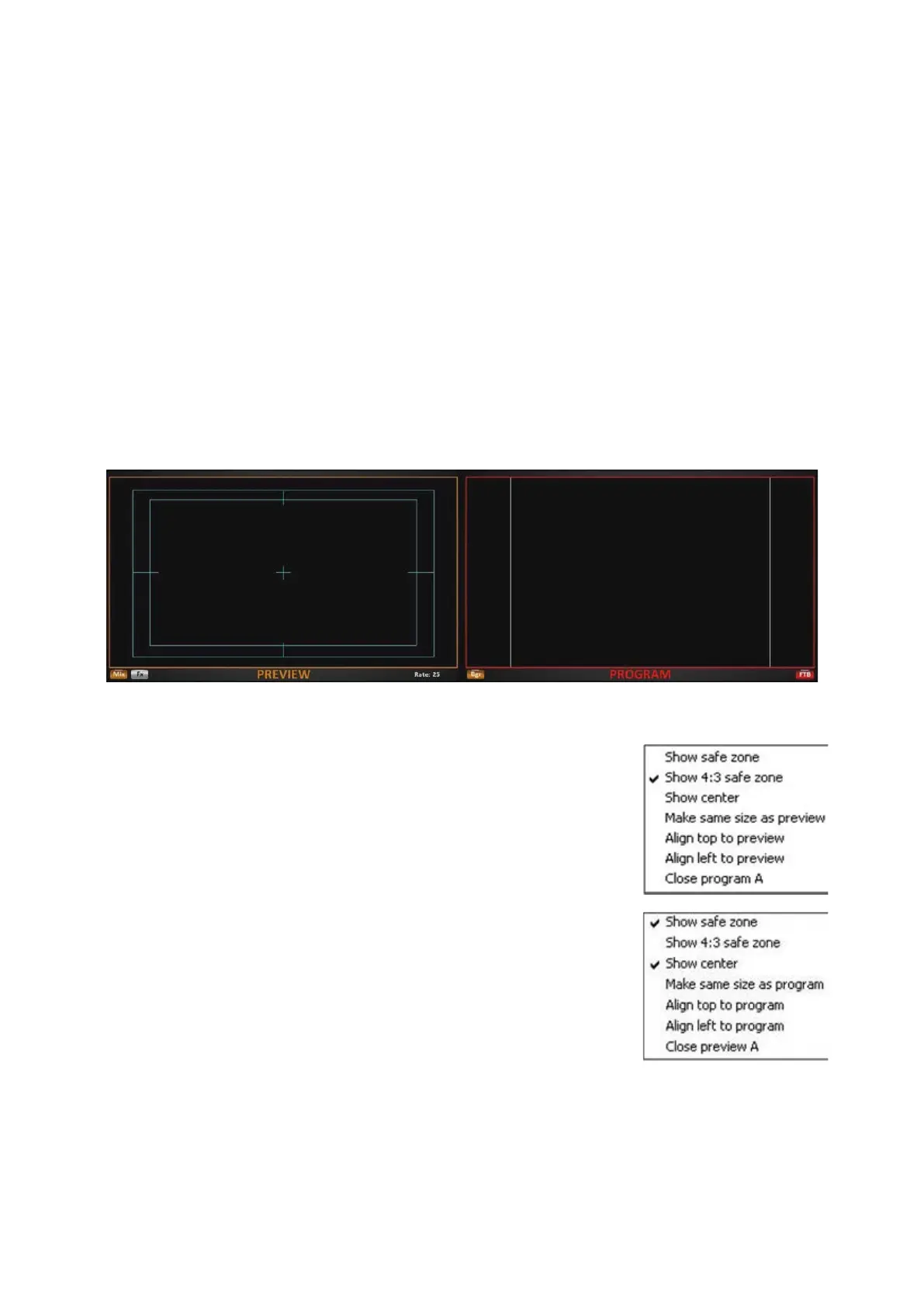
Program/Preview Overlays on the Multi-View
If desired, the Program and/or Preview monitors on the Multi-View may show safe
zone overlays, as shown below. These overlays are useful when aligning Keyers
and shot compositions, when adding graphics to ensure visibility on tube monitors
and when producing a 4:3 output in a 16:9 show to ensure no video/graphics are
cut off.
There are 3 overlays which may be selected on Preview and/or Program:
Title/Action Safe Zones (Aqua-colored lines), 4:3 Video Safe Zone (White-colored
lines) and Center marks (Aqua-colored cross).
To display an overlay on Preview/Program:
Right-Click on the Preview or Program Monitor, and a
pop-up menu will appear.
At the top of the pop-menu select Show safe zone,
Show 4:3 safe zone (only if the show Video Aspect
Ratio is set to 16:9) or Show center.
The active/selected overlays will now show a check
mark, as shown on the right.
To deselect any overlays on Program/Preview, repeat
steps 1-2.
Counters
Counters for the clip stores appear on the Multi-View for each channel. There are
2 different floatable counters. Either individual Clips counters or a combination
counter, as shown below. They display the clip counter with both a number and a



 To Next Page