BPswitch Operators Manual
371 / 413
Controlling the Recorder from the Multi-View
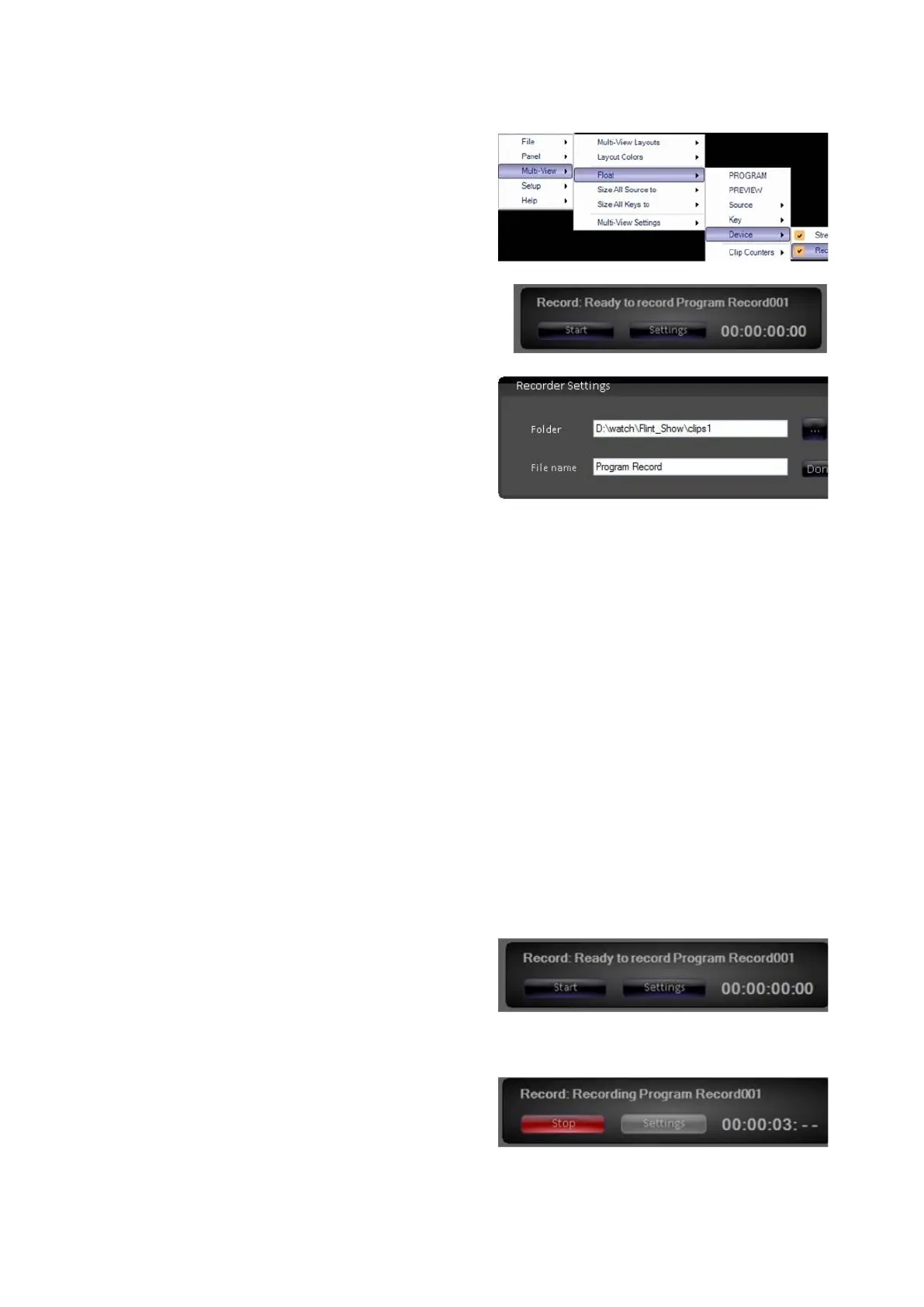
Navigate to the Multi-View-Float-
Device-Record menu, as shown on the
right.
The Record device window will appear,
as shown on the right. Click on the
Settings button.
The Recorder Settings window will
appear. Click on the browse … button to
navigate to a record location.
The default location is d:\clips\record.
If it is desired to have the recorded clip
automatically be added to the show once
it is stopped, navigate to the show’s
Watch Folder under the D:\watch
directory.
Once the desired location has been
found, click on the OK button.
In the File name text box, enter the
desired file name of the recording. As
new recordings are started the file name
will automatically increment by 1. i.e.
record01, record02, etc.
Once all the settings have been entered,
click on the Done button to close the
Recorder Settings window.
Once the recorder is ready, the Record
device window will display “Ready to
record”, as shown on the right. Click on
the Start button to start recording to
disk.
The Start button will change to a Stop
button and illuminate red. In addition, the
counter will start to count up by the
second, as shown on the right.
To stop recording, click on the red Stop



 To Next Page