BPswitch Operators Manual
184 / 413
To run a Macro or a SnapShot MEM, select the
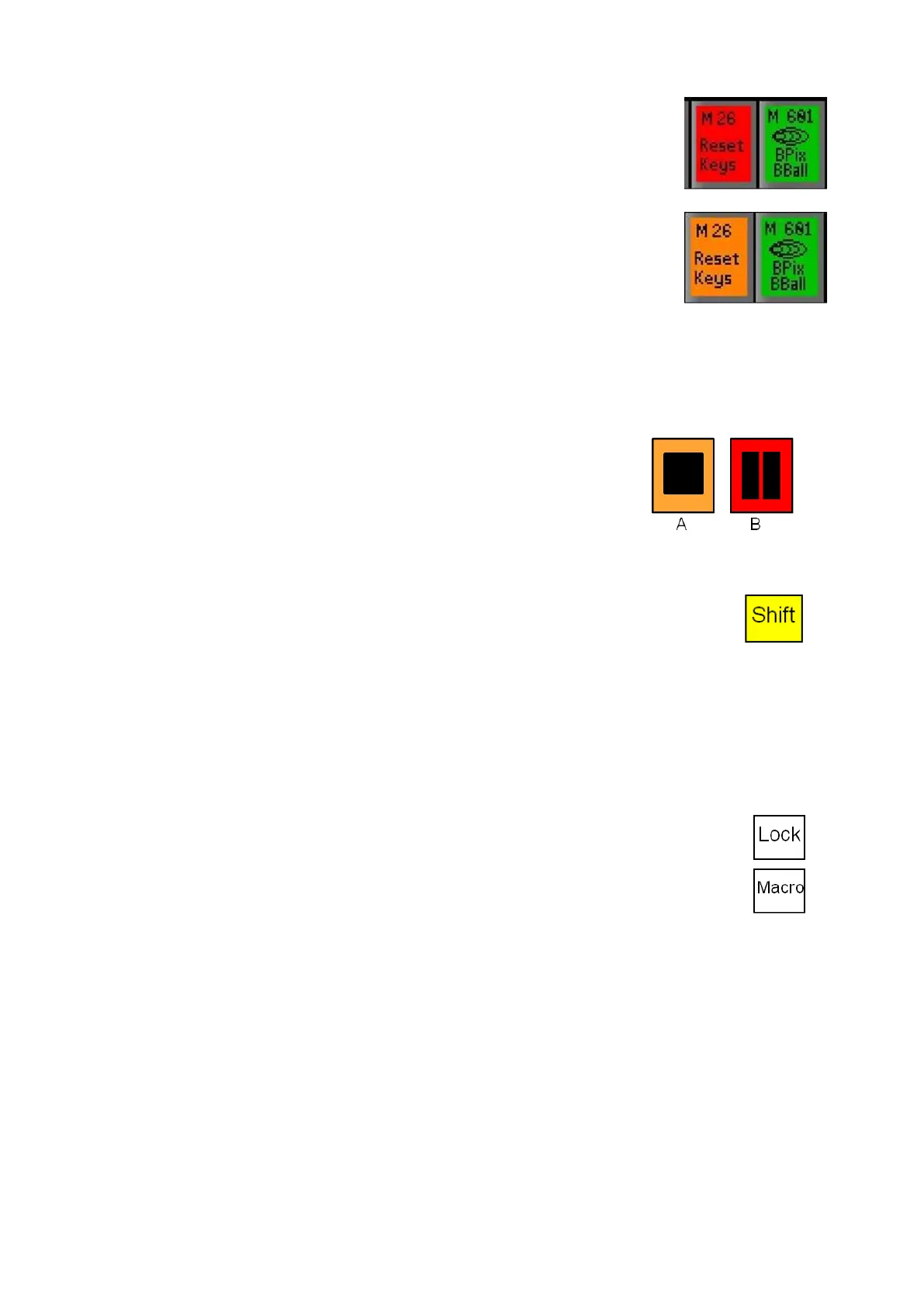
desired [PixButton], the button will illuminate red, as
shown on the right.
If a Macro has a pause point, the PixButton will
illuminate orange, as shown on the right. To resume
playing a paused macro, re-select the active
[PixButton] or press the [B] input PixButton with the
red Pause icon.
The Macro PixButton will illuminate red and the B
PixButton will illuminate orange and turn to a Play
icon.
To stop running a macro, re-select the
macro/SnapShot [PixButton] or select the [A] input
PixButton with the orange Stop icon.
The memory PixButton will return to a green/not
selected state.
To access memories 12-22, select the [Shift] button,
it will illuminate yellow, as shown on the right. Repeat
steps # 2-4 to control memories 12-22.
All shifted memories will blink when selected, playing
or paused to signify they are on the shifted row.
To return to memories 1-11 select the [Shift] button
and the button will turn off.
To return to the output selection mode, select the
[Macro] button and it will turn off, as shown on the
right, and the input PixButtons will show the enabled
inputs.
NOTE: Only one Macro at a time may be played out. Selecting a Macro while one is playing will
stop the Macro.
SnapShot Memories
The Broadcast Pix system has a powerful memory system that can combine all
devices in the system. It enables the saving and instant recall of a panel’s set-ups,
or the set-ups plus the sources assigned, or even the individual content element in
a device, such as a specific lower third graphic in the CG. The Mem system can
save an entire panel, or a portion of it, such as a keyer, effect, preview source,
aux, key state, etc.



 To Next Page