BPswitch Operators Manual
117 / 413
To have no memory load at show
load, uncheck the Load memory
with show option.
Restoring a Show
In some rare instances it may be necessary to recover a show or use a previous
version of a show, in case the current show gets corrupt. The show file contains
how your panel and multi-view are mapped, what content is in each device and
what devices are enabled in your show and everything discussed in this section.
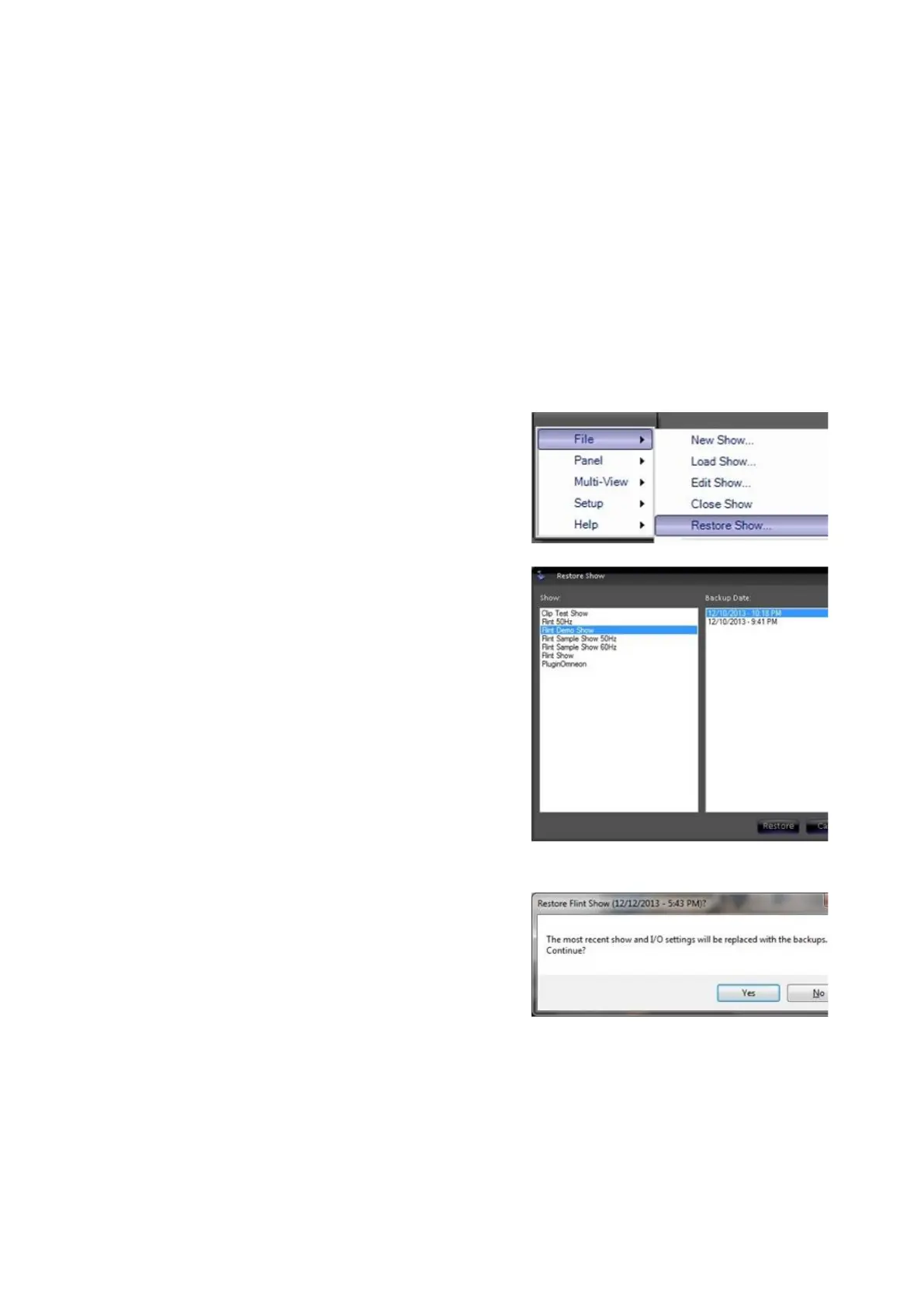
In BPswitcher, click on Broadcast Pix
menu icon, select the File menu and select
Restore Show…, as shown on the right.
In the Restore Show window, a list of all the
created shows on the system will appear in
the left column, and in the right column all
the saved backup versions of the show.
Select a show on the left Show column.
In the Backup Date column, select the
desired recovery date, as shown on the
right.
Click on the Restore button.
A Restore Show warning will appear. Click
on the Yes button, as shown on the right.
The show mapping, content list and IO
settings will now be replaced with the
backup version.
Restoring System Settings
In some very rare instances it may be necessary to recover the settings found in
the System Settings menu or use a previous version incase of corruption. System
settings include system wide settings and should only be restored when advised
from Support or when these settings are clearly unusable. Since these are



 To Next Page