BPswitch Operators Manual
77 / 413
PixMaster Storage System
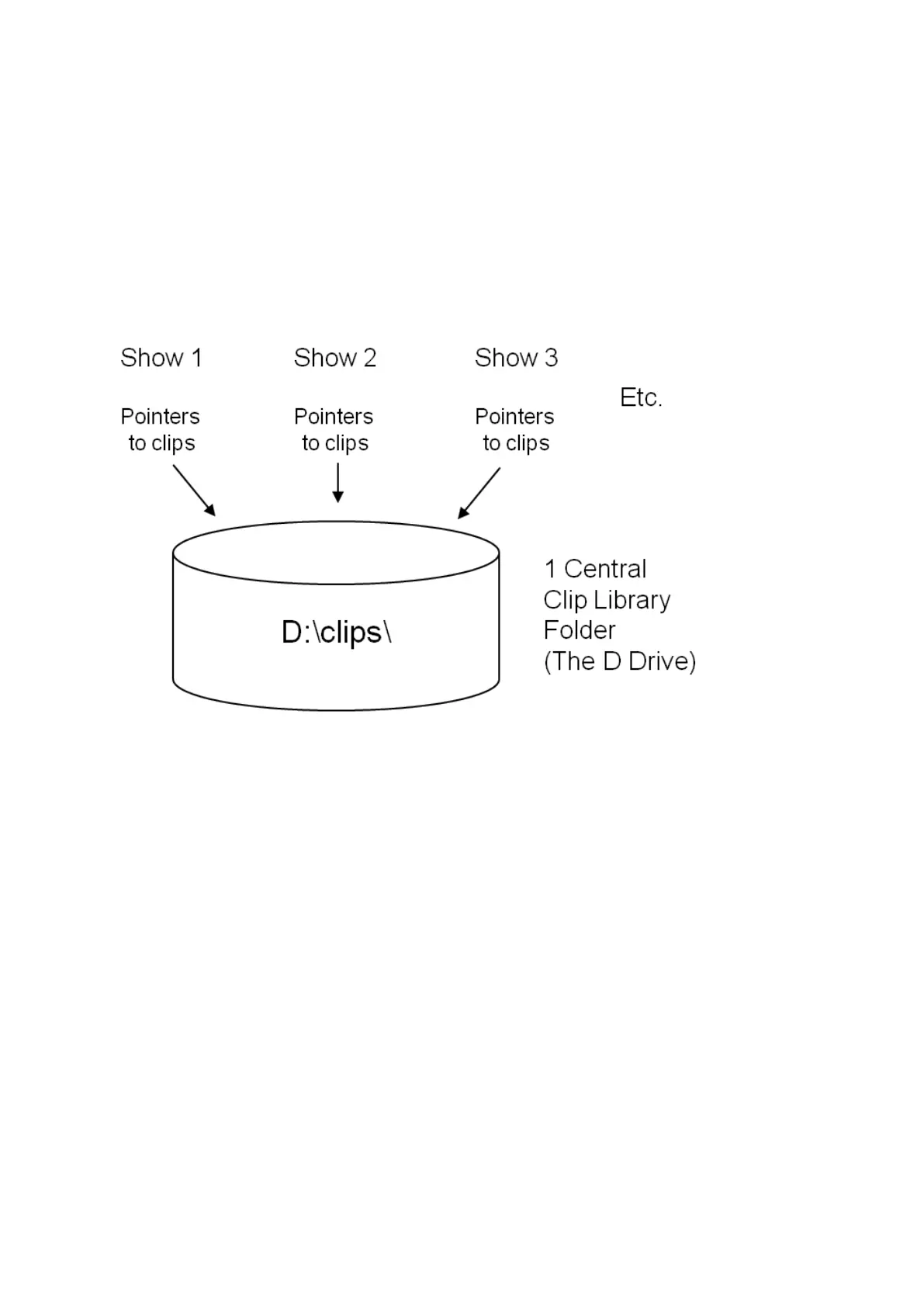
PixMaster is an advanced file system that is pointer based. In PixMaster, all
content is kept in large central library folders, and then a show is just a collection
of pointers. In this way, you do not have to make copies of the same clip for
different shows, which can eat up a lot of disk space.
For example, the central clip library is the clips folder on the systems D drive, and
it’s formal name is D:\\clips\ as illustrated below. All clips live in this central folder,
and editing a show simply means editing your pointers for that show.
There are also three central library folders on the C Drive for graphics, each of
which corresponds to a button on the panel. They are:
Stills C:\\graphics\stills\
CG C:\\graphics\cg\
Logos C:\\graphics\logo\
NOTE: You may have up to one level of sub-folders within the Still, CG, Logo and Clips folders,
to assist in organizing your content. Any other folders within those sub-folders will not be seen in
PixMaster.
Creating a New Show
You can create a new show one of two ways, either by launching PixMaster from
its desktop icon or from within the BPswitcher application under the File menu. A
new show must always reference an existing show as a starting point. For this
reason it is recommended to create a “Generic Show” that has all inputs/sources
mapped to the switcher, and all devices pointed to the correct folders.
To Create a New Show:



 To Next Page