BPswitch Operators Manual
214 / 413
program or preview, in addition to any external inputs connected to the Switcher.
The still image can then be loaded into a still store and used in a production or
exported to a graphics system. Only outputs viewable on the Fluent-View can be
captured. All signals are captured at a 1920x1080 resolution.
To Capture an Output Image
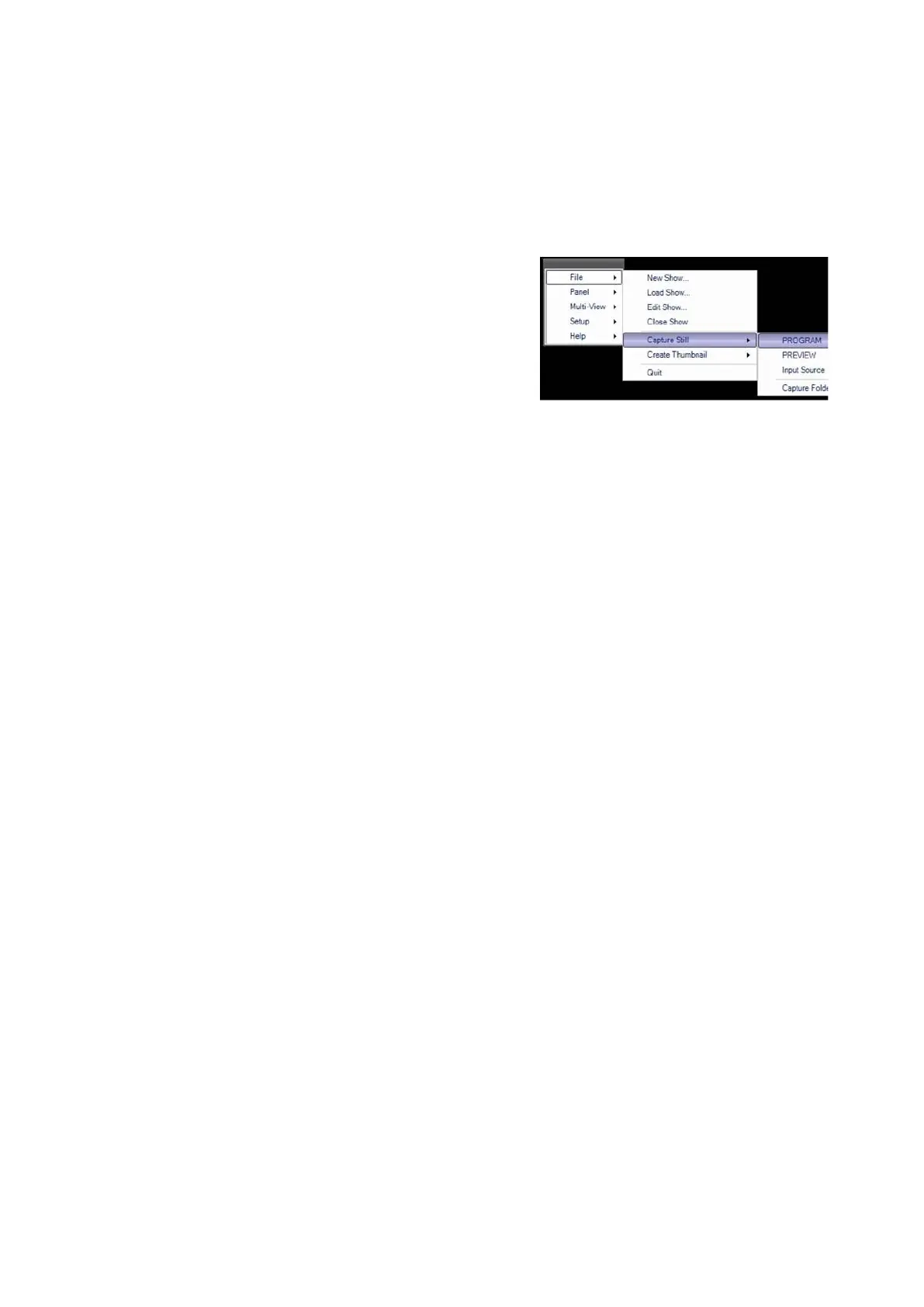
In BPswitcher select the File drop down
menu.
Select the Capture Still menu.
Select the desired output from the available
list Program or Preview to capture a still of
what is currently on that output, as shown on
the right.
Once captured, a pop-up window will appear
to notify you that a still has been successfully
captured. It may take a few seconds for this
window to appear.
Click on the OK button.
A file named preview.bmp or program.bmp,
will be created in the Capture Folder.
If a custom name is used for the output
window, then that custom name will be the
filename.
NOTE: If it is desired to capture more than one still image, it is necessary to rename the file that
is saved to the Capture Folder, since any other captures will overwrite the first one.
To Capture an Input Image
In BPswitcher select the File drop down
menu.
Select the Capture Still menu.
Select the Input Source menu.
Select the desired input source by the
custom Source Name,
as shown on the
right.



 To Next Page