BPswitch Operators Manual
57 / 413
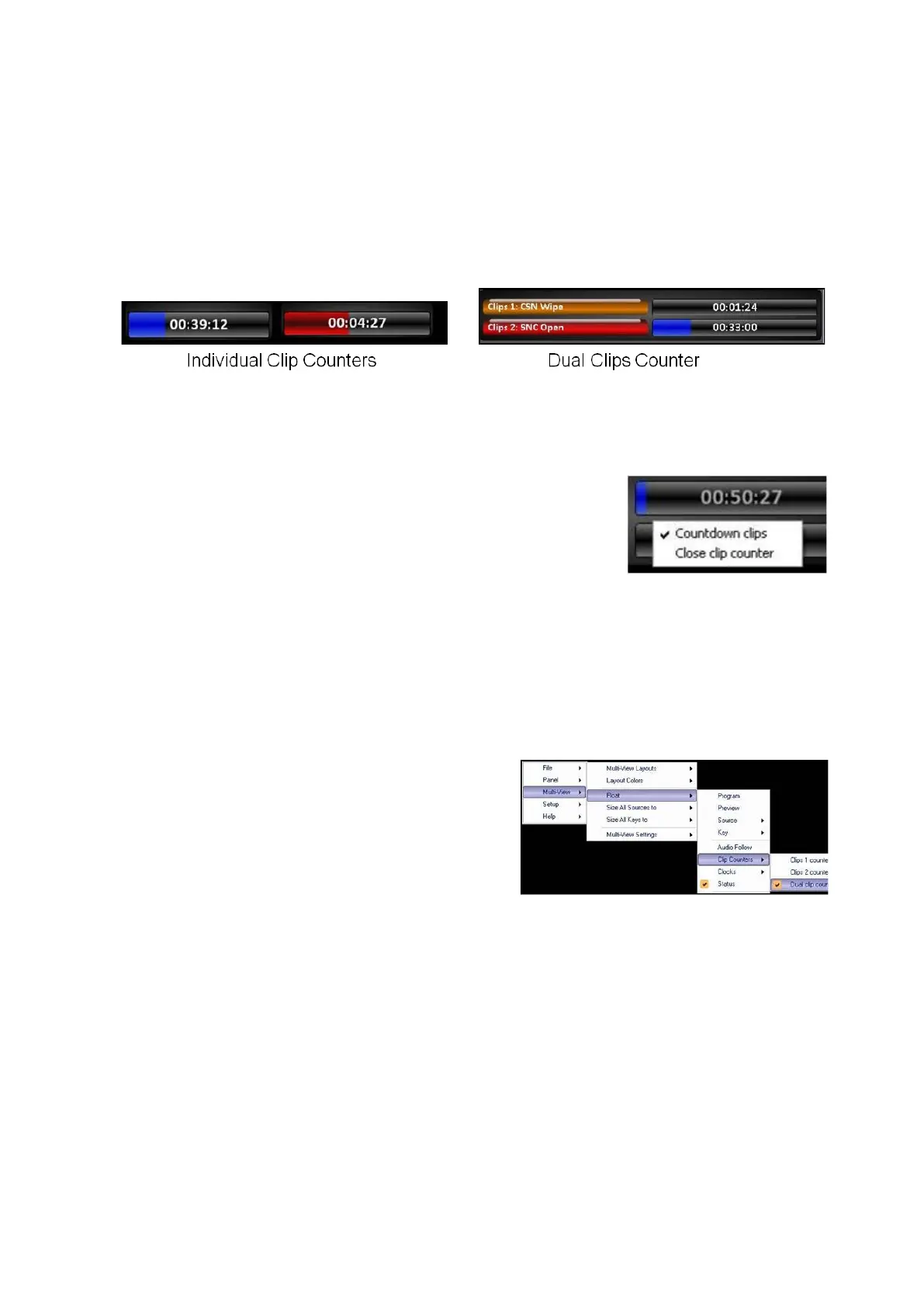
moving blue bar. They can be set to either count up and show elapsed time
(runtime), or they can be set to count down, to show the remaining time in a clip.
Counters will move at one-second intervals, and with 10 seconds left in the clip the
bar will turn red and the counter will move at one-frame intervals.
Clip counters also provide Tally information. Red letters: On Program, Orange
letters: On Preview, White letters: Selected in the device store.
To set the clip counters to count down:
Right-click on the any counter window.
In the pop-up menu, select Countdown
clips
, as shown on the right. A check mark,
now both counters and the counter in the
display of the control panel will be set to
count down. (To return to show the elapsed
time, uncheck the same setting.)
To float individual clip counters:
In BPswitcher click on the Multi-View
menu.
In the drop down menu click on Float.
Click on Counters and in the following
menu select Clips 1 counter, Clips 2
counter and/or Dual Clip counter, as
shown on the right
To hide the individual counters, repeat
steps 1-3.
Switching on the Multi-View
The Multi-View is interactive and can be used to switch a show on a Desktop
model, or as a complement to a panel (SoftPanel or physical control panel). This
can be done with a mouse or with a touch screen monitor for a more tactile
interface.
Basic Switching:



 To Next Page