BPswitch Operators Manual
61 / 413
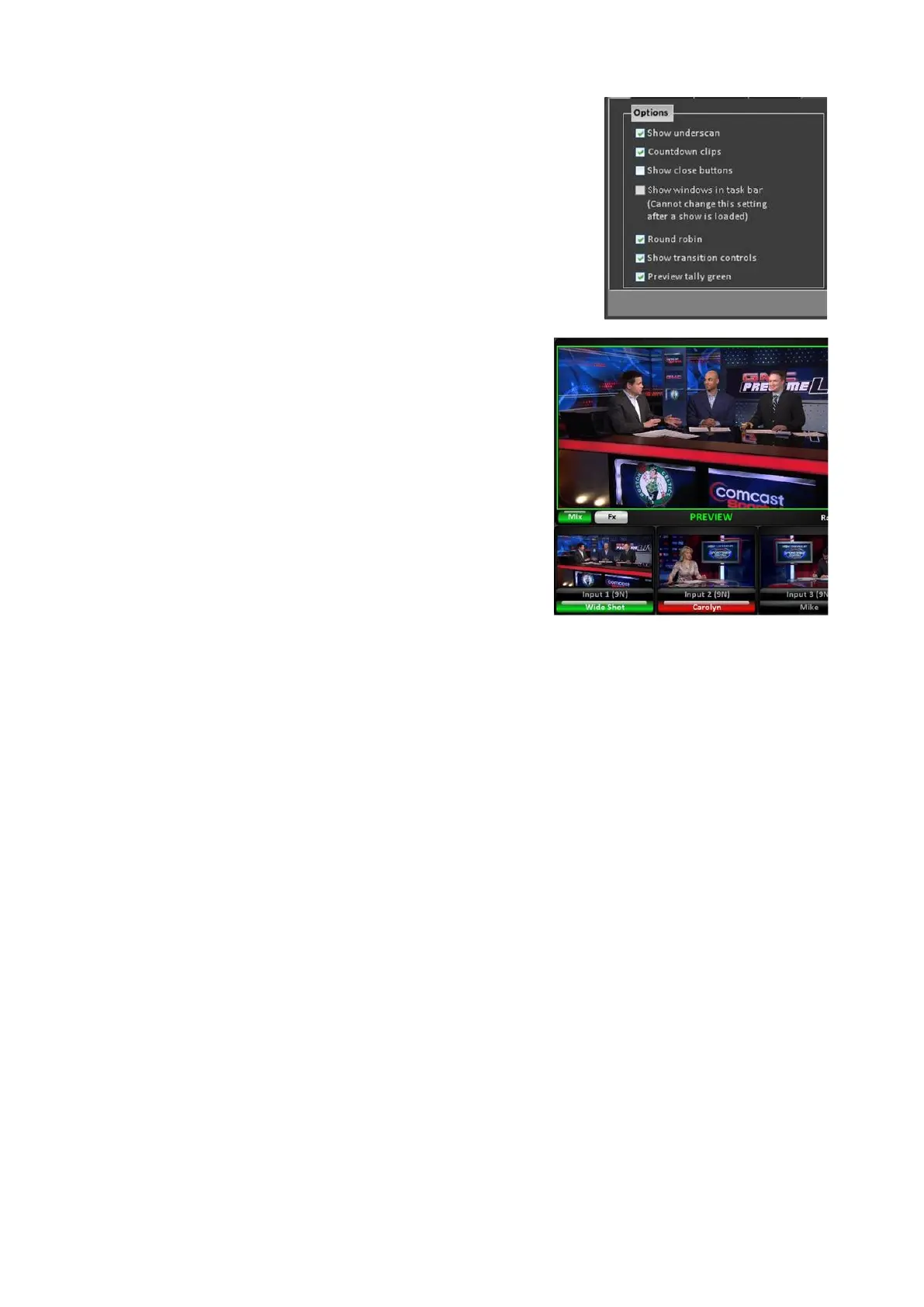
Now all the source monitors, preview
monitors and tally in the Multi-View PixPad
will be green, as shown on the right.
To revert back to orange tally, repeat steps 1-
3 above.
Floating Monitors
In addition to the default layouts, more windows on the Multi-View can be floated,
which serves two purposes when working on a multi-monitor system. Either create
your own custom Multi-View on a large secondary monitor of any resolution, to
replace the default layout that is supplied or float selected windows for a
secondary graphics or
slo-mo operator.
Up to 4 copies of Program and Preview and up to 3 copies of each source monitor
can be floated and sized. You may arrange the windows any way you like, and
then save them for later recall. Each director/producer or each show could have a
custom layout tailored to that specific show. You may use the default layouts as a
starting point and then modify/save them to your needs.
To create a custom layout:
In BPswitcher, click the Multi-View drop
down menu.
Click on Float, as shown on the right.
You will see the list of windows you can
float. Then select the desired items.



 To Next Page