BPswitch Operators Manual
62 / 413
After selecting each item, it will appear,
and then arrange it on your primary or
secondary monitor. Most monitors can be
sized by dragging their corners and
reposition
ed by dragging by the top of the
window.
As source monitors are enlarged the text
size of monitor will also enlarge, to
always use a larger font select the Use
Larger Font option under in the Layout
Tools menu, Settings tab.
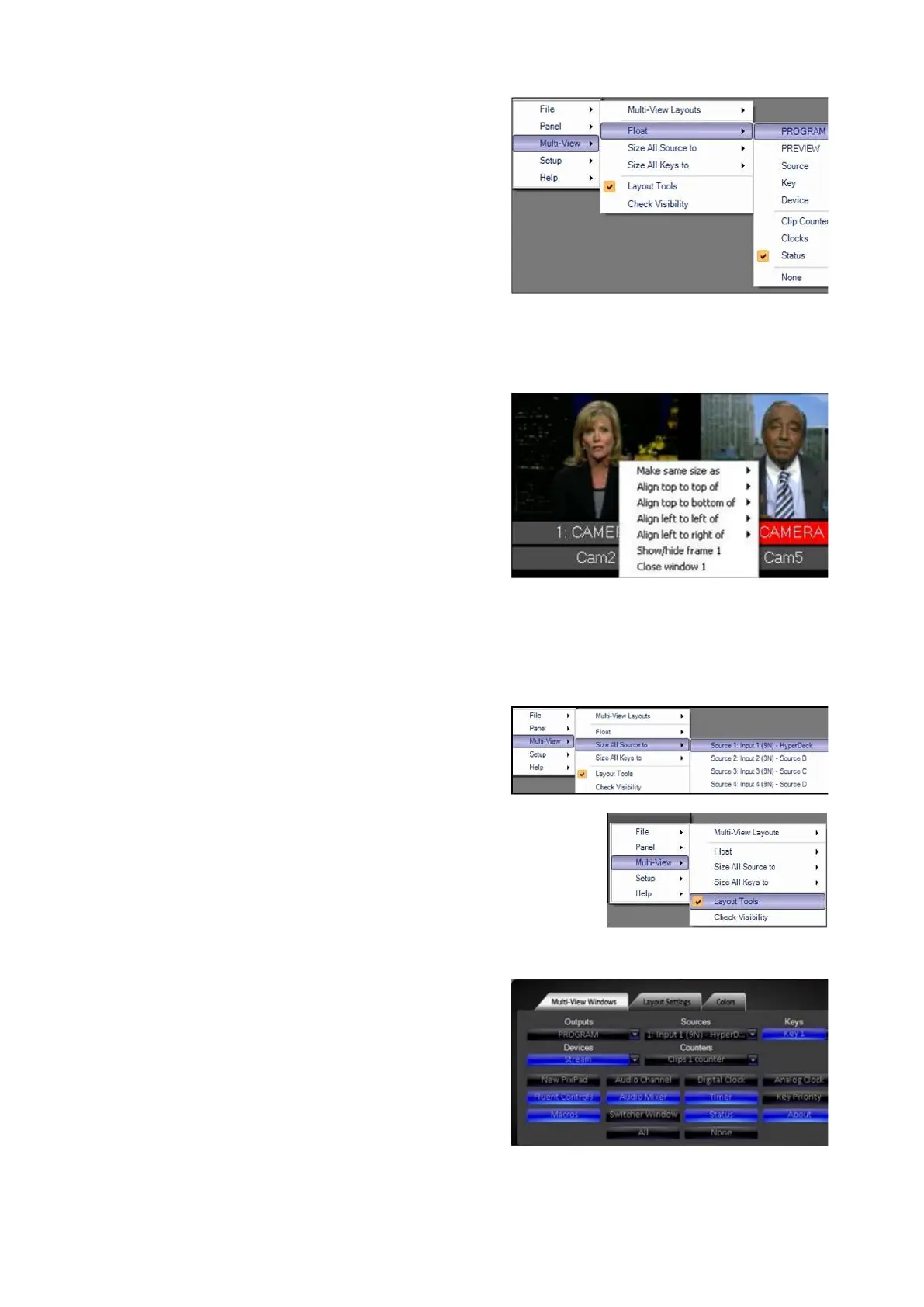
To align or size monitors right-click on the
monitor and select which source you
would like to copy its attributes from, as
shown on the right.
You may also size all the sources to each
other by selecting the Multi-View menu,
then Size All Sources to, as shown on
the right.
A similar option is available for sizing all
Key Windows, select Size all Keys to in
the same menu.
To quickly access multiple windows to
float, without the need of going to the
Float menu every time, click on the Multi-
View, Layout Tools menu, as shown on
the right.
Simply clicking on the desired label will
float the window. Black buttons mean
you can float that specific window, blue
means you have floated that window and
can not float another instance of it.
To make your monitors stand out in your
display, you also have several coloring
options under the Colors tab, as shown
on the right.
To change the background color, select
the Use Colored Background checkbox
(by default this option is checked on).
To change to the color of the



 To Next Page