BPswitch Operators Manual
63 / 413
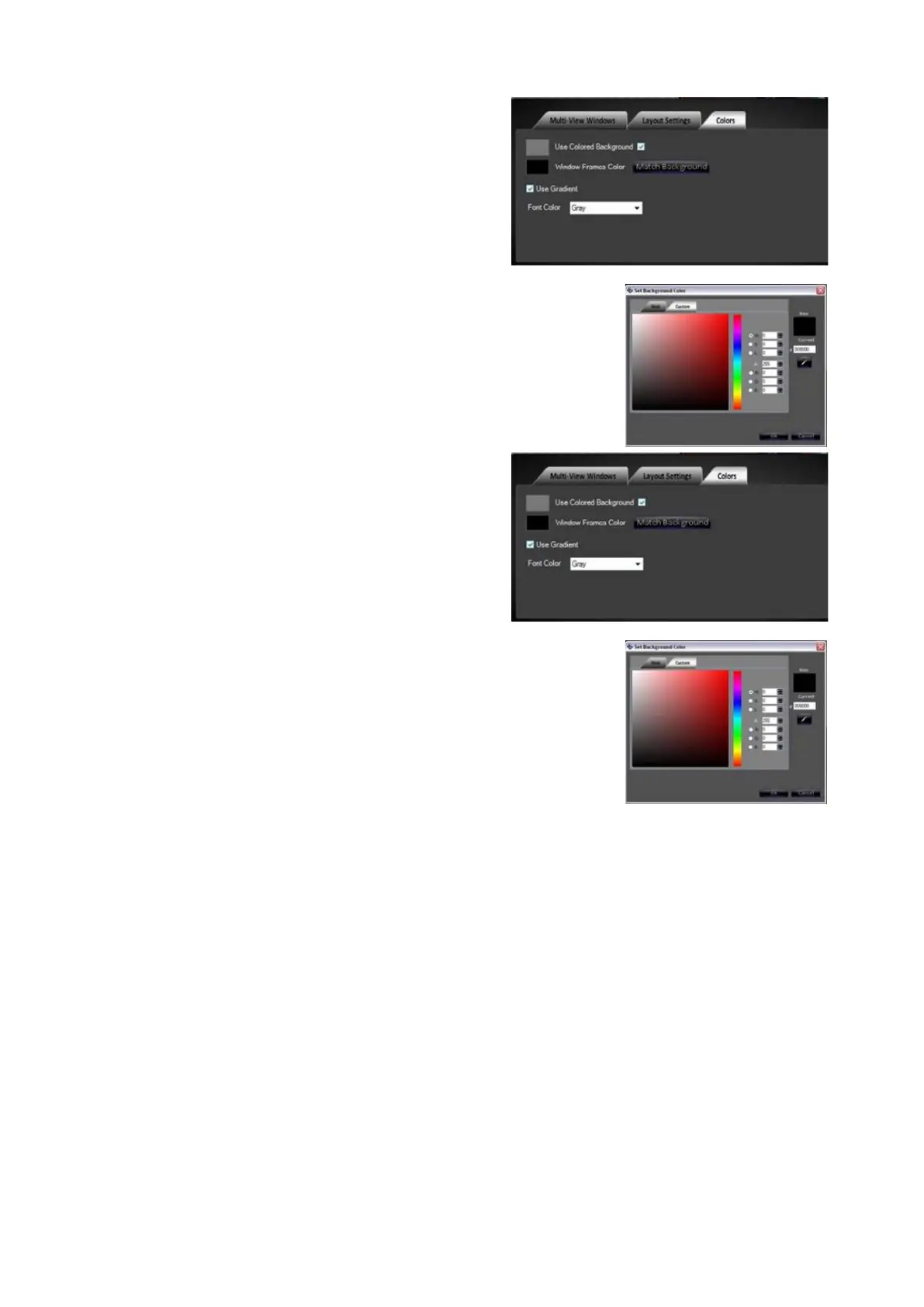
background, click the colored patch and
a color picker menu will appear, as
shown on the right.
Either select a color patch in the Web tab
or select the Custom tab and choose a
custom color. To save the color click on
the OK
button. (The background color will
update once OK is selected, there is no
preview of the background color)
To change the frame color around each
window, click on the Window Frame
Color patch, and a similar color picker will
appear.
In the Set Window Frames Color window
select a color by using either the Web or
Custom tab. As a color is selected the
Multi-View will update to display the color
in the window frame.
To apply the color select the OK button.
The Use Gradient option applies a subtle
glow effect behind each window.
The Font Color drop down menu
changes the font color of the under
monitor displays on the Multi-View to
either Grey, White or Blue.
Once the Multi-View has been modified
to your liking, it may be locked to prevent
any window movement or accidental
color change.
Select the Settings tab, and select Lock
Multi-View, as shown on the right.
Many menu options will also grey out to
prevent selection.
To unlock the Multi-View repeat this step.



 To Next Page