BPswitch Operators Manual
166 / 413
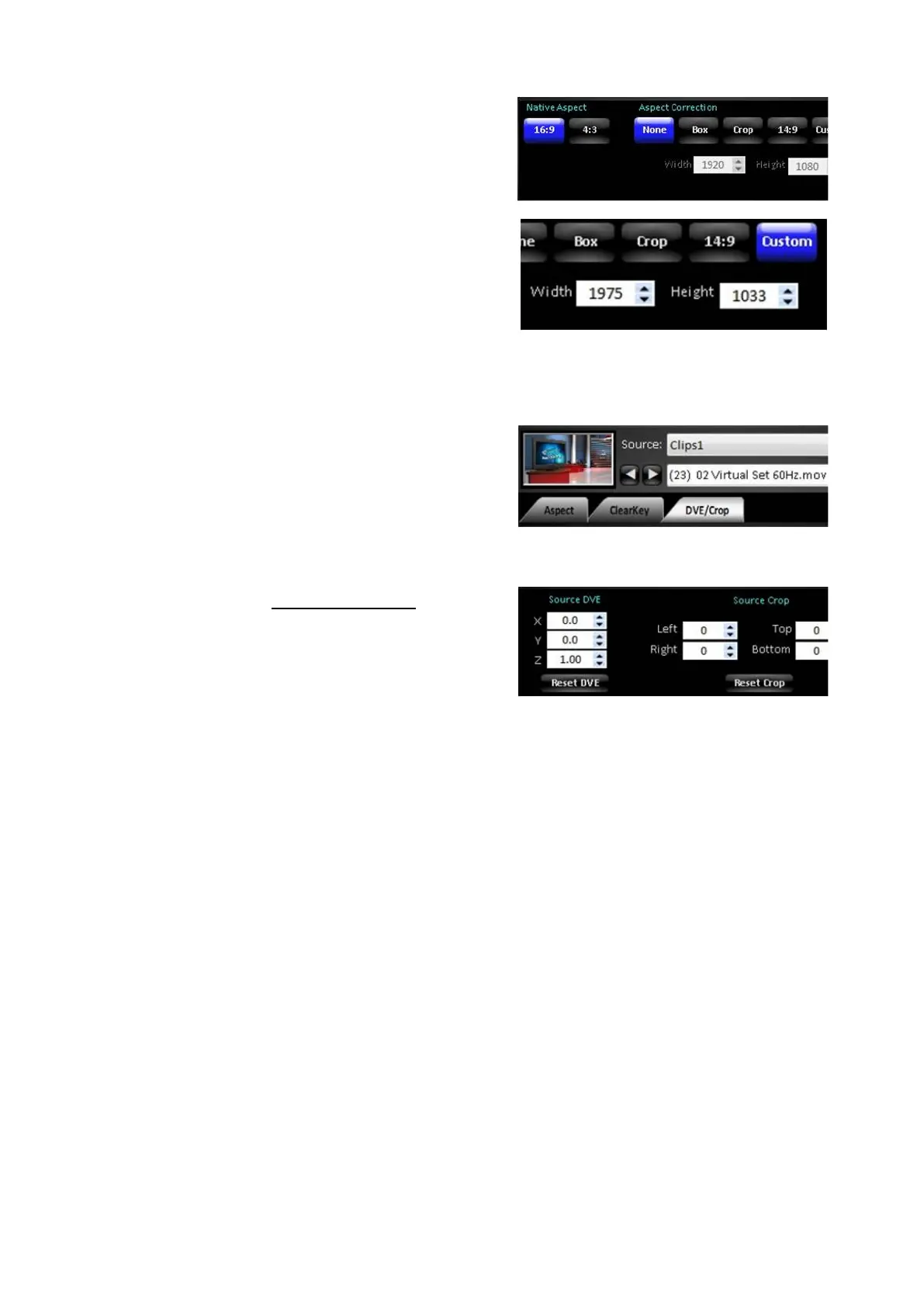
Select a treatment in the Aspect
Correction section, either None, Box,
Crop, 14:9 or Custom.
If the input is set to 16:9, then all
corrections will be ignored, as systems
process video at 16:9
If the Custom correction is selected, enter
the Width and Height values, as shown
on the right.
To change the source controls:
In the Fluent Controls window, select the
desired input to modify by clicking on the
Source: pull down menu.
Select the DVE/Crop tab, as shown on the
right.
As described in Source Controls, adjust
the Source DVE and/or Source Crop
values using the associated text fields, as
shown on the right.
To reset the the Source DVE and/or
Source Crop select the Reset DVE and/or
Reset Crop buttons.
Virtual Studios
Another standard function of the Fluent Controls window is the ability to marry a
background image to a live input with a chromakey, this feature is called Virtual
Studios. Virtual Studios allows for up to 8 different angles, which can be assigned
to live inputs and the 2 clip stores to be married with a static file, without using any
of the resources of the Stills, CG or Logo stores. Each angle can then be saved
with up to 4 different moves, allowing for trackless virtual sets, as if a camera
operator was moving the camera. Once a background is married with an input, it
may be selected on the Preview/Program/Source rows and used as any other
input into the switcher. Virtual Studios is a global attribute which applies to all
shows, but can be turned on or off. All assignments and moves are saved in the
show for unlimited presets.
To activate angles:
Open the Fluent Controls window by selecting



 To Next Page