BPswitch Operators Manual
226 / 413
Auto Rewind
A clip can also be set to automatically rewind to the beginning or the set in point of
the clip. This is useful when you are using a clip multiple times, and want the clip
to always start from that point.
To turn on Auto Rewind:
Select the desired clip, and press the [Controls] button on any Clip PixPad.
Press the [Auto Rewind] PixButton and the letter “R” will be appended to the
clip name in the display to let you know that the Auto-Rewind function has
been turned on for that clip.
NOTE: If a clip has audio associated with it, the audio will cut off once the clip is taken off of
program, if it is desired to be able to keep playing the audio once transitioned off, deselect Auto-
Stop.
Loop Clips
When a clip reaches its end, it stops. If instead you wish to have the clip return to
the beginning and start playing again, then you can turn on the loop function,
which will cause the clip to continuously loop. If you have mark points in place,
then the clip will loop between the mark points. This is ideal when creating
animated backgrounds, instead of creating a long animation (which takes up hard
drive space), create a shorter one and have it loop. In addition, looped clips may
also have a third mark point, called a Loop Point, which is set between the mark in
and mark out points. The Loop Point is useful in animation playback where the
initial portion of an animation flies in from off screen, then loops to a point other
than the beginning of the file.
To set a clip to loop:
Select the desired clip, and press the [Controls] button on any Clip
PixPad.
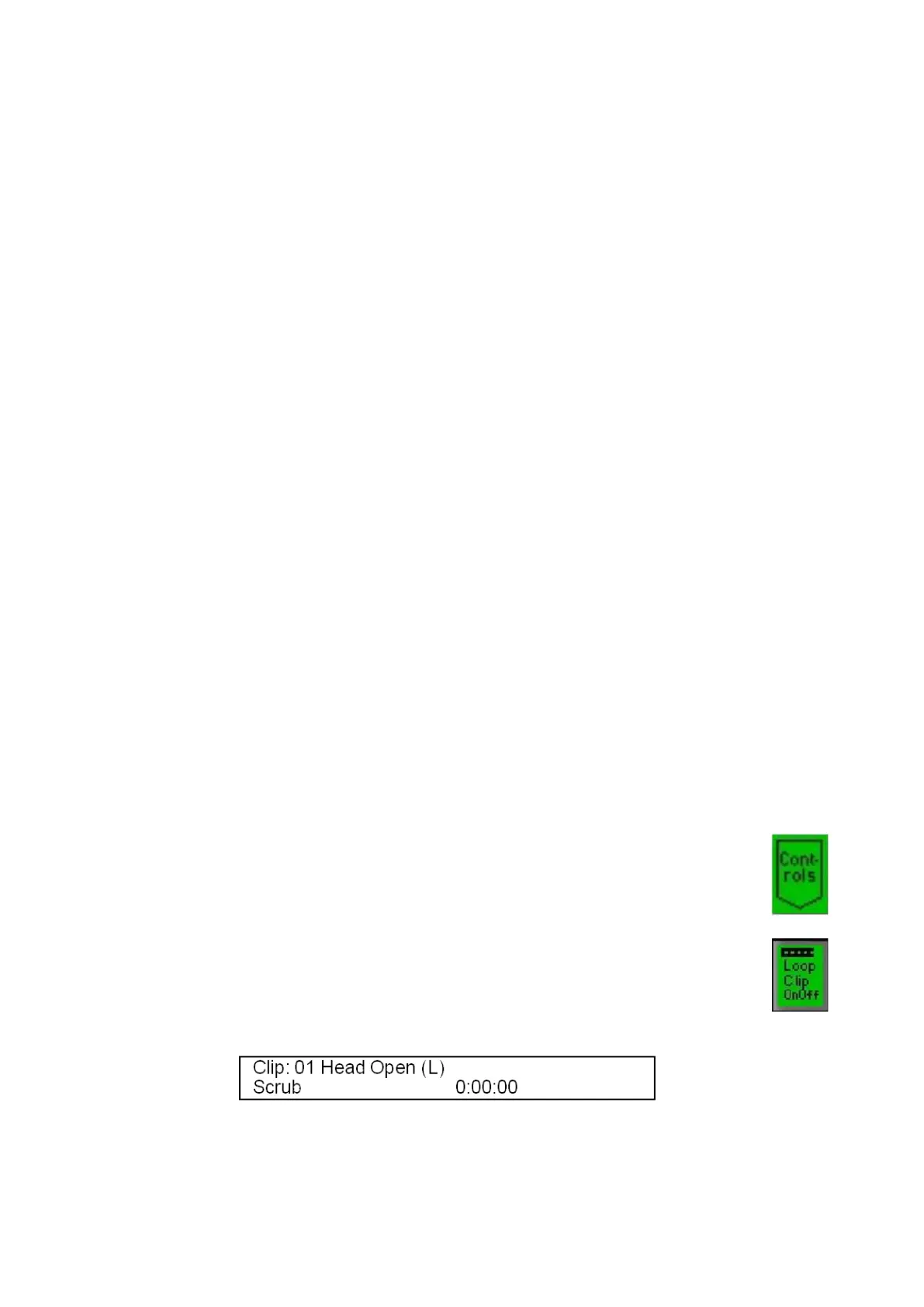
Press the [Loop OnOff] PixButton, and the letter “L” will be appended
to the clip name in the large display to let you know that the Loop
function has been turned on for that clip, as illustrated below (if mark-in
and out points are also set, then “LIO” will appear).
To set a loop point:
Play or scrub the clip to the desired loop point.



 To Next Page