BPswitch Operators Manual
195 / 413
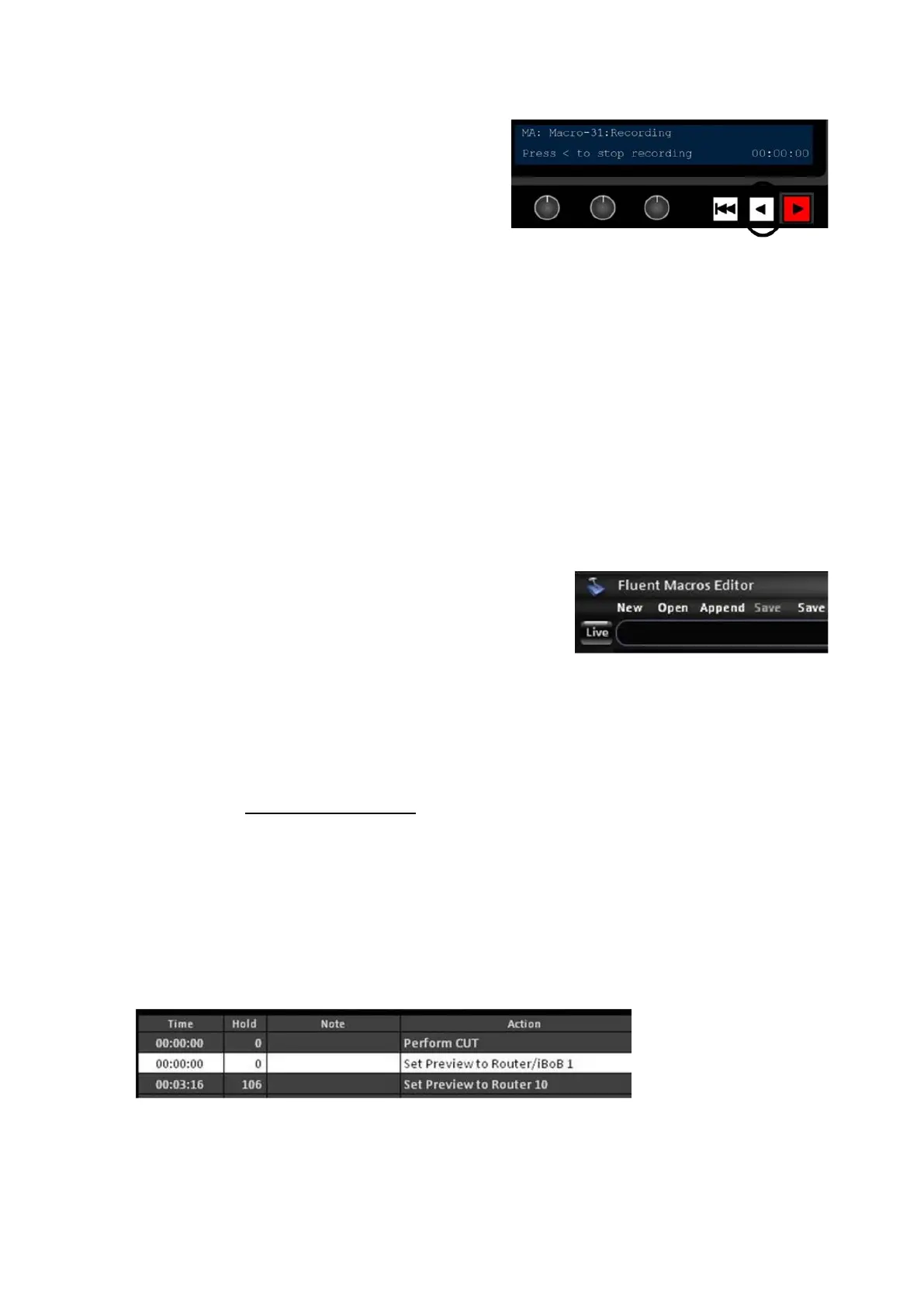
Select the [Back] motion control button to
stop the recording, as shown on the right.
Alternatively, you can use the [MEM Stop
Record] PixButton if it is visible.
The Play motion control button will turn off
and the display will read out Recording
ended
Editing a Macro
The Macro Editor can display only one active macro at time, allowing for only one
macro to be edited at a time. After a macro has been recorded it can be opened in
the Macro Editor to be modified. Once in the Editor, the Action List may be
reordered and modified, new commands can be inserted and the timing of each
command can be adjusted. All the editing is done in the Macro Editor with the
keyboard and mouse.
To load a macro in the Editor:
In the Macro Menu Bar, click on the Open
button, as shown on the right, or click on the
Menu and select New…
An Open pop-up window will appear.
Select the desired macro (.tln file) to edit and
click on Open.
Note if you record using the Macro Editor, as
described in Recording a Macro, the macro will
automatically be opened in the Action List, in this
case Steps 1 and 2 are not needed.
To modify a macro command:
Select a step in the Action list with the mouse, as
shown below.
The step will highlight white and the Details Panel will
display the editable fields of that command, each
command will have slightly different panel.



 To Next Page