BPswitch Operators Manual
160 / 413
preserve magenta hues.
Keep Cyan (Mode 4): Works with the amount of spill suppression removed, but
preserves cyan hues in the opaque areas of the image.
Mask: Shows the matte of the image being keyed out and is useful when adjusting
the Brightness and Contrast controls. Dark blue signifies the part of the image that
will be completely removed/transparent. Yellow signifies the part of the image that
will be preserved as it is opaque. Grey areas will be slightly transparent, allowing
you to see through the image, i.e. for smoke, glass or shadows.
Adjusting ClearKey
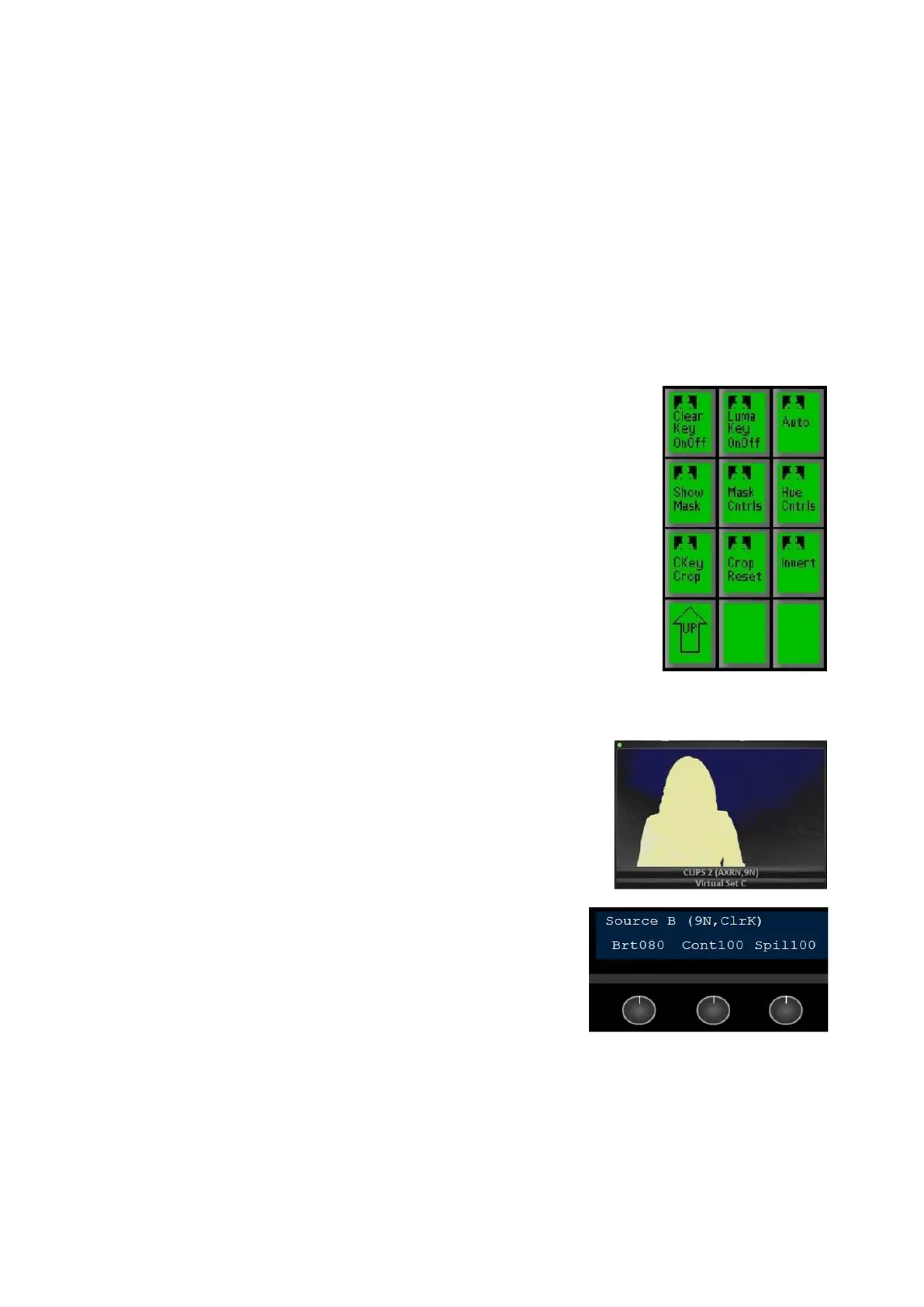
Assuming that all the steps in section 4.7.1 have
been completed, the PixPad should display the
ClearKey Controls menu, as shown on the right.
To view the matte of what is being keyed out,
press the [Show Mask] PixButton, as shown on
the right.
NOTE: This step should only be done in preview
or in pre-
production, as your output will display the
mask.
The video on the Multi-View and output will
display blue, yellow and grey tones, as shown on
the right.
Press the [Mask Cntrls] PixButton, and the
display will change to show Brightness (Brit),
Contrast (Cont) and Spill (Spil) controls, as shown
on the right.
Turn the [1
st
knob] for Brightness until the
background is as blue as possible, signifying that
the background is completely transparent.
Turn the [2
nd
knob] for Contrast until the
foreground is as yellow as possible, signifying that
your subject is opaque and will not be keyed out.
NOTE: Brightness and Contrast interact with each
other, any big change in one control may need to
be compensated in the other
To turn off the mask, press the [Show Mask]
PixButton, and your video will now return and you
should see keying over a background in your



 To Next Page