BPswitch Operators Manual
21 / 413
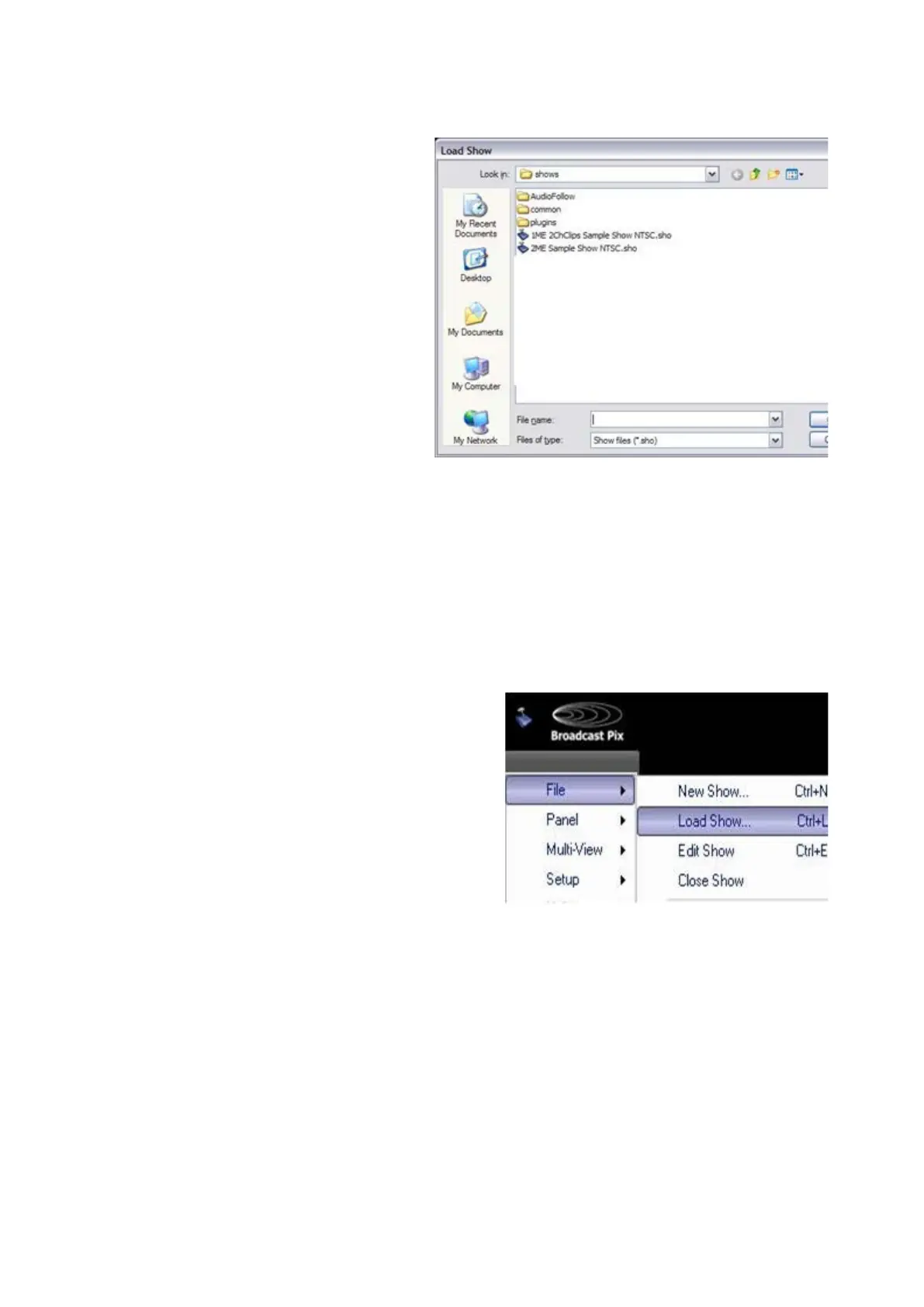
The Load Show window will
appear listing the available
shows, as shown on the right.
Select on one of the listed shows,
on a new system select the Flint
Sample Show 60 or 50 Hz,
based on the Video Standard
selected in the previous steps.
Click on the Open button.
A video initialization progress
window will appear, please wait
unit the Multi-View is loaded with
video, this may take a few
minutes.
Once the progress window
disappears you are now ready to
start using your BPswitch System.
To Change what Show is Running:
In BPswitcher, click on Broadcast Pix
menu icon.
Select the File menu, then select Load
Show…, as shown on the right.
The Load Show window will appear with
the various saved shows. Select the
desired show and click on Open.
System Status
The default Multi-View always displays a status bar with an indicator light, as
shown below. If it is green all is OK, if not (Red) click on the status light, which will
bring up the Status Tab on the Multi-View and the following detailed status window
will appear.



 To Next Page