BPswitch Operators Manual
389 / 413
To return to an unlocked state, click on Locked Panels again on the same
menu.
NOTE: On the above menu, if you select Force Disconnect, a window will appear which shows
each of the panels’ IP address that are currently connected. You can then select one and force it
to disconnect.
Viewing Just a Portion of the SoftPanel
You can make a SoftPanel larger or smaller by enlarging or shrinking its window
as you would for any Window. In two person operation it is often desirable to
shrink not just the overall size of the SoftPanel, but to also reduce the portion of
the SoftPanel shown, for two reasons:
Space: To conserve real-estate on the VGA monitor. For example, this
allows the graphics operator to have the necessary portion of the SoftPanel
displayed at all times, without taking too much room away from the Inscriber
GUI.
Authorization: To avoid the second operator pressing a button on the
SoftPanel which the control panel operator may not want them to have
access to. For example, if the program and preview sources are not shown
on the graphic operators monitor, then they can not be inadvertently pressed
in the middle of a live show.
To display just a portion of the SoftPanel:
Position the cursor in the middle of the area of the SoftPanel you wish to
keep.
For example, you may want just the PixPad, or the PixPad and the Key
PixButtons below it.
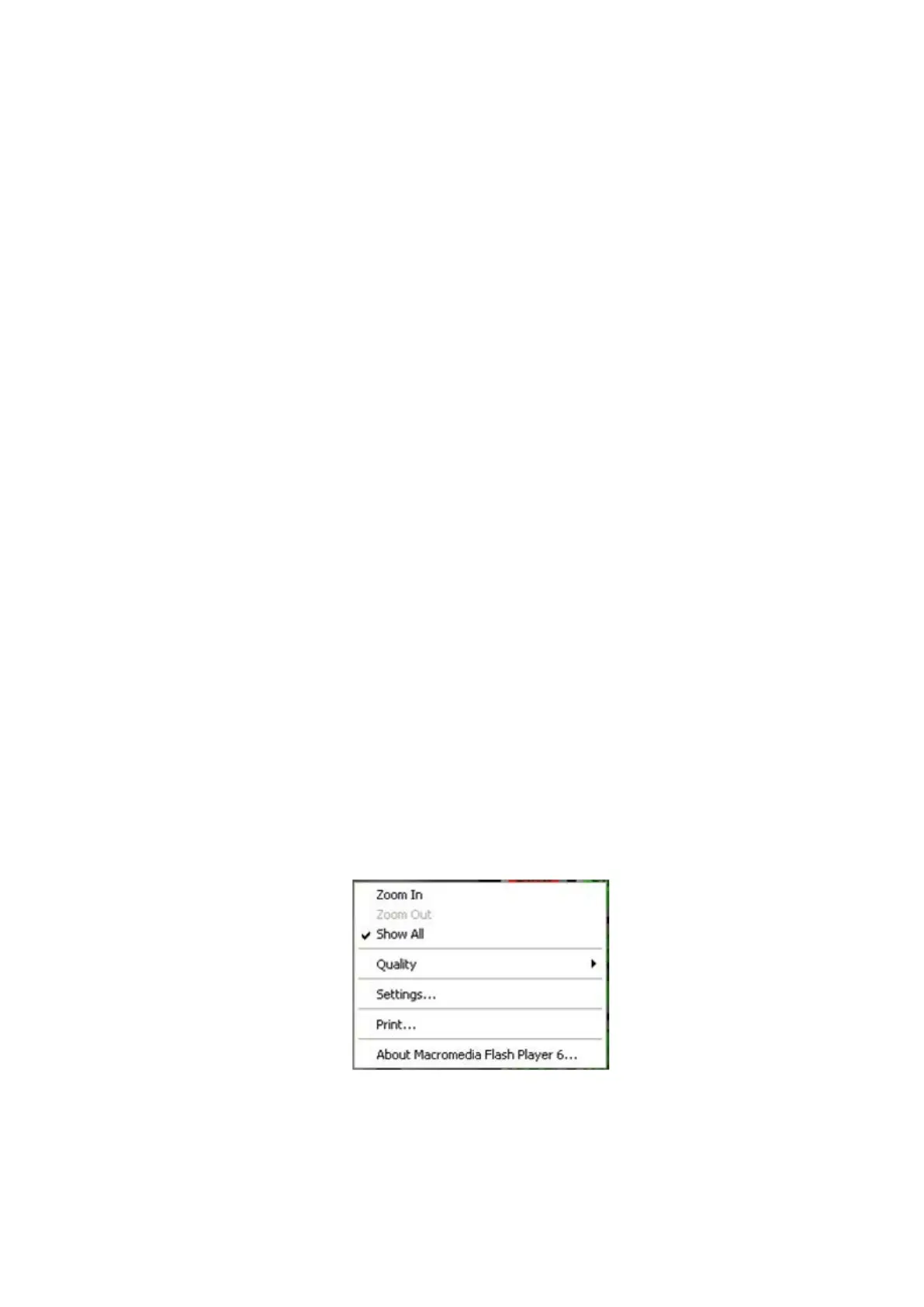
Right-click, and the following drop down menu will appear
Click-on Zoom-In, and then just a portion of the panel will be shown.
The resulting portion of the SoftPanel can then be sized and positioned like any
other window. (To return to the full panel, right-click and click-on Show All)



 To Next Page