BPswitch Operators Manual
325 / 413
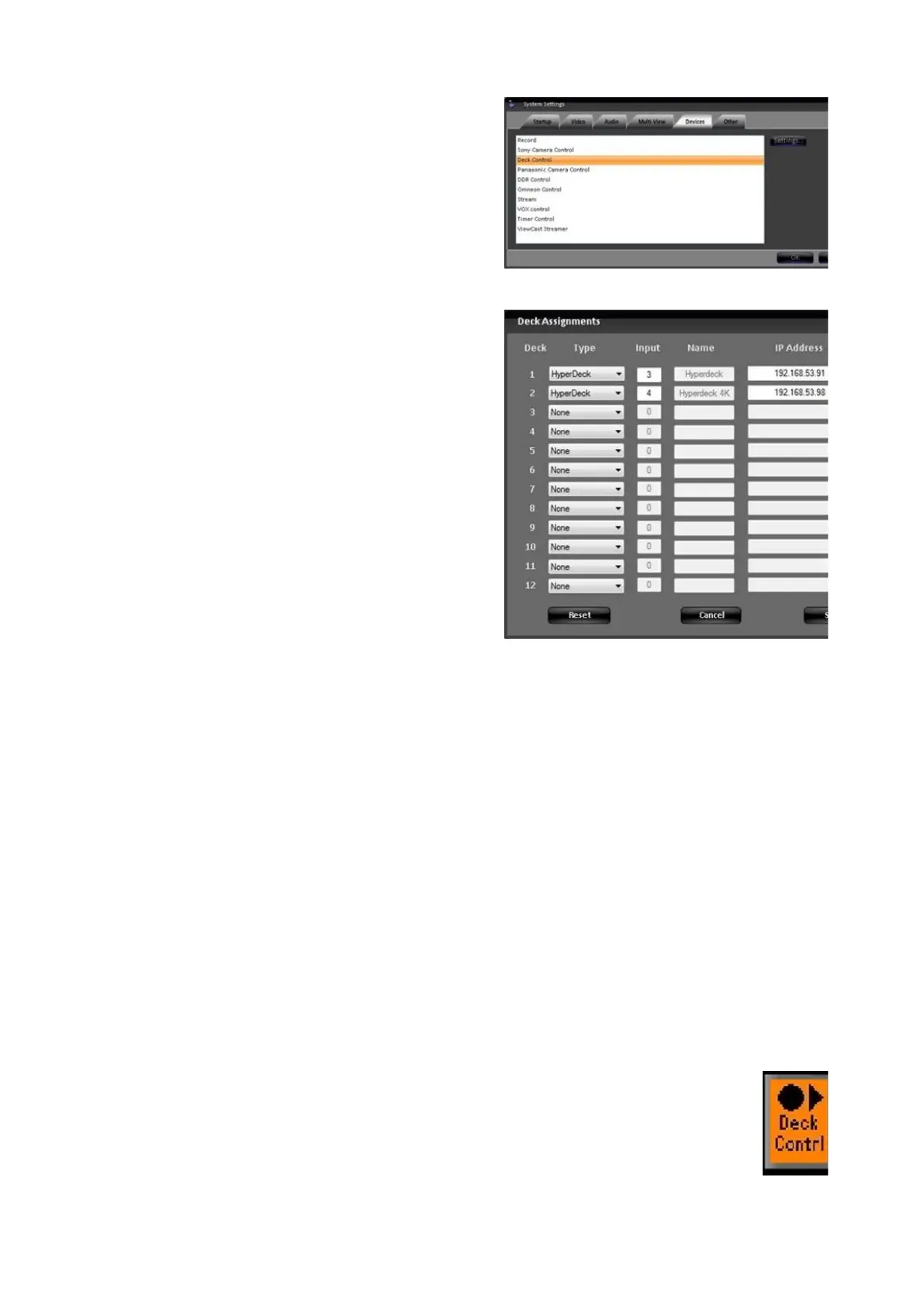
In the list of enabled devices select Deck
Control it will highlight orange and select
the Settings… button.
The Deck Assignments window will
appear as shown on the right.
Enter the IP Address of each deck in the
IP Address text field, the . (periods) are
necessary, as shown on the right.
Up to 12 IP addresses may be added, as
each number is entered the system
attempts to verify if the connection is
valid, this may result in a slight delay as
numbers are entered.
For each deck, select the make of the
deck under the Type drop down menu,
select either None, KiPro or HyperDeck
,
as shown on the right.
For each deck, enter the BPswitch input
number in the Input text field. Once
entered, the name of input assigned in
the BPswitch Input Assignments will
automatically be generated under the
Name text filed.
To enter a different custom name, enter 0
and then enter a name under the Name
text field.
Click on the Save settings and close
button to save the changes.
Click on the OK button in the System
Settings window to close it.
Selecting Deck Control in a Production
To assign the device controls to Deck Control:
Press the [Deck Contrl] wildcard [Device Selection] PixButton and it will
illuminate orange and the following device controls will be appear.
Deck Control device controls:



 To Next Page