BPswitch Operators Manual
16 / 413
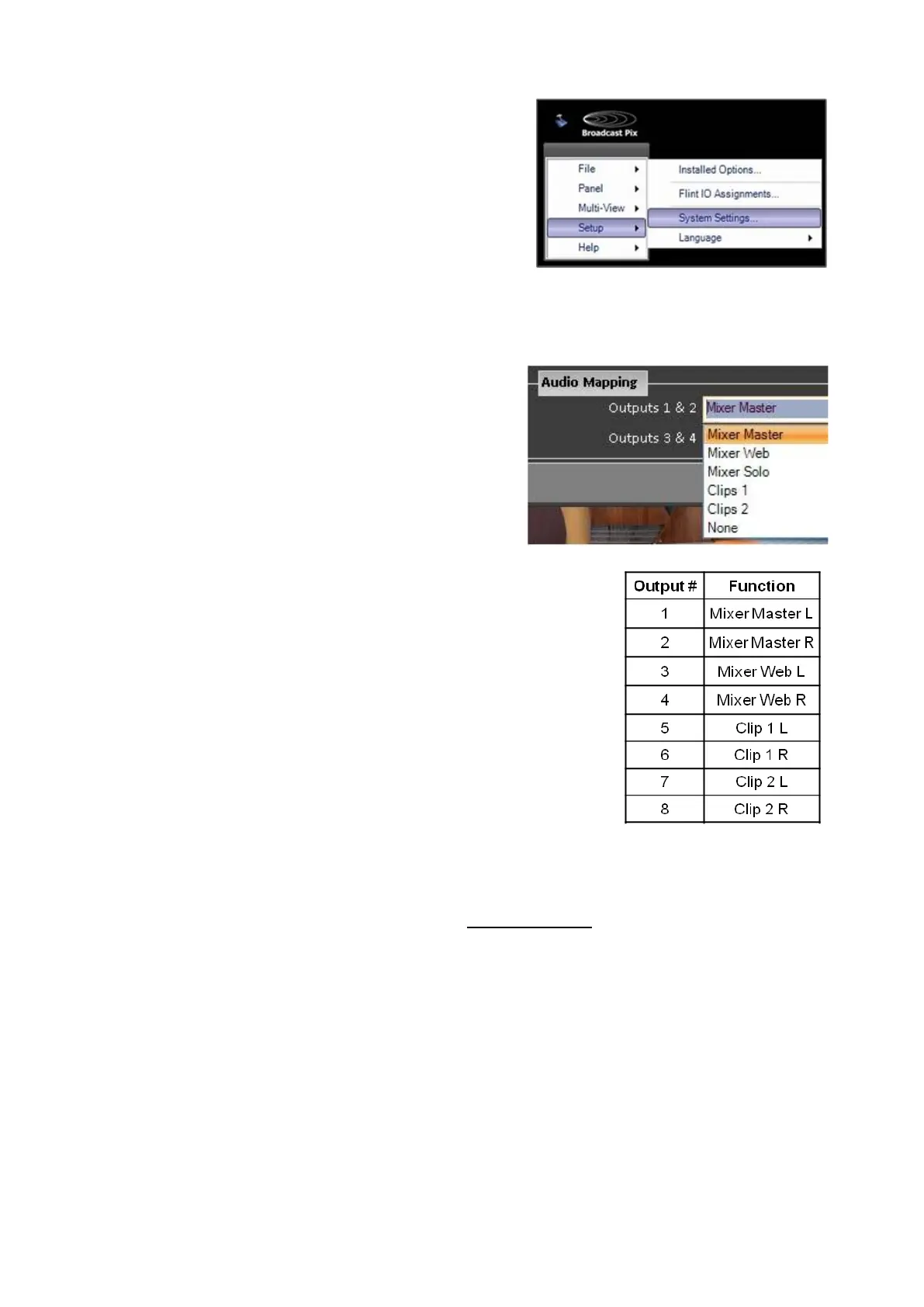
In BPswitcher, click on Setup and a drop
down window will appear, then select
System Settings… as shown on the right.
The System Settings window will appear.
In System Settings window, click on the
Audio Tab, which will bring up the various
audio settings.
Under the Audio Mapping section, select the
audio output type for each output: Mixer
Master, Mixer Web, Mixer Solo, Clips 1,
Clips 2, or None, as shown on the right.
LE models have 2 outputs & LS models
have 8. This mapping also represents what
audio is outputted on the embedded
streams.
To the right is the default mapping.
Clip Audio Advance
The audio output from the FX/RX System is in time with the clip/animation video,
since all FX/RX Systems have delay (see System Delay), the clip audio may need
to be advanced to compensate for any downstream delay added by the user. For
example in a studio environment, you may choose to delay your master audio
output from the audio mixer by the total amount of video processing delay, i.e. 200
ms, in this case the clip audio will need to be advanced separately by another 200
ms or 6 frames. In installations where each audio line has its own delay, like on
many newer digital audio mixers, then the clip audio will not need to be advanced.
This setting only affects external audio, any internal mixing will ignore this setting.
For the analog audio output, you can also change the gain of outputs 1 & 2 and 3
& 4 independently. This is ideal when feeding audio equipment that can not easily
control the gain of the audio or if the audio of the clip/program output is too soft or
too loud. The digital/embedded audio will not be affected by this setting.



 To Next Page