BPswitch Operators Manual
277 / 413
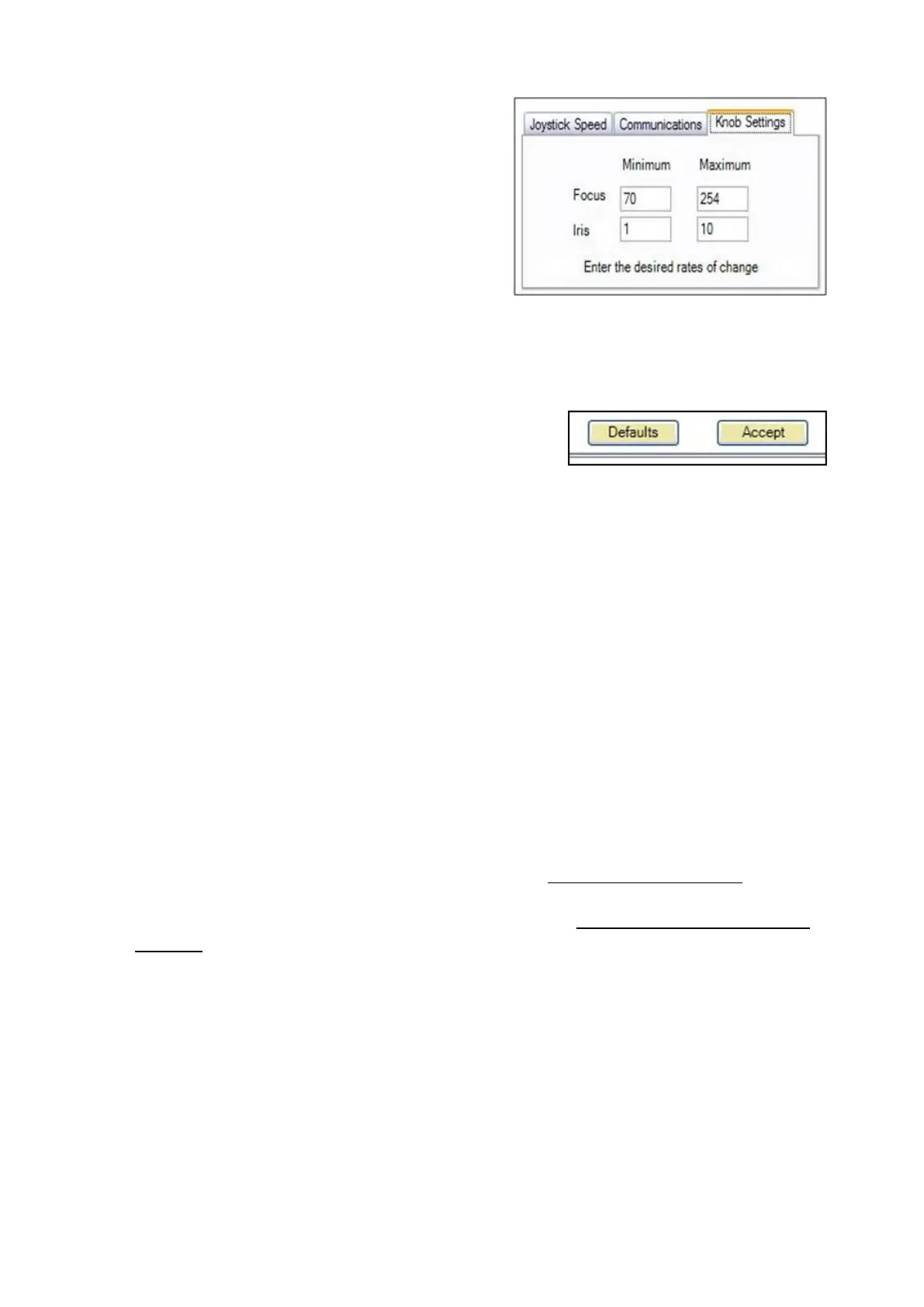
To change the Focus and Iris speed
controls, select the Knob Settings tab
and enter the minimum and maximum
values for Focus (knob 1) and Iris
(knob 2).
You may enter a number from 1-254 for
focus and 1-10 for iris. These values
dynamically change, the faster the
knob is turned the maximum number is
used, the slower the the knob turns the
minimum value is used.
To save and apply these settings, click
on the Accept button.
You can return to factory speed
settings by clicking on the Defaults
button.
In the System Settings window, click on
the OK button to close the window.
Setting Camera Numbers for Hitachi Camera Control
After installation is complete, you need to set the address of each Pan/Tilt head.
All Eagle Pan/Tilt heads are set at the factory to have the addresses remotely
programmed. If you have trouble with anything in this section, go to the Display
Devices Operations and Instruction Manual and be sure your head is set to remote
address control.
To assign numbers to each camera:
Create a Broadcast Pix show, as described in Creating a New Show.
Add camera control to that show, as described in Adding Camera Control to
a Show.
Decide what address each Pan/Tilt Head is going to be. In order to set the
address of the head, the panel sends out a command to all connected heads.
So in order to get the correct address to just one head, all of the other heads
not being programmed need to be powered down, by unplugging them.
On the control panel, press the [Hitachi Camera Control] device button, and
then the PixPad will show 9 Cameras. For this operation it makes no
difference which one you press, so press any one of the nine.
On the next PixPad press [Settings]. On the next PixPad press [Next]. On



 To Next Page