BPswitch Operators Manual
97 / 413
may take extra time to arrive in the Broadcast Pix Show.
Resizing and Softening Images
When content is imported it can either come in as is, or the images can be resized
and softened upon import. This is particularly useful when you are treating
graphic images such as PowerPoint slides for video presentation or when
importing photos from a digital camera.
To Resize and Soften:
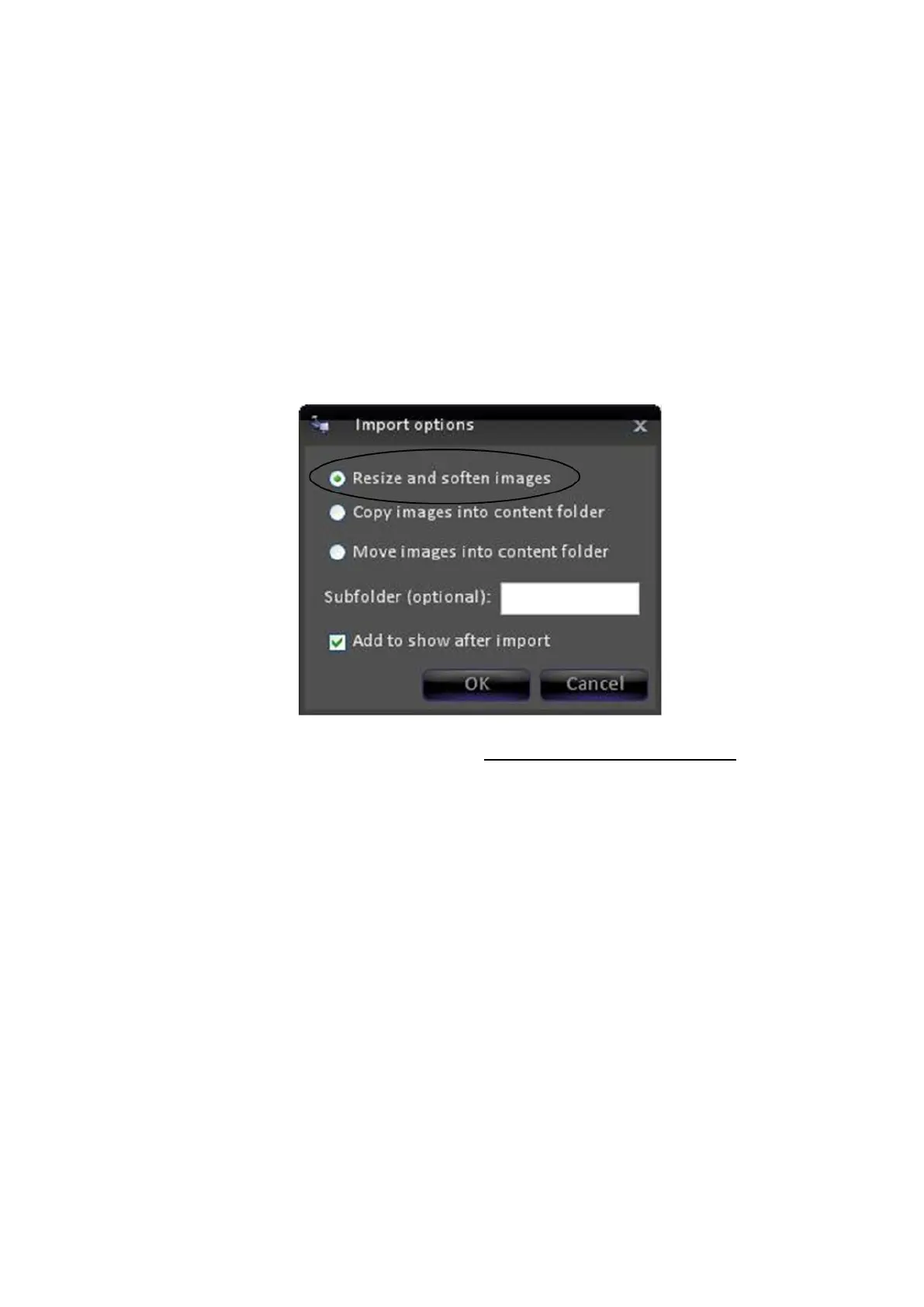
Click on Import Content button, and the “Import options” window will appear.
To resize and soften click on Resize and soften images, as shown below.
Proceed with the import as before, see Manually Importing Content.
NOTE: When the Resize and Soften function is selected, the file(s) will automatically be copied to
the folder,
there is no need to select Copy or Move.
Previewing Content
At any time you can see a large thumbnail of any content element in any device.
This is handy if the filename doesn’t represent what the content is and you would
like to verify if the content is correct. All thumbnails are still images, the thumbnail
for a clip or animation will show you the first frame of video. In addition, you may
see all the thumbnails for all the content in the content organizer.
To preview individual content:
In either the Entire Library or Show Contents side of the window, select the
item you wish to preview by right-clicking
on it with the mouse, and the word
preview will appear.



 To Next Page