BPswitch Operators Manual
212 / 413
To resume running the macro, select the
[Play] button in the motion control
section of the control panel.
The button will illuminate red and the
display will notify you that the macro is
playing.
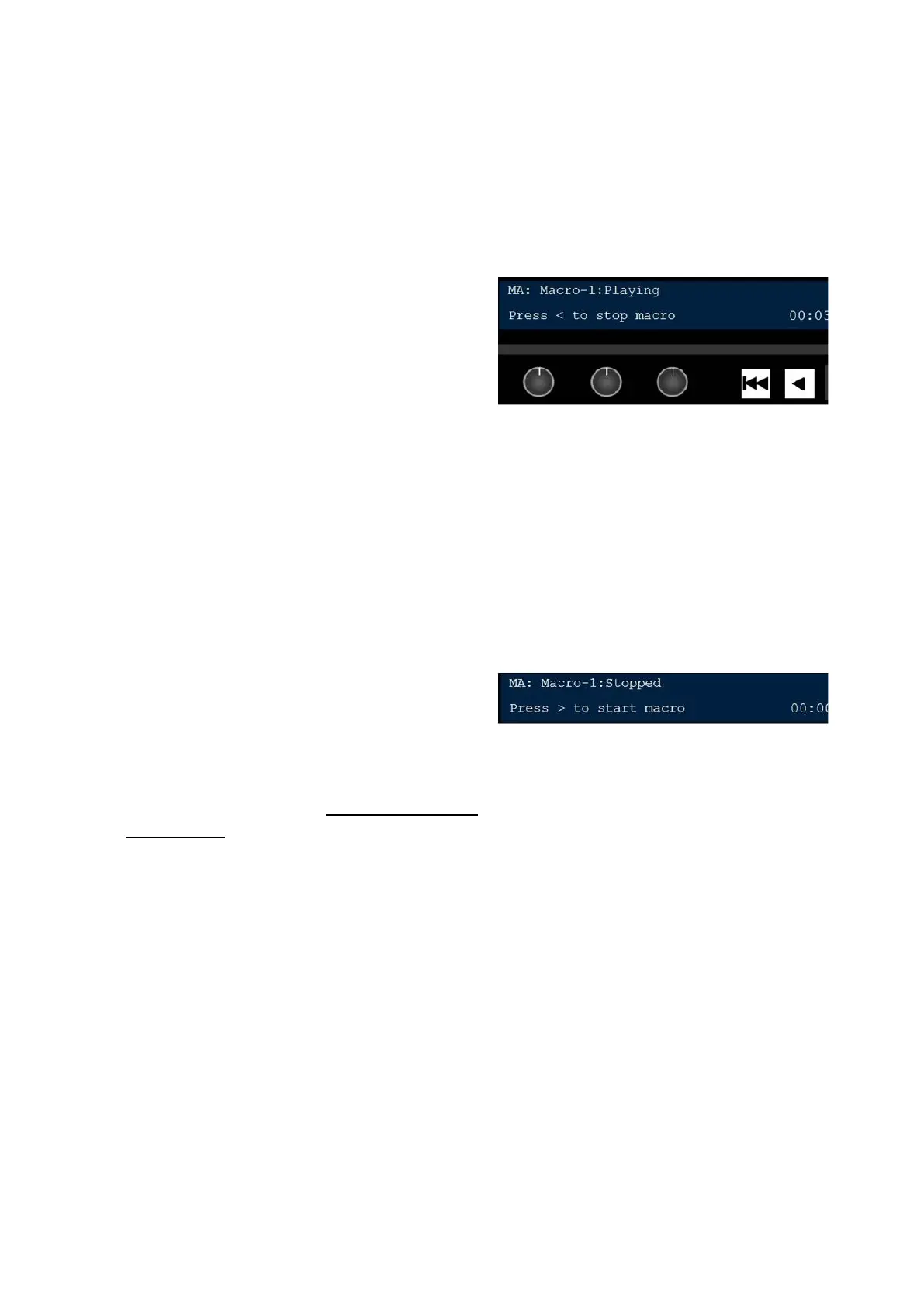
If the macro is running, the display will
notify you that it’s playing and the Play
button will be illuminated red, like the
example to the right.
To pause the macro, select the [Play]
button in the motion control section of
the control panel.
The button will illuminate orange and the
display will notify you that the macro is
paused.
To stop running the macro, select the
[Back] button in the motion control
section of the control panel.
The display will notify you that the macro
has been stopped, as shown on the
right.
Macros can also be trigger by the
numeric PixPad, similar to a SnapShot
MEM, as described in To Recall a Mem
by Number.
NOTE: Only one Macro at a time may be played out. Selecting a Macro while one is playing will
stop the Macro. However if a Macro is playing and a 0 –timed SnapShot memory is selected the
Macro will continue to play.
Playing Back Files Not in Shows
Due to the file-based architecture of Fluent Macros, it can play back any graphic or
clip file that lives in the graphic or clip directory, even if that file is not in the active
show. This feature reduces the risk of incorrect content being played back (e.g.
clips for openers, bumpers and alpha wipes). In addition, it allows more advanced
users to create Macros for novice users without the worry of incorrect playback.
Since only files in a show can be modified from the control panel, files not in a
show are played backed as they were created/modified with a macro. In this case



 To Next Page