BPswitch Operators Manual
211 / 413
Macros and SnapShot Mems are set to Auto Start
by default, to manually trigger the start of a macro,
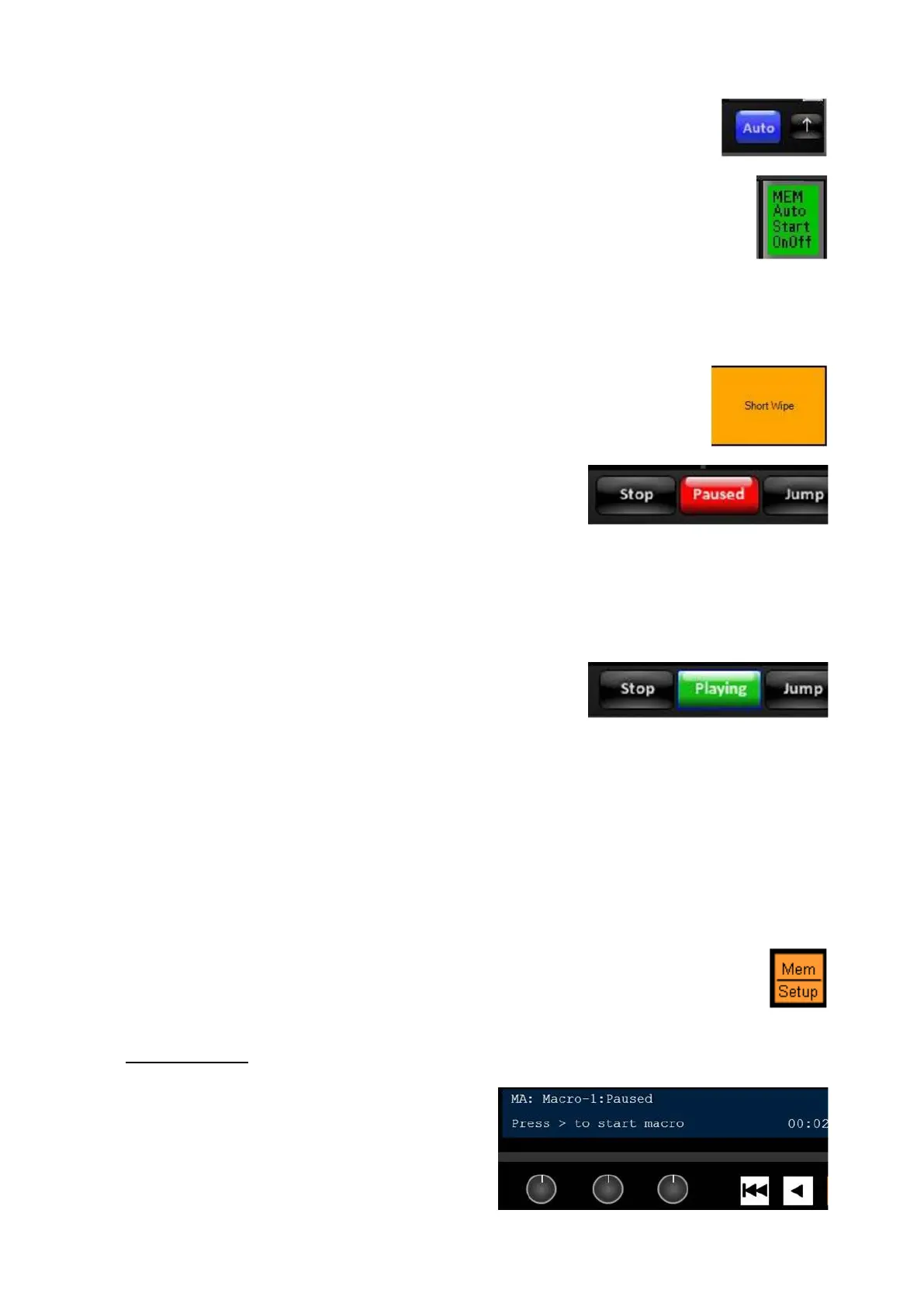
click on the Auto button in the Control bar next to
Details Panel.
The button will turn to grey. To turn Auto Start
back on, click on the Auto button and it will
illuminate blue.
The control panel has a similar function for
triggering SnapShots and Macros from the panel.
If a macro has a user-defined Pause point, the
Macro button will turn to yellow and start to blink
once the pause point is reached.
To resume a paused macro, click on the Macro
button in the bank or click on the Paused button
in the Control Bar.
To skip a step or a series of steps click on the
Jump button in the Control Bar. The macro will
ignore the timing/hold duration and continue to the
next step.
To pause a macro at the current step, click on the
Playing button in the Control Bar.
The button will turn to a blinking red Paused
button, clicking on Paused again will resume the
macro.
To end the macro entirely, click on the Stop
button in the Control Bar.
To control a macro from the control panel:
Select the [MEM] device control button.
The display will read out the active/last
triggered SnapShot or Macro memory.
To add Macros to the MEM device, see
Show Macros.
If the macro is paused the display will
notify you that it’s paused and the Play
button will be illuminated orange, like the
example to the right.



 To Next Page