BPswitch Operators Manual
379 / 413
Depending on how the audio sources are
mapped, a different video source may be
assigned to the audio channel, this video
source is what will be used when the Audio
Follow Video button is turned on.
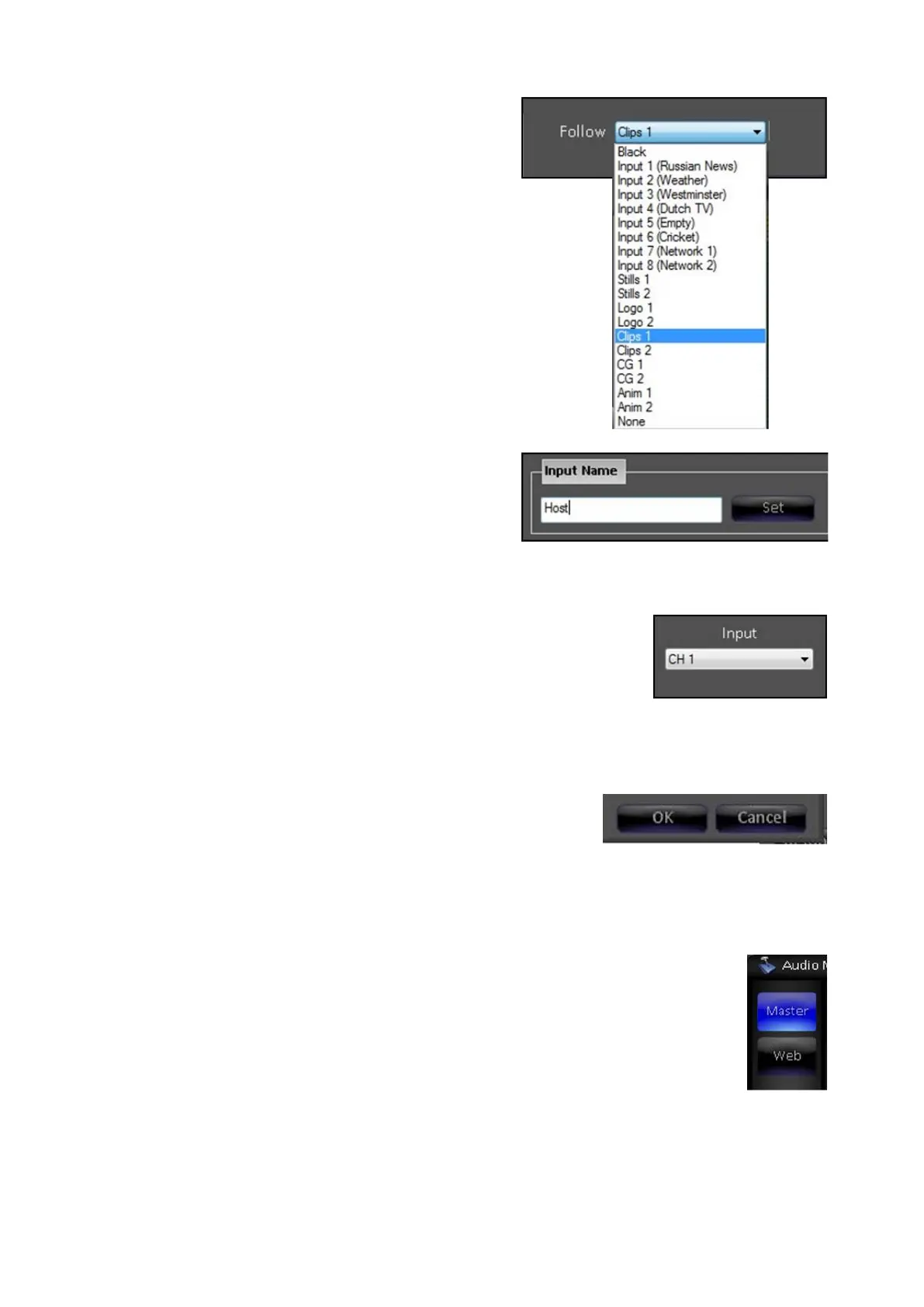
Under the Follow drop down menu select
the desired source, either any External
Source 1-8 or any Internal Source or
None, as shown on the right.
Lastly, each channel may have a custom
label assigned to it, to easily recognize
where the audio is coming from. Under the
Inputs Name section, enter a custom
name, like Host, and click on the Set
button, as shown on the right.
To configure more inputs and channels
without closing the Input Setup window,
select the desired input un the Input drop
down menu, as shown on the right.
Repeat steps 2-7 above for any remaining
inputs.
Once all the audio inputs have been
configured, click on the OK button, as
shown on the right.
Controlling the Audio Mixer
Once each audio input has been configured, the Audio Mixer
can be used to control and mix the various signals.
To control the main output, which feeds the record device,
click on the Master selection button to control the Master
Mixer, it will illuminate blue, as shown on the right.
To control the secondary output, which feeds the web
stream, click on the Web selection buttons to the Web Mixer,
as shown on the right.



 To Next Page