BPswitch Operators Manual
222 / 413
The desired image will then be captured
and appear on the Multi-View PixPad. The
image will be saved in the same folder with
the clip on the Servers C drive.
Clip Motion Controls
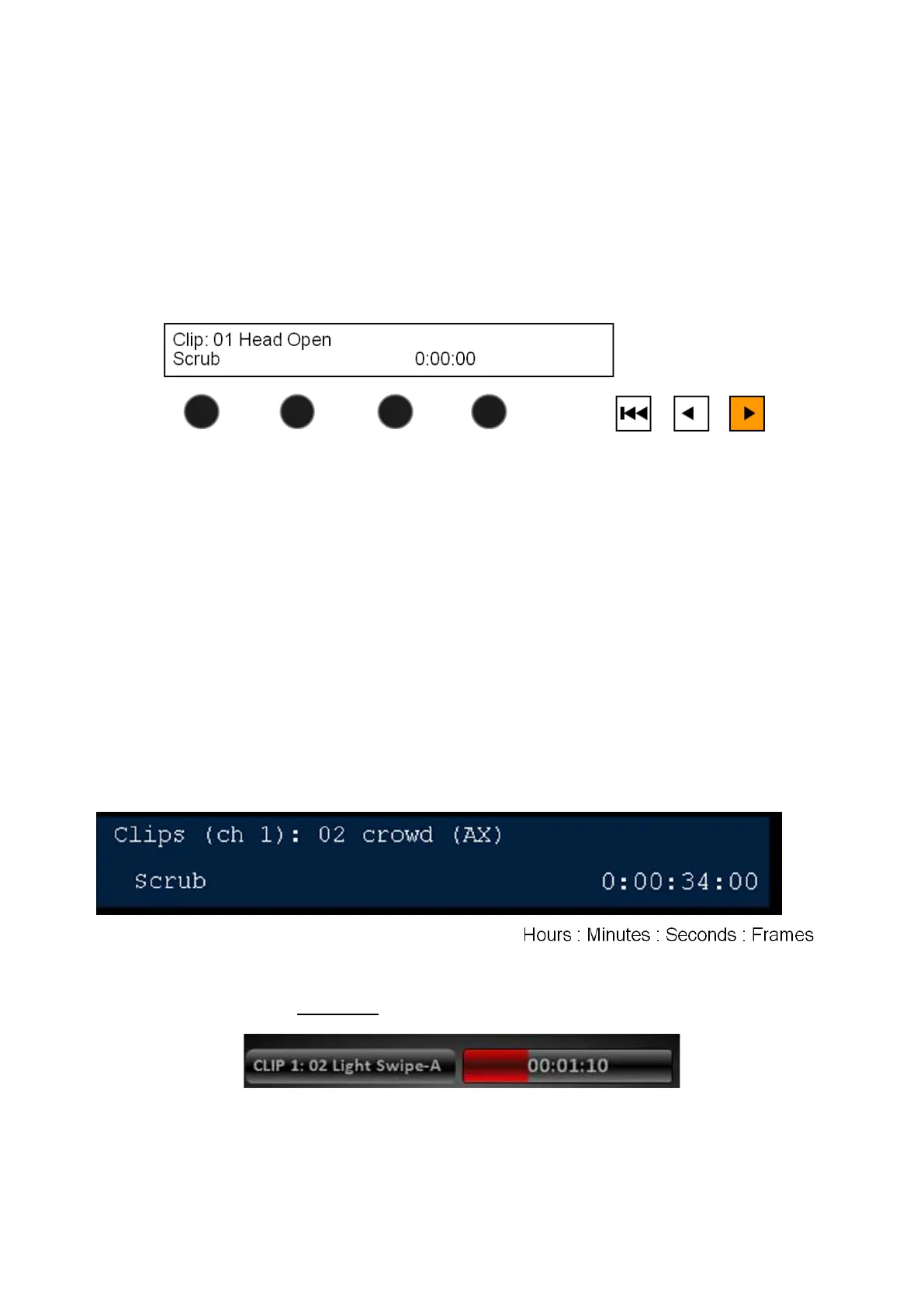
The motion controls provide a range of control over a selected clip.
To play a clip press [>], and it will illuminate orange
To pause a clip that is playing, press the [>] button again.
When a clip is paused, pressing the [>] button will start it playing again.
To return to the beginning of the clip press the [l<<] button.
Clip Counter
The runtime of the clip is displayed in lower right corner of the display either on the
Control Panel or SoftPanel.
When a clip is playing the timecode shows hours, minutes and seconds. When
the clip is stopped, the time code also displays the frame, as shown below.
The clip’s runtime is also shown on the Multi-View, and clips can be set to count
up or count down, see Counters
Clip Motion Controls on the Multi-View
In addition to using the control panel or SoftPanel motion controls, the Multi-View
PixPad may also be used with the mouse to control a clip. In order to use the
Multi-View PixPad with the control panel, the Follow Panel option must be



 To Next Page