BPswitch Operators Manual
221 / 413
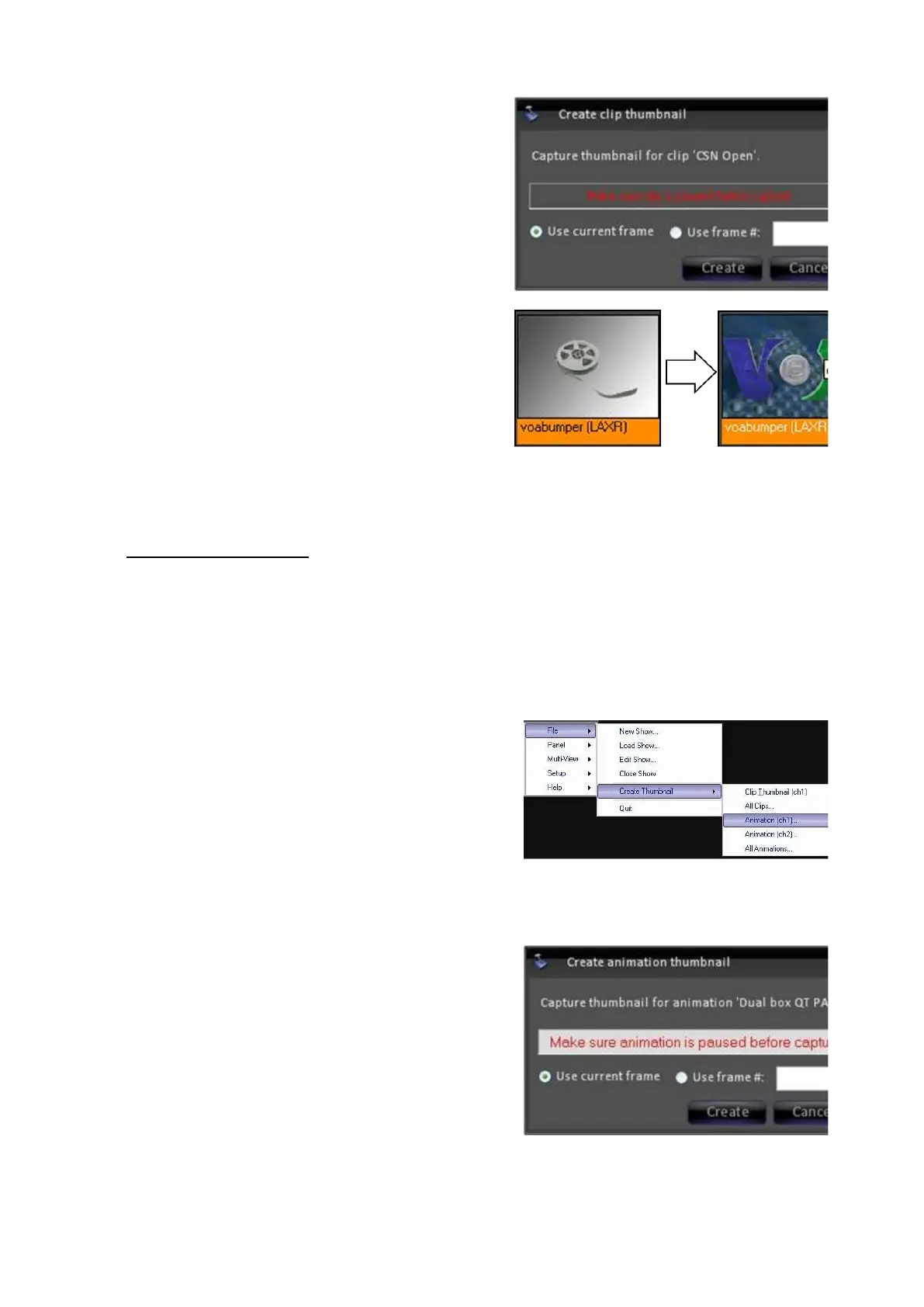
Click on the Create button, as shown on
the right.
As an alternative, you may specify the
frame number of the clip you wish to
capture by selecting the Use frame # radio
button and entering a frame number.
The desired image will then be captured
and appear on the Multi-View. The image
will be saved in the same folder with the
clip on the Server’s D drive, and so if you
use the same clip in another show, you will
not have to create another thumbnail for it.
To create an animation thumbnail (GX/MX only):
Start the animation playing as described in
Clip Motion Controls, substituting the clip
store for the anim store.
Pause the anim when you have reached
the desired image you wish to capture by
pressing the [>] button again on the control
panel.
Click on the File menu in BPswitcher, then
click on the Create Thumbnail menu.
Select Animation (ch1) or Animation (ch
2) depending on which channel you are
controlling, as shown on the right.
The Create animation thumbnail window
will appear.
Click on the Create button, as shown on
the right.
As an alternative, you may specify the
frame number of the animation you wish to
capture by selecting the Use frame # radio
button and entering a frame number.
Click on the OK button on the pop-up
confirmation screen.



 To Next Page