BPswitch Operators Manual
121 / 413
Click on the OK button.
A progress bar will appear, depending on how
big the content files are the export can take
several minutes to hours.
When finished, an Import successful message
will appear, click on the OK button. It is
recommended to restart the application after an
import.
Exporting System Files
Unlike show specific files, system files are used system wide and affect every
show. For this reason shows and system files have two different export utilities.
Usually the system files can be exported or backed up once after an entire system
has been configured and running and. Since show files constantly can change,
having a fresh versions and multiple versions to restore or import from is more
useful for shows.
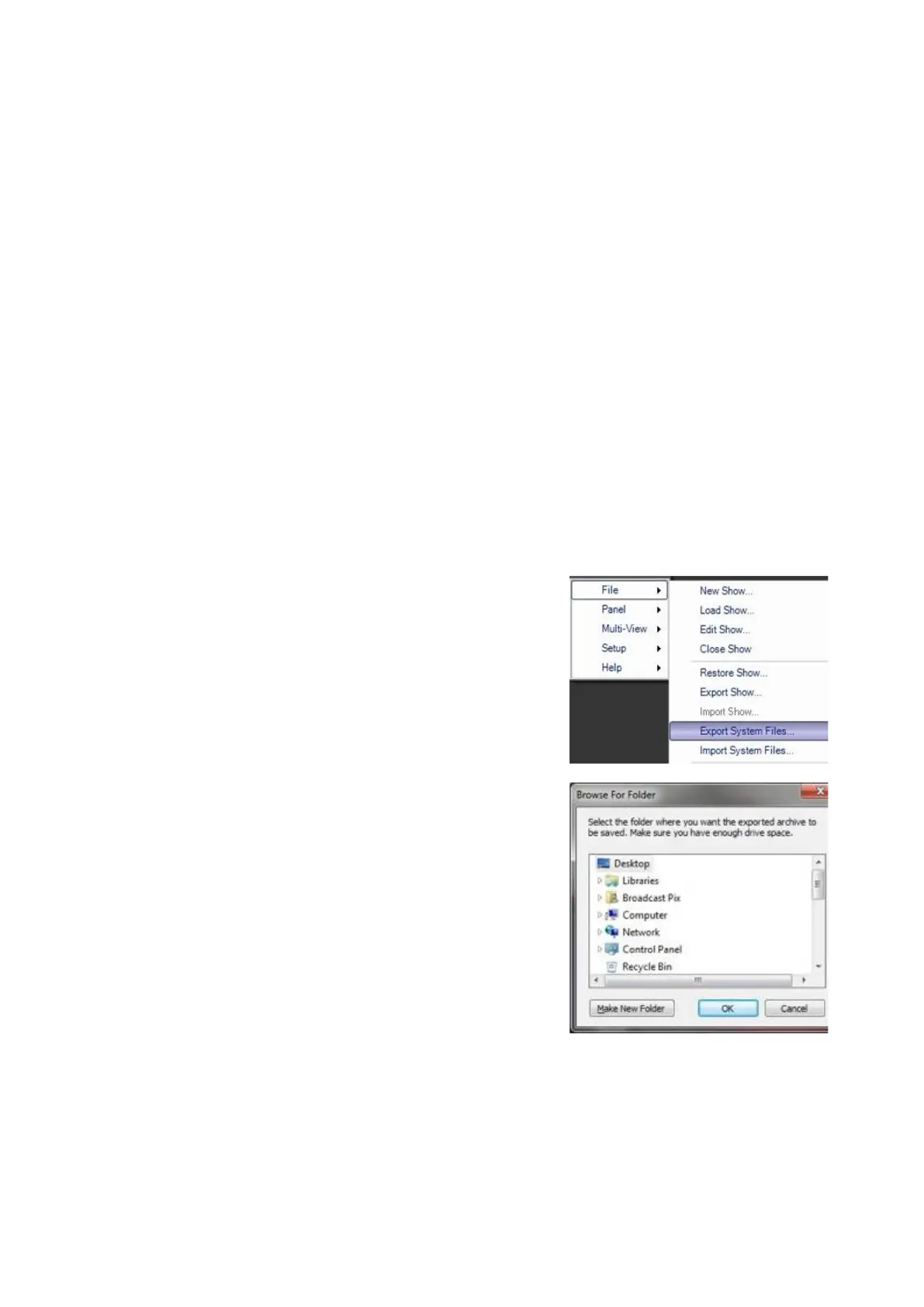
In BPswitcher, click on Broadcast Pix menu
icon, select the File menu and select Export
System Files…, as shown on the right.
A browse window will appear to select the
destination of the exported files. The destination
can be anywhere locally on the hard drive, like
on the desktop, anywhere on a network or
anywhere on a connected external hard drive
through USB.
Select a destination and click on the OK
button, as shown on the right.
In the Export System Files window, select the
desired files. Place a check mark next to
System settings, Multi-View layouts, Virtual
Sets, Macros, Macro Banks, Macro names,
Device settings, Registry settings, VOX
projects, Commander projects, and/or
Commander Images as shown on the right.



 To Next Page