BPswitch Operators Manual
386 / 413
Router Control Multi-View Operation
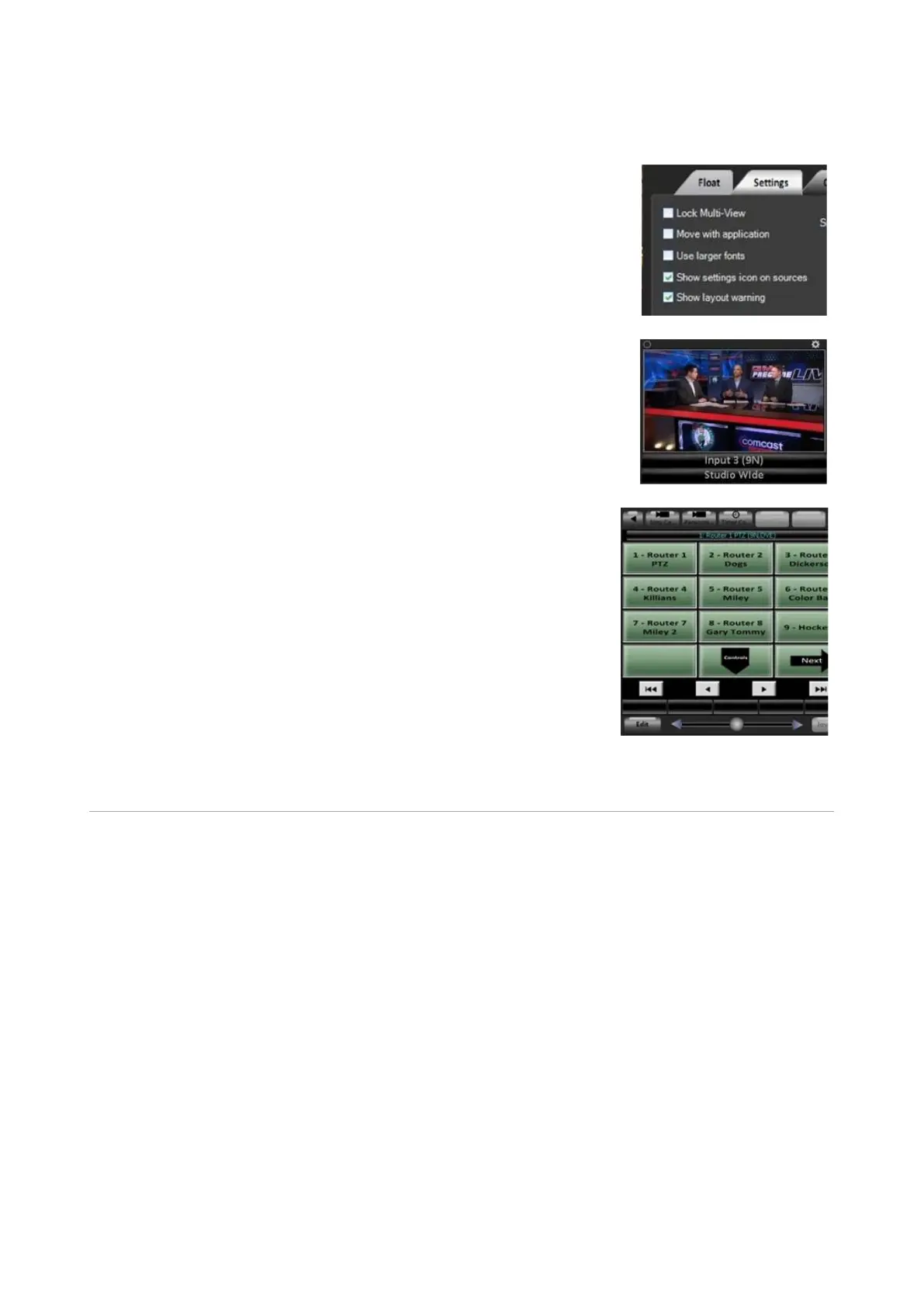
Ensure that the gear icon is visible by navigating to
Multi-View, Layout Tools… menu.
In the Layout Tools menu select the Settings tab and
place a checkmark next to Show settings icon on
sources, as shown on the right.
Now each source monitor on the Multi-View will have
a gear icon on the top right corner. Click on the gear
icon, as shown on the right.
The Multi-View PixPad will update showing all the
router inputs, select the desired [Router Source]
PixButton, as shown on the right. To access higher
numbered sources click on the [Next] PixButton.
To select a router source by number, select the
[Control] PixButton, then the [Number] PixButton
and enter the desired router input number and select
the [Enter] PixButton.
Multi-User Operation
While the Broadcast Pix Switcher provides unprecedented control for a single
operator, it can be expanded to multi-person operation. Several types of two
person operation are covered in this section of the manual:
• A Separate Graphics Operator for the CG
• Two Panels for Back-Up Redundancy
• Two Panels for Two Show Creators
• Adding a Remote Panel on-site
• Adding a Remote Panel over the Internet
• Large Teams with many panels
Optional Multi-Panel Support
Standard panels for a Broadcast Pix System includes a SoftPanel and a control
panel, either can be used to control the show. For example, if the control panel is
the one primarily used, and should fail and lose its network connection, then the



 To Next Page