BPswitch Operators Manual
120 / 413
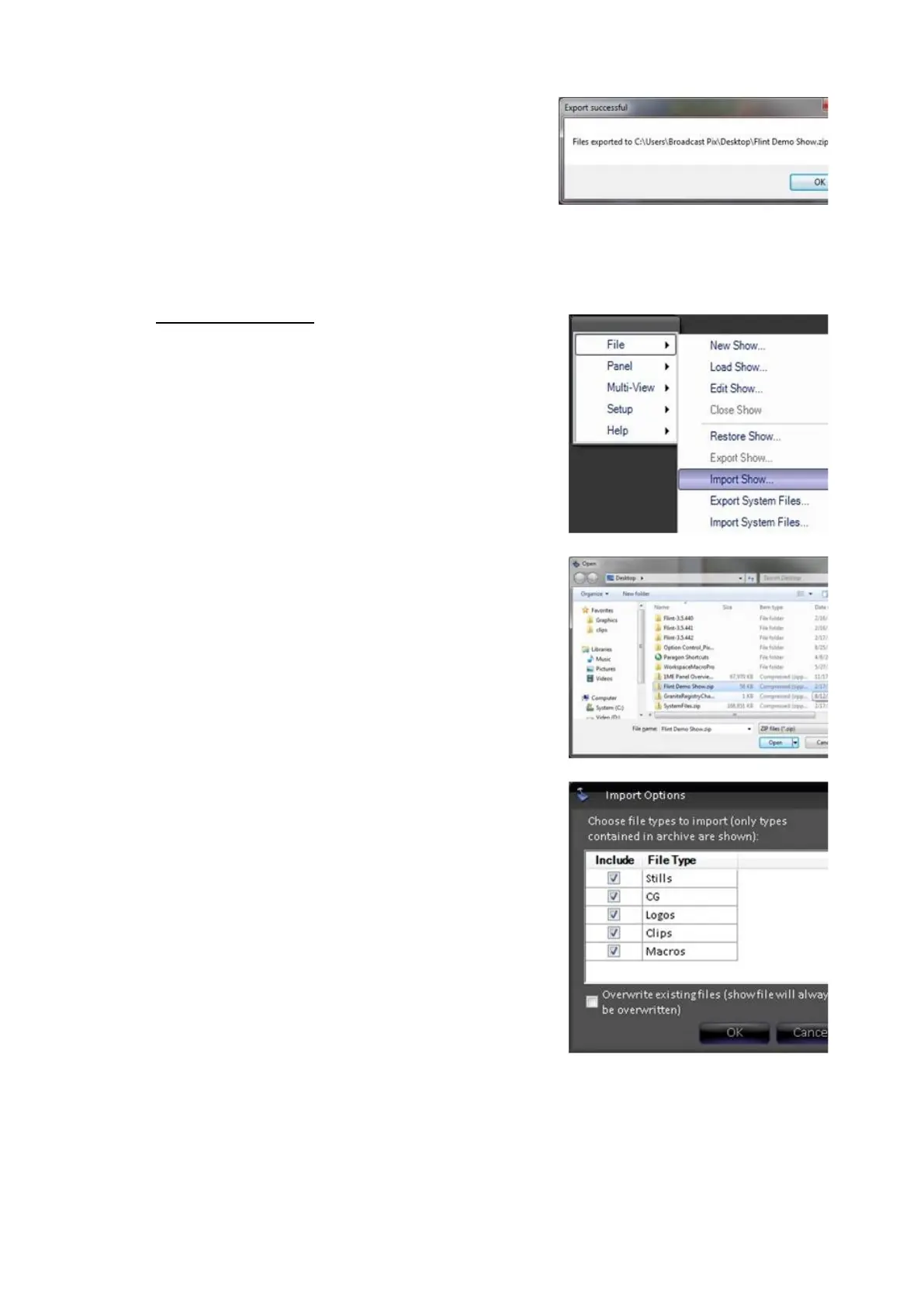
When finished, an Export successful message
will appear, click on the OK button, as shown
on the right.
Importing a Show
Once a show export has occurred, as described
in Exporting a Show, it can be imported onto
the same Broadcast Pix unit or to another unit.
Ensure that no show is running, click on
Broadcast Pix menu icon, select the File
menu
and select Close Show
Click on Broadcast Pix menu icon, select the
File menu, and select Import Show…, as
shown on the right
An open window will appear to select the
source of the exported files. The exported files
will be in a “Show Name.zip” file.
Navigate and select the zip file and click on the
Open button, as shown on the right.
Similar to the Export show window, the Import
Options window will appear showing all the
exported file types.
Select the desired files by placing a check mark
next to Show, Stills, CG, Logos, Clips,
Macros, and/or Show Layout, as shown on
the right.
If all the options are not listed, then the
exported zip file never was told to export those
file types.
If desired the Overwrite existing files option
may be check, this will delete any existing file
with the same name and replace it with the
exported file.
This option is not undoable.



 To Next Page