BPswitch Operators Manual
175 / 413
custom image selected as the background for
the Virtual Angle.
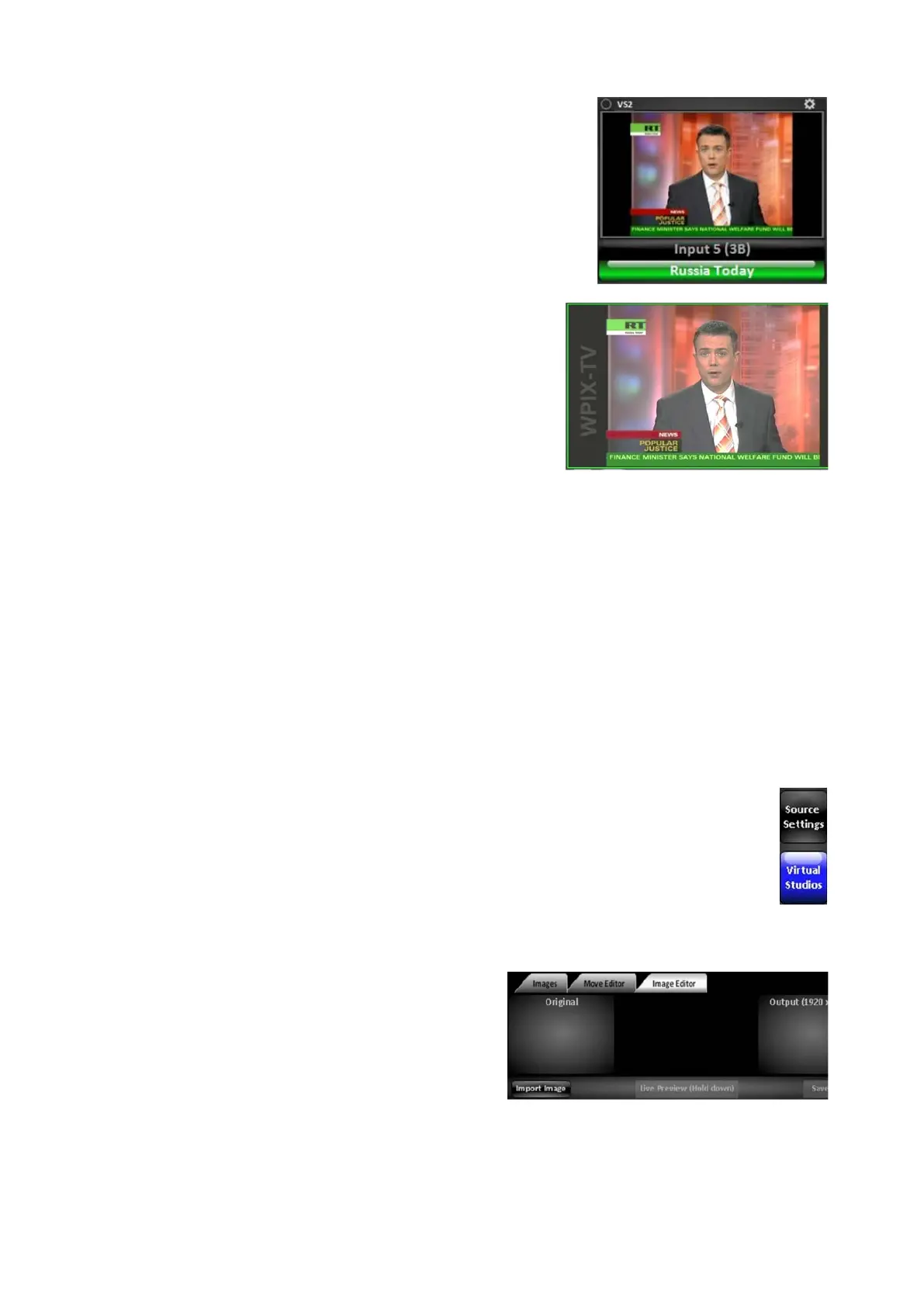
The AutoFlags will appear on the source when
applied on Program, Preview or a keyer, as
shown on the right.
Image Editor
The Image Editor of Fluent Controls is designed for quick modification of a still
image to create a backdrop for a virtual set, without the need of moving to another
system or application. It allows for lower than HD resolution files, like ones from
the Internet, to be enlarged to 1920x1080, and it allows higher resolution files, like
from a digital camera, to be cropped and scaled down to 1920x1080 and made
into variations for different Angles. In addition, other basic photo enhancements
are included, like brightness, contrast and blur to give the right depth of field to
your Virtual Set.
To import an image:
Open the Fluent Controls window, if not
already open, by selecting the Panel,
Fluent Controls menu.
Click on the Virtual Studios button, and
it will highlight blue, as shown on the
right.
Click on the Image Editor tab, as shown
on the right.
On the bottom left edge of the Image
pane, click on the Import Image button.



 To Next Page