BPswitch Operators Manual
373 / 413
Selecting Record Control in a Production
To assign the device controls to Record Control:
Press the [Record] wildcard [Device Selection] PixButton and it will
illuminate orange and the following device controls will be appear.
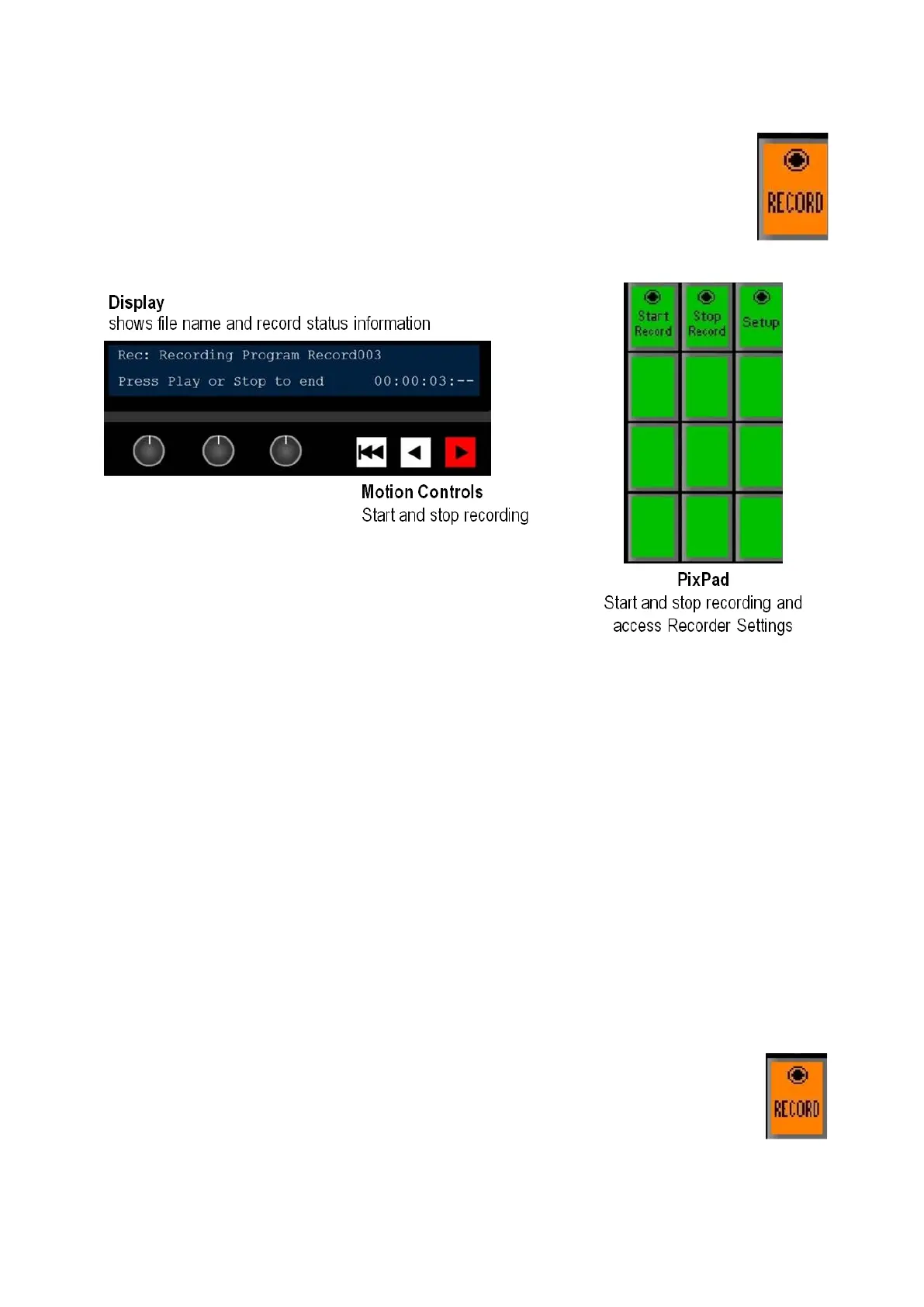
Record Control device controls:
When you press the Record Control PixButton, the active file name will appear.
The display indicates 4 pieces of information:
1.
The top left corner always shows that the Record device is currently assigned
to the panel’s bank of device controls.
2. Recording or Ready to Record on the top line gives status information with
the file name after it. In this case, Program Record003.
3.
The bottom left side indicates how to stop or start the record.
4.
The bottom right side displays a timecode counter for the selected record.
When recording HH:MM:SS:-- is displayed, when stopped HH:MM:SS:FF is
displayed.
Controlling a Record
To start recording:
In Device Control section, select the
[Record] PixButton, it will illuminate
orange, as shown on the right.
The display will show the selected file
name.



 To Next Page