BPswitch Operators Manual
192 / 413
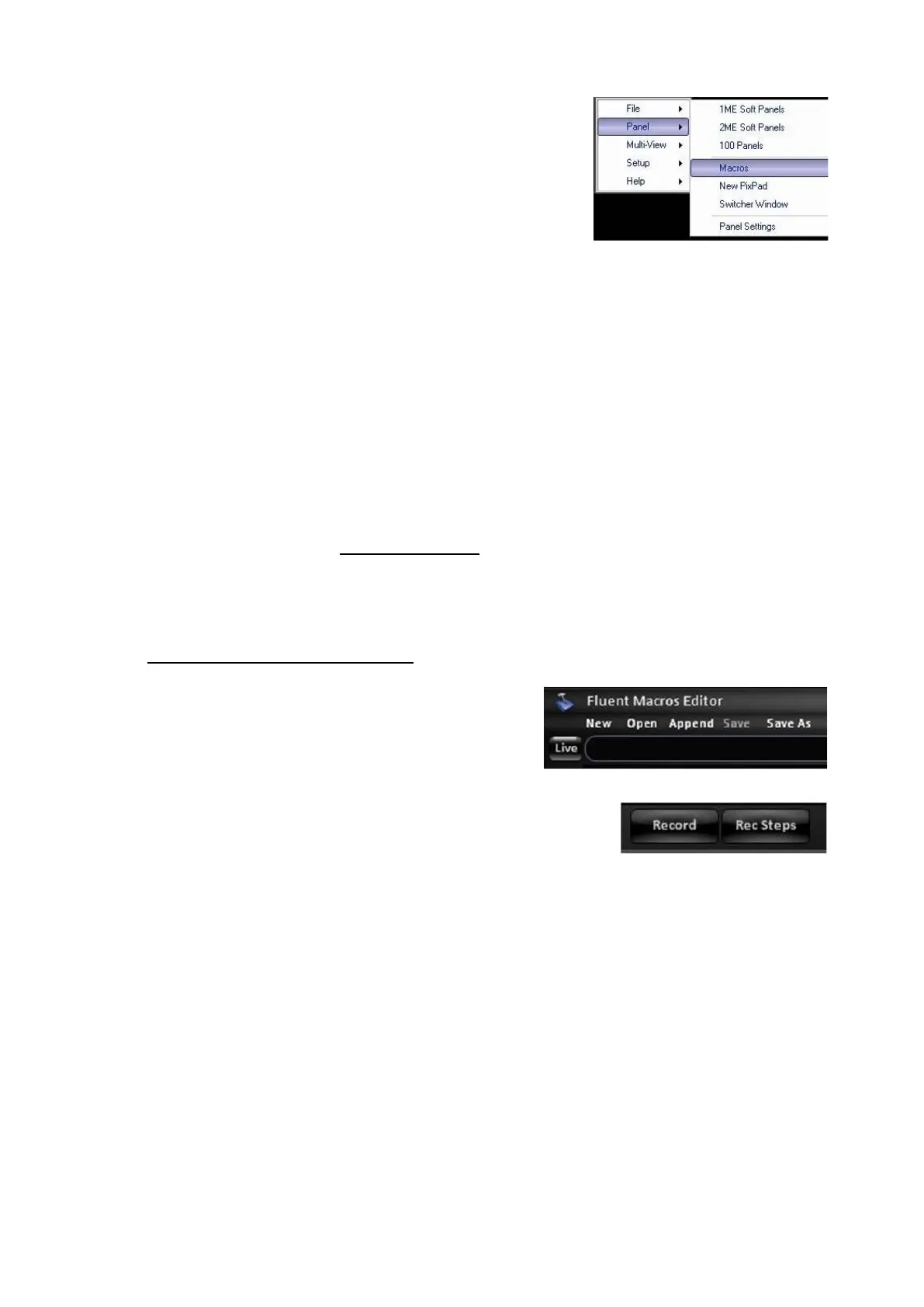
Select Macros, as shown on the right.
Recording a Macro
Recording a Macro can start from the Macros Editor or directly from the control
panel and then be controlled by the control panel where all the timing and
commands are remembered sequentially. In addition, Macros can manually be
created and modified one command at a time with the Insert function. For longer,
more involved macros recording from the panel/Macro Editor is recommended, the
Insert function is suggested for shorter macros and for editing.
It is recommended to record a macro slowly, to ensure that every step and
command is recorded, in the Macro Editor the timing can easily be adjusted
afterwards, as described in Editing a Macro.
To record a macro from the Macro Editor:
Open the Macro window, as described
in Opening the Macros Interface.
If the Action List is blank, proceed to
step 3, if not, click on the New
button in
the Toolbar, as shown on the right, or
click on the Menu and select New…
Click on the Record button in the
Macro Control Bar.
Macros is now waiting for the first panel
operation to occur for the timer to start.
The Record button will remember every
button/command selected and it’s
timing.
The Record Steps button will
remember a group of commands all in
0 (zero) frames, similar to a SnapShot
memory. When using Record steps, the
option Add Pause will be available to
insert an indefinite pause, which can be
modified later.



 To Next Page