BPswitch Operators Manual
193 / 413
Select the desired buttons on the
control panel. As new commands are
selected the Action List will populate
showing the list of commands in the
macro.
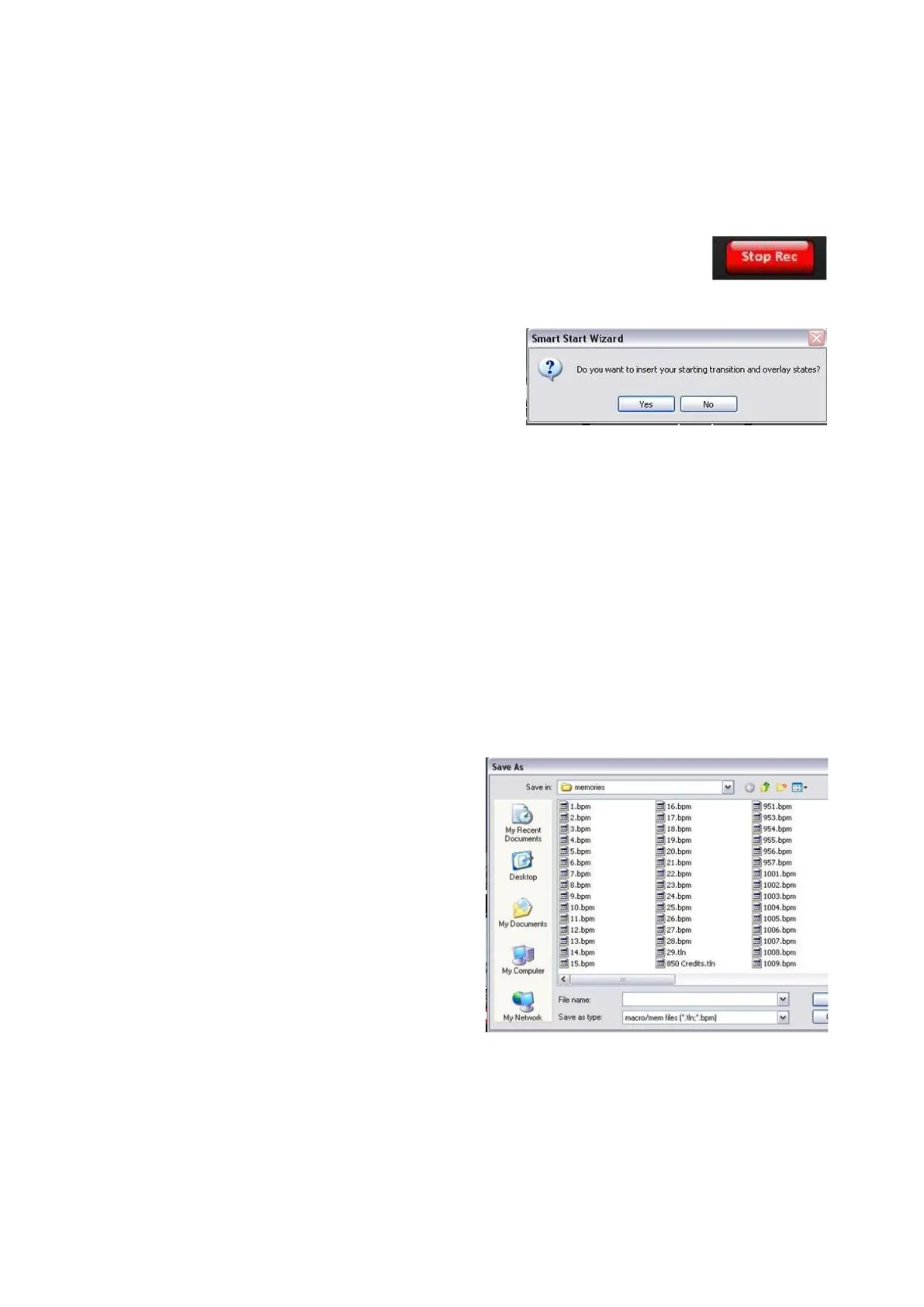
When the macro is finished being
recorded, select the Stop Record
button in the Macros Control Bar.
The Smart Start Wizard window will
appear, as shown on the right, giving
the option to remember the starting
next transition and Direct Key states.
Click on Yes or No.
This option is useful to guarantee an
effect will occur the same way it was
recorded by adding a starting
command which remembers the keyer
and background next transitions
buttons as well as the Direct Key tally
states.
Clicking on Yes will insert two
commands at the start of the Action
List, which can be modified and
removed later if desired.
The Save As pop-up window will
appear, as shown on the right, to save
the recorded macro onto the hard
drive. Enter a name and click on Save
.
All macros will have a .tln file extension
and all SnapShot Mems have a .bpm
file extension.
In order for Macros to be stored and
recalled in the MEM device of the
control panel, a 3-
digit number must be
added to the front of the file name (i.e.
123 Swipe.tln), but may not have the
same number as a .bpm file. There are
a total of 999 registers that are shared
across SnapShot and Macro Memories.
To record a macro from the panel:



 To Next Page