BPswitch Operators Manual
230 / 413
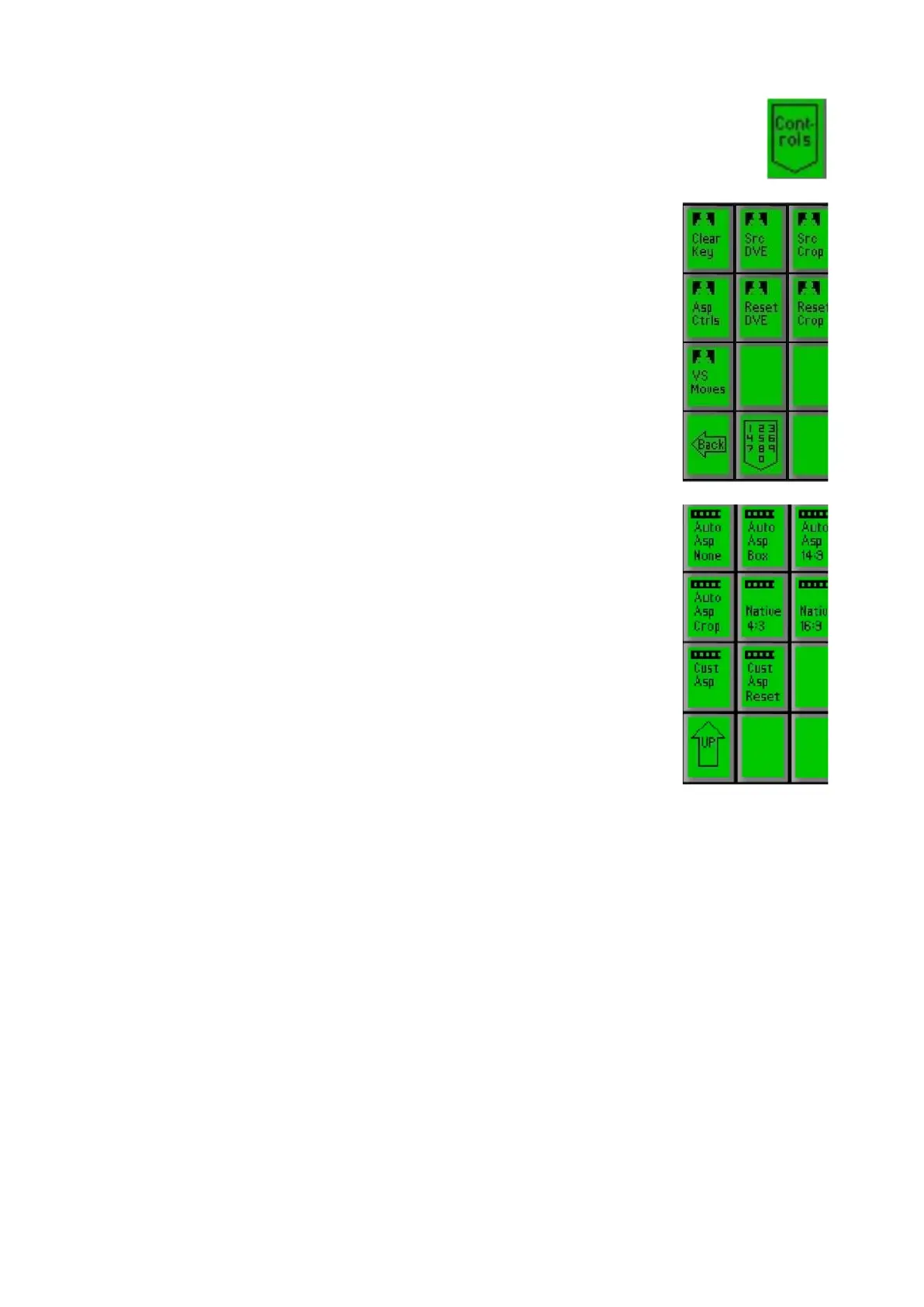
Select the desired clip, and press the [Controls] button on
any Clip PixPad.
Press the [Next] PixButton, and the PixPad will change
showing the source controls PixPad, as shown on the right.
Press the [Asp Ctrls] PixButton, the PixPad will change
showing the aspect controls PixPad.
Select the native aspect ratio of the clip, either Native 4:3 or
Native 16:9.
Now select the desired treatment to be applied to the clip.
Either None, Box, 14:9 or Crop.
To use a custom aspect ratio select the [Cust Asp]
PixButton and use the knobs to dial in the correct aspect
ratio.
To reset the custom aspect ratio select the [Cust Asp Reset]
PixButton.
Scrubbing a Clip
Scrubbing a clip is causing the clip to fast forward very quickly, which is a quick
way to preview a clip, and a handy way to move to a desired portion of a clip. It is
also helpful when marking in and out points.
To scrub a clip:
If the [Clip] button is not illuminated, assign the device controls to clips by
pressing the [Clip] button, and it will illuminate.
Put the desired clip on preview by pressing the Clip Store button in the
Preview row. You can monitor the clip by using the Multi-View.
Turn the [1
st
Knob] and it will scrub the selected clip. You may stop
anywhere and the clip will be paused in that location. A clip must be paused
in order to scrub through it.



 To Next Page