BPswitch Operators Manual
75 / 413
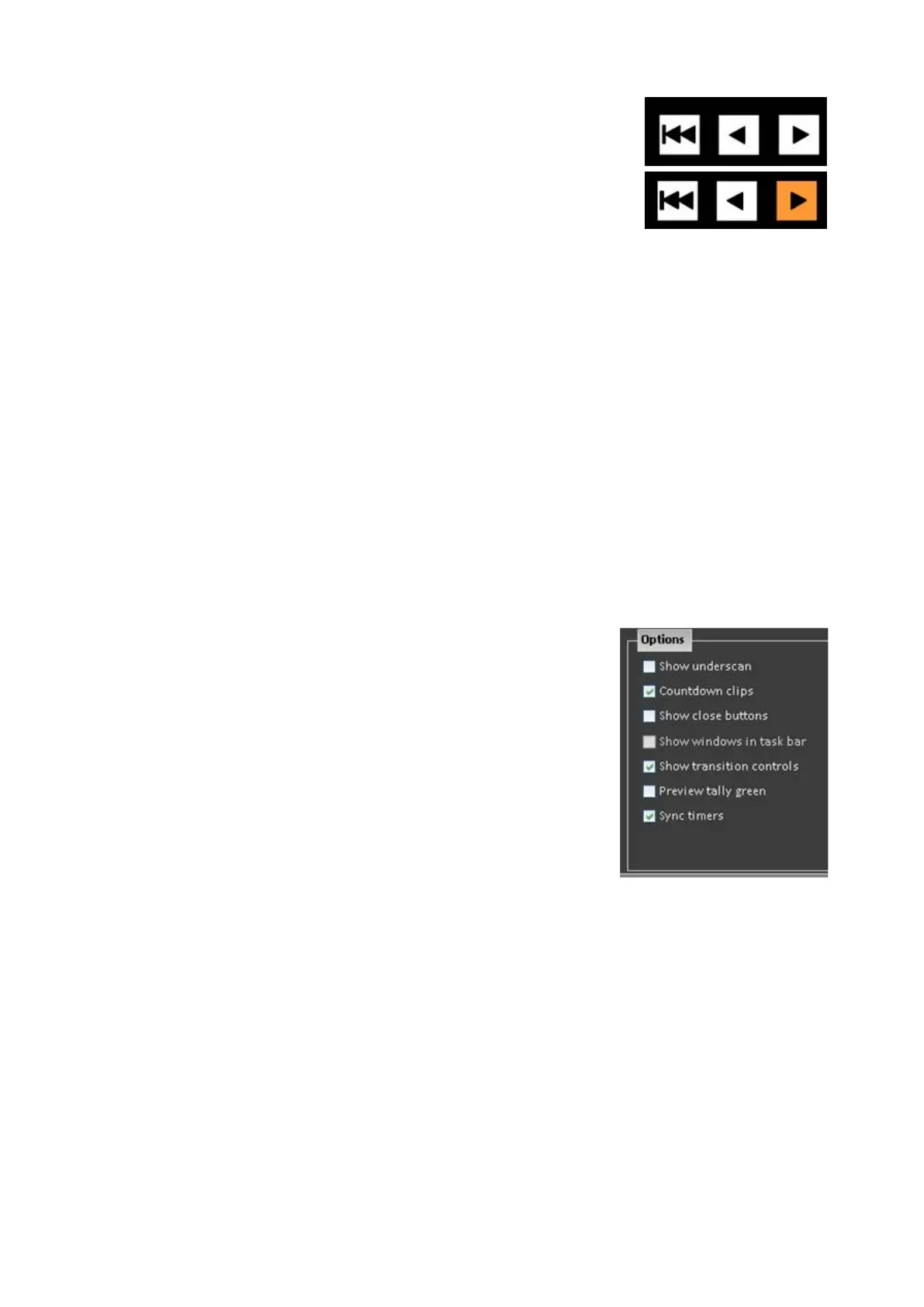
To continue counting up from the paused
time, press the [>] motion control button, the
button will illuminate orange.
To reset the stopwatch to zero, press the
[|<<] motion control button.
The stopwatch will stop (if it was playing),
and reset.
When the timer is set to count up the stop at
zero and start counting PixButtons do not
function.
Syncing multiple timers:
If multiple timers are floated, they can all be set to follow a master timer or be
controlled individually.
Navigate to the Broadcast Pix menu button and
select the Setup, System Settings menu.
In the System Settings window, select the Multi-
View tab.
In the Options section, place a check mark next to
Sync Timers, as show on the right.
To have individual control, deselect Sync Timers
Click on the OK button to apply the changes,
List of Screen Resolutions
Computer monitors should always be square pixels, and the display resolution
should have the same ratio as the aspect of the screen. The aspect of screen
should never be compensated for, this would distort text and images making them
look too wide or skinny. Below is a list of Monitor Resolutions with their native
aspect ratios for easy reference. If your monitor is “wide-screen” use a 16:9 or a
16:10 resolution. For normal square screens use a 4:3 resolution. This is important
when choosing a monitor to use with your Multi-View to ensure proper
viewing/monitoring. You may use any screen resolution for your Multi-View, but it’s
recommended to use a 1280x1024, 1680x1050 or 1920x1080 monitor.



 To Next Page