BPswitch Operators Manual
180 / 413
Press the input PixButtons to enter the desired address. The numbers will
cycle from 0 to 9.
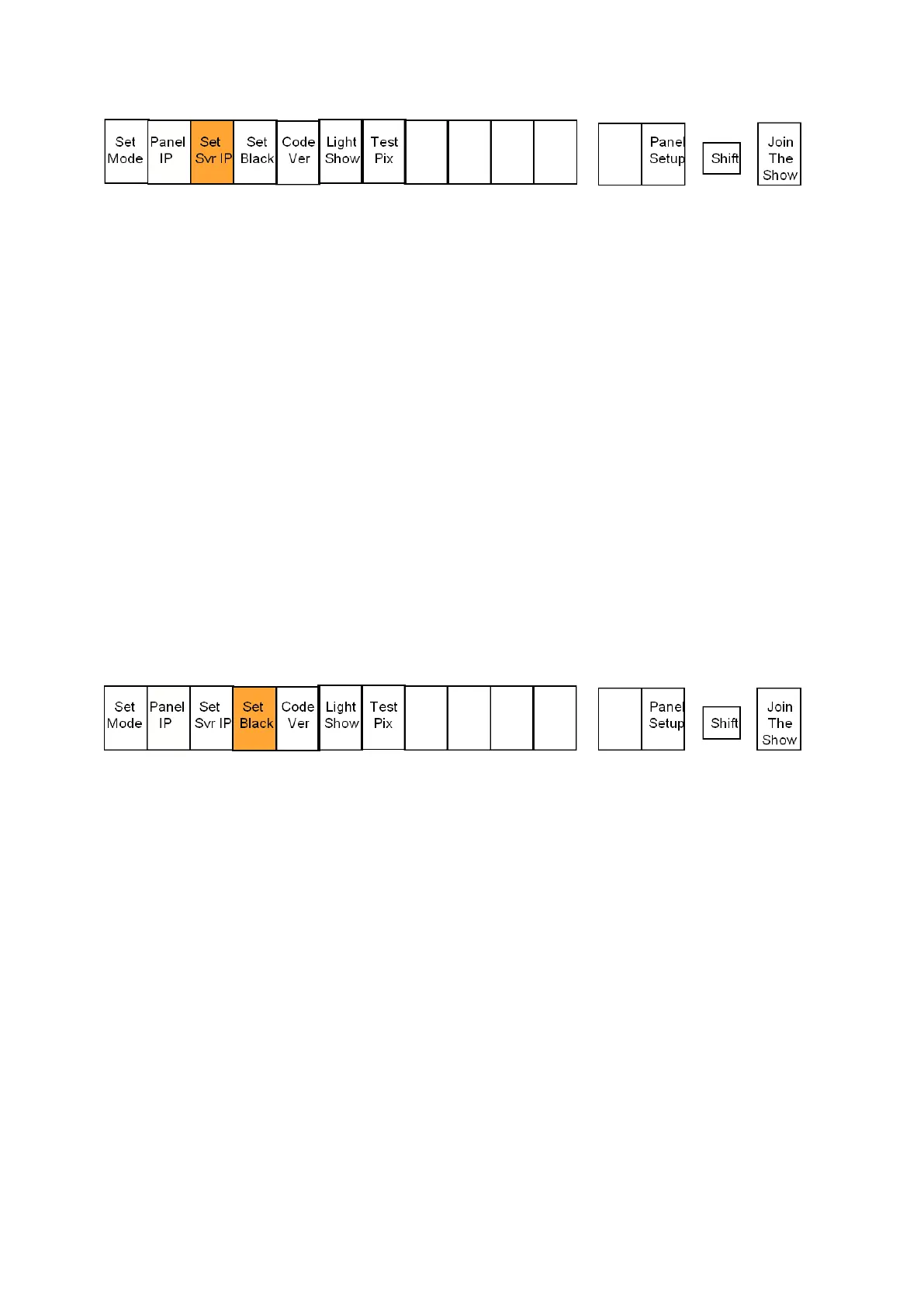
Select the [Output] PixButton labeled Set Server IP to apply and exit out of
the setup function.
Click on the [Output] PixButton labeled Join The Show to connect to a
running show.
To Change the Button Contrast:
On the Remote Panel, select and hold down the [Shift] button, it will
illuminate yellow. Then select the [Lock] button.
This will put the Remote Panel into an offline setup mode, as shown below.
Press the [4] input PixButton labeled Set Black, and the PixButtons will
change showing black squares in green, orange and red buttons. Use these
buttons as a reference for legibility.
Press the [Lock] button to increase the contrast.
Press the [Macro] button to decrease the contrast.
Press the [Output] PixButton labeled Set Black to apply the changes and to
return to the setup menu.
Remote Panel Setup
Each Remote Panel can be setup with up to 22 modes, which allow and/or restrict
the ability to assign inputs. In addition, different Macros or SnapShot memories
are assignable to each mode. This setup is done in PixMaster Show Editor and
every setting is show-based, meaning that all the settings are saved and recalled
on a show by show basis.
To Setup the Remote Panels:
Launch BPswitcher and load a show, as



 To Next Page