BPswitch Operators Manual
90 / 413
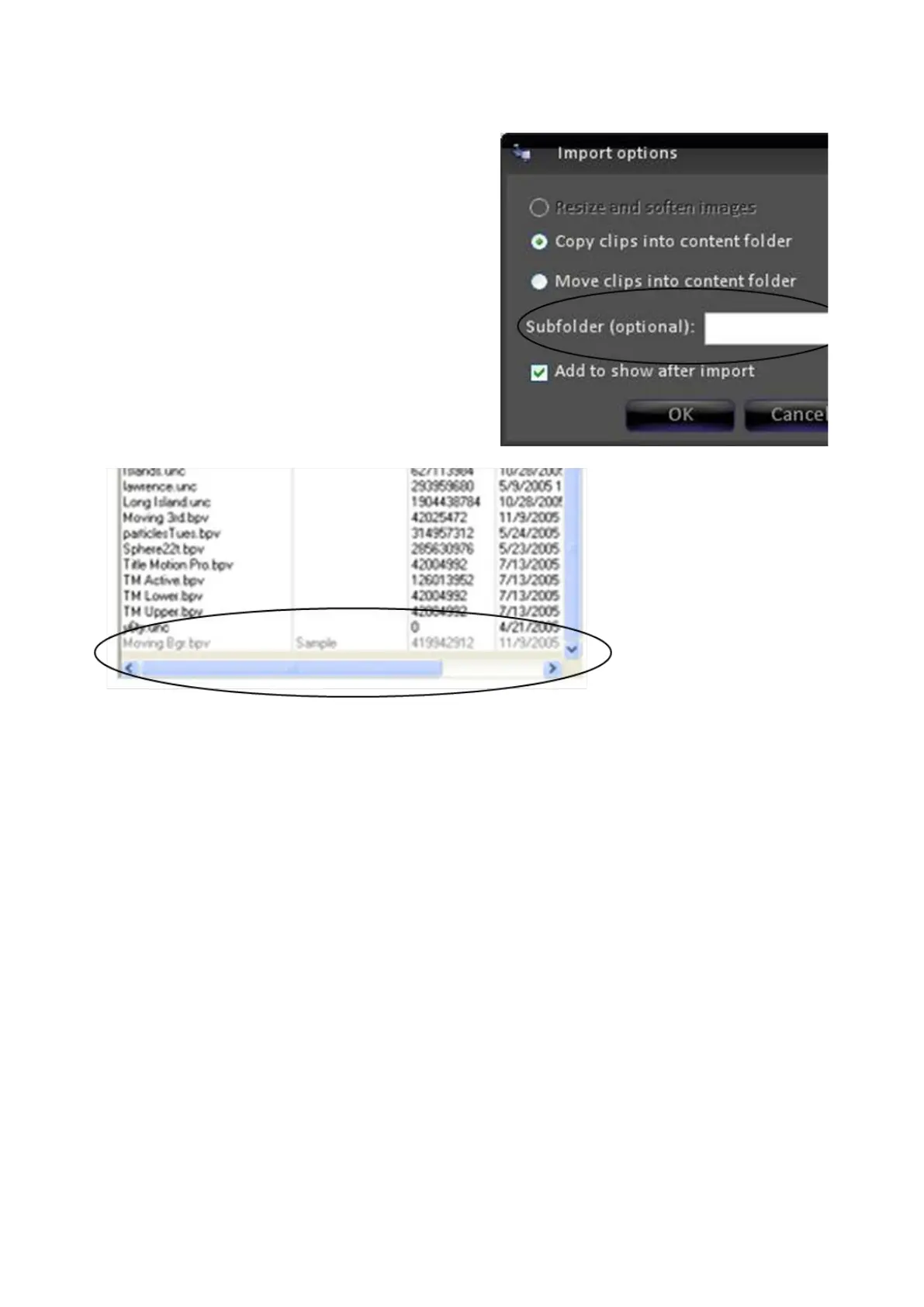
Importing Content Into a Subfolder
When importing, if you want to identify a
subfolder for this clip or group of clips then
fill in its name on the blank line before you
press OK. This is handy for remembering a
series of related clips, especially when it
comes time to clean excess media off your
drives.
In this example we created a subfolder
called “Sample.” Consequently the word
“Sample” was added in the folder column
when the clip was imported.
Fluent Watch Folders
Fluent Watch Folders enables content (clips and graphics) to be added to any
show automatically, even when on air in a production. Similar to the previous
section, clips and graphics can be imported from any location on the Server, such
as from a hard drive, external disk, USB flash memory, a computer network, etc.
Once files are copied to the Watch folder, the content is automatically added to
your show and loaded into the end of the content PixPad, ready for use. In
addition, content may be added to non-active shows for preparation. The “6:00pm
News” show may be on air, however an editor has packages ready for the
“10:00pm News” show. The editor can simply drag clips to the watch folder without
affecting the on air show. When the “10:00pm News” show is loaded, those clips
are automatically added to the show. Fluent Watch Folders enhances your
workflow throughout your entire facility.
Watch Folders are show-specific and each device and channel may have a watch
folder enabled. For any show the maximum number of watch folders that may be
enabled is 8, one for Clip 1, Clip 2, Logo 1, Logo 2, CG 1, CG 2, Stills1 and Stills
2.
All graphic watch folders are located in c:\watch and all clip watch folders are
located in d:\watch. The default for all new shows is with Watch Folders disabled.



 To Next Page