BPswitch Operators Manual
145 / 413
buttons in the lower right corner of the panel will change illumination from
orange to red.
In the above example, two keys were brought on program at the same time with
the background. If instead the keys are already on before the transition, and you
wish to bring them off program as part of a transition, then the button illumination
would be as follows. When their [Key Transition] button is pressed it will illuminate
red, to indicate on-air keys. The corresponding [Direct Key] PixButton will stay red.
Now when cut (or auto or the fader) is pressed, the Key 1 and 2 will come off
program as the background video changes, and the [Direct Key 1] PixButton and
[Direct Key 2] PixButton will change from red to orange.
You may combine bringing keys on and off program in the same transition. For
example, if Key 1 is already on, and you wish to bring it off with a background
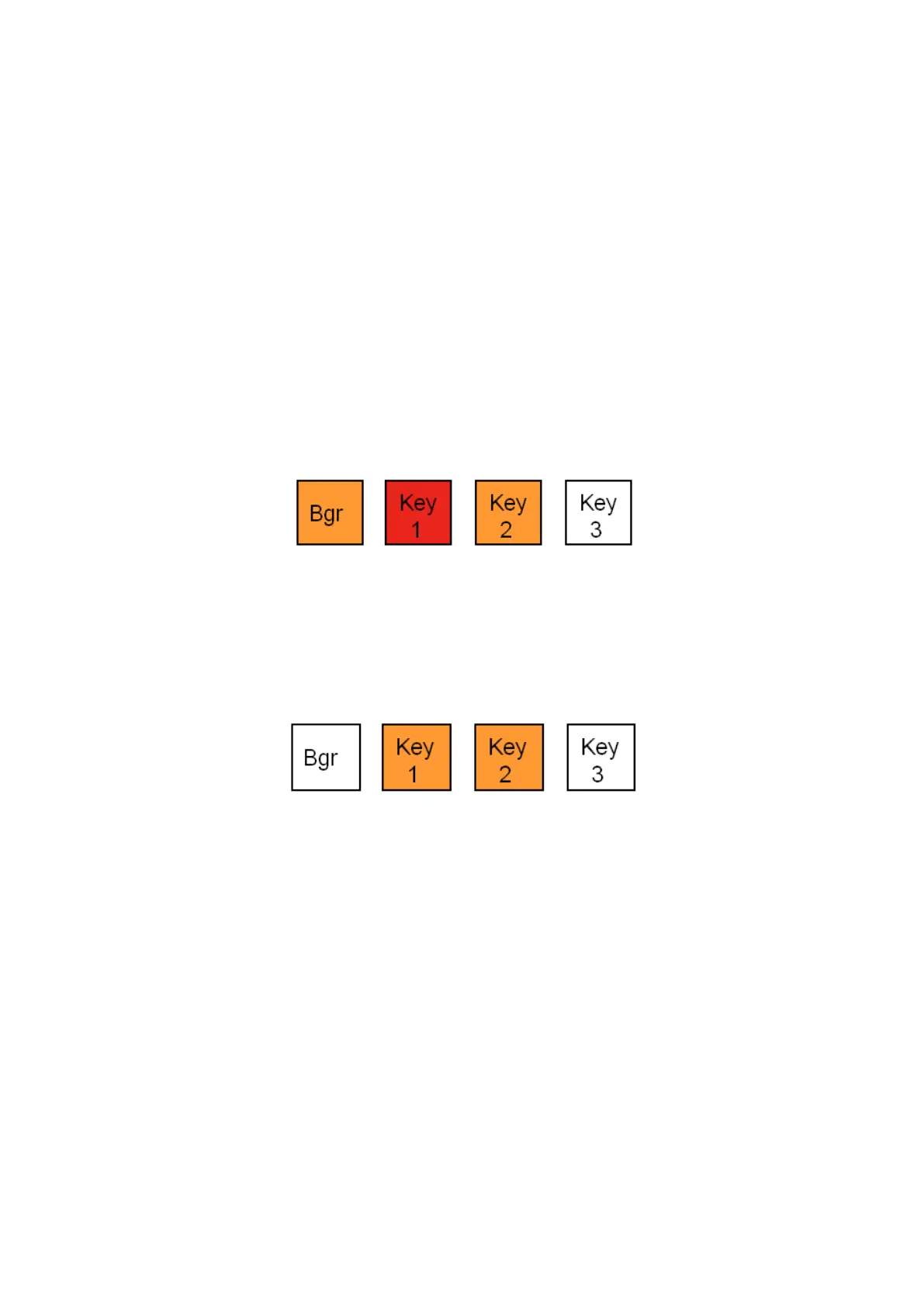
transition, while bringing on Key 2, the illumination of the [Key Transition] buttons
would be:
Changing a Key without a Background Change
To add or subtract key layers without changing the background video, repeat all of
the above steps, except in step one, turn off the [Bgr] button, as shown below.
When [Bgr] is turned off the end state of the transition will be shown on the
preview monitor, which will include the same background as currently on program.
Pro Transition Mode
When the background and key layers are selected in the transition section of the
control panel, by default, the buttons/layers are added/selected one at a time
leaving the previously selected layers enabled. For most users this method is
acceptable, however in some cases where rapid execution is necessary, users
may prefer to only have the selected layer active, disabling the previously select
layers. This mode is known as Pro Transition Mode.
To Enable Pro Transition Mode:
In BPswitcher, select the Panel drop
down menu.
Place a check next to Pro



 To Next Page