BPswitch Operators Manual
353 / 413
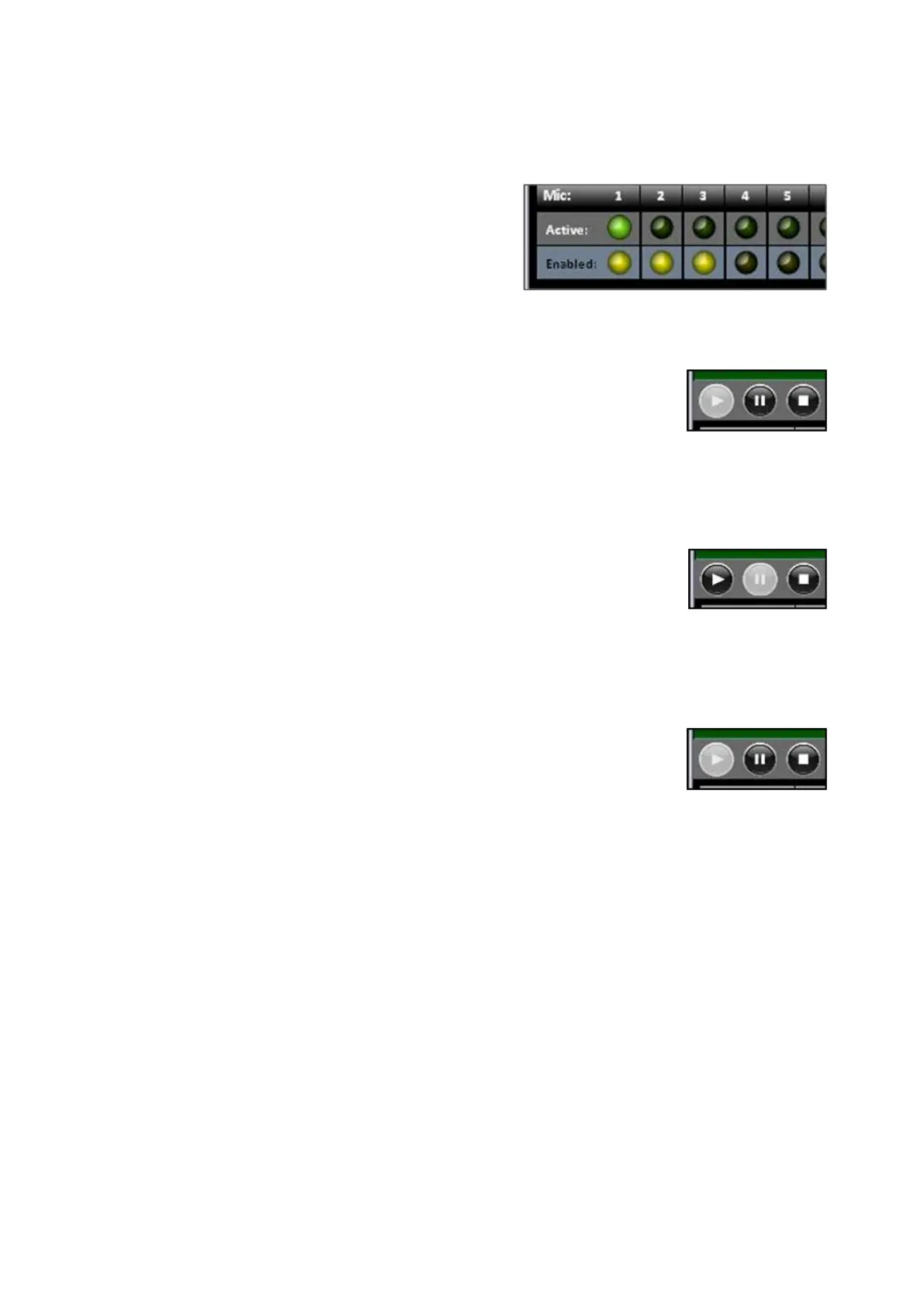
As other inputs receive signal their
Macros will be triggered.
If for some reason an input needs
to be muted so that no Macros
from that input are triggered, click
on the yellow Enabled button to
disable that input, for example
input 4 is not enabled and no
Macros will be triggered.
To pause the automation, click on
the middle Pause
button, as shown
on the right, and it will turn grey.
If the Pause command from the
override panels were trigged, then
this button would also turn grey.
To resume the automaton, click on
the Play button, as shown on the
right, and it will turn grey, re-
enabling the Pause button option.
VOX will continue with the
automation where it left off.
To stop/cancel the automation,
click on the Stop button, as shown
on the right.
If VOX is restarted, then all the
timing is reset and VOX starts from
the beginning with a General
Macro and its Title Macro.
Adding VOX Control to a Show
Once installation is complete, you must now add the device to a show using one of
the six wildcard devices on the switcher.
In BPswitcher, load the show to which you want to add VOX control. Select
the File, Load Show.
Open PixMaster by selecting File, Edit Show.
Click on Edit Show Settings and the Edit Show Settings window will open.



 To Next Page