BPswitch Operators Manual
352 / 413
button, as shown on the right.
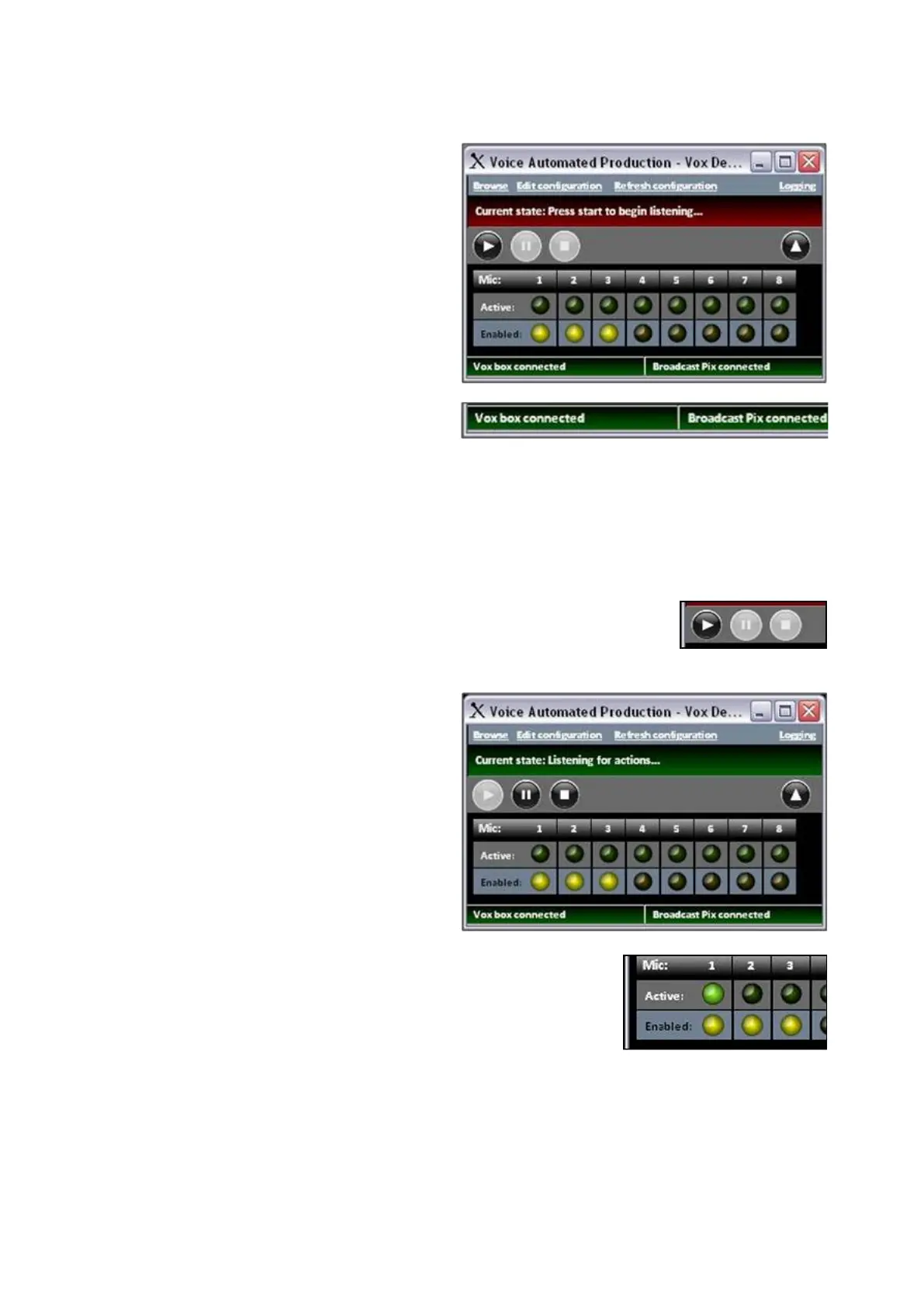
A window with all the available
inputs will appear. The last opened
configuration will be loaded, to
open a configuration click on the
Browse link and navigate to the
desired location.
The Current state status bar will be
red, indicating that the VOX
automation is not enabled and not
running, as shown on the right.
On the bottom edge there are 2
status indicators, one for the VOX
unit being connected and the other
for having a connection with the
Broadcast Pix software, both need
to be in the green state, as shown
on the right, for VOX to operate.
Click on the Play button to start the
VOX automation, as shown on the
right.
The Current state status will turn
green indicating that VOX is
listening for actions.
By now a General Macro followed
by its corresponding General Title
Macro should be running. Every
time VOX is started for the first
time, a General Macro is triggered
.
As inputs start to receive audio
levels, the front LEDs of the VOX
unit will illuminate to represent that
a signal is active, those LEDs are
also visible in the VOX software
under the Active row, as shown
with input 1 on the right.
A Mic Macro should now be
running, followed by its
corresponding Title Macro.



 To Next Page