BPswitch Operators Manual
220 / 413
Viewing More Clips in the Library
The clip PixPad displays the 9 clips at a time. To view more clips:
Press the [Next] PixButton on the control panel and the next 9 will
appear. Or use the navigation buttons on the Multi-View PixPad.
Press the [Back] PixButton, to go back to the previous page. Or use
the navigation buttons on the Multi-View PixPad.
NOTE: You can always return to the first page of clips, by pressing the [Clips] device once, and
you can jump to the last page by double-punching the [Clips] device button.
Creating Clip Thumbnails
Each clip can have its own thumbnail, which can be viewed on the Multi-View
PixPad. By default there is no thumbnail, simply a generic film strip icon. It may be
desired to change the clip’s thumbnail. Once a thumbnail is created it will be
remembered for all shows. In addition, any frame of an animation in the Animation
store may also be created in a similar fashion.
To create a clip thumbnail:
Start the clip playing as described in Clip
Motion Controls.
Pause the clip when you have reached the
desired image you wish to capture by
pressing the [>] button again on the
control panel.
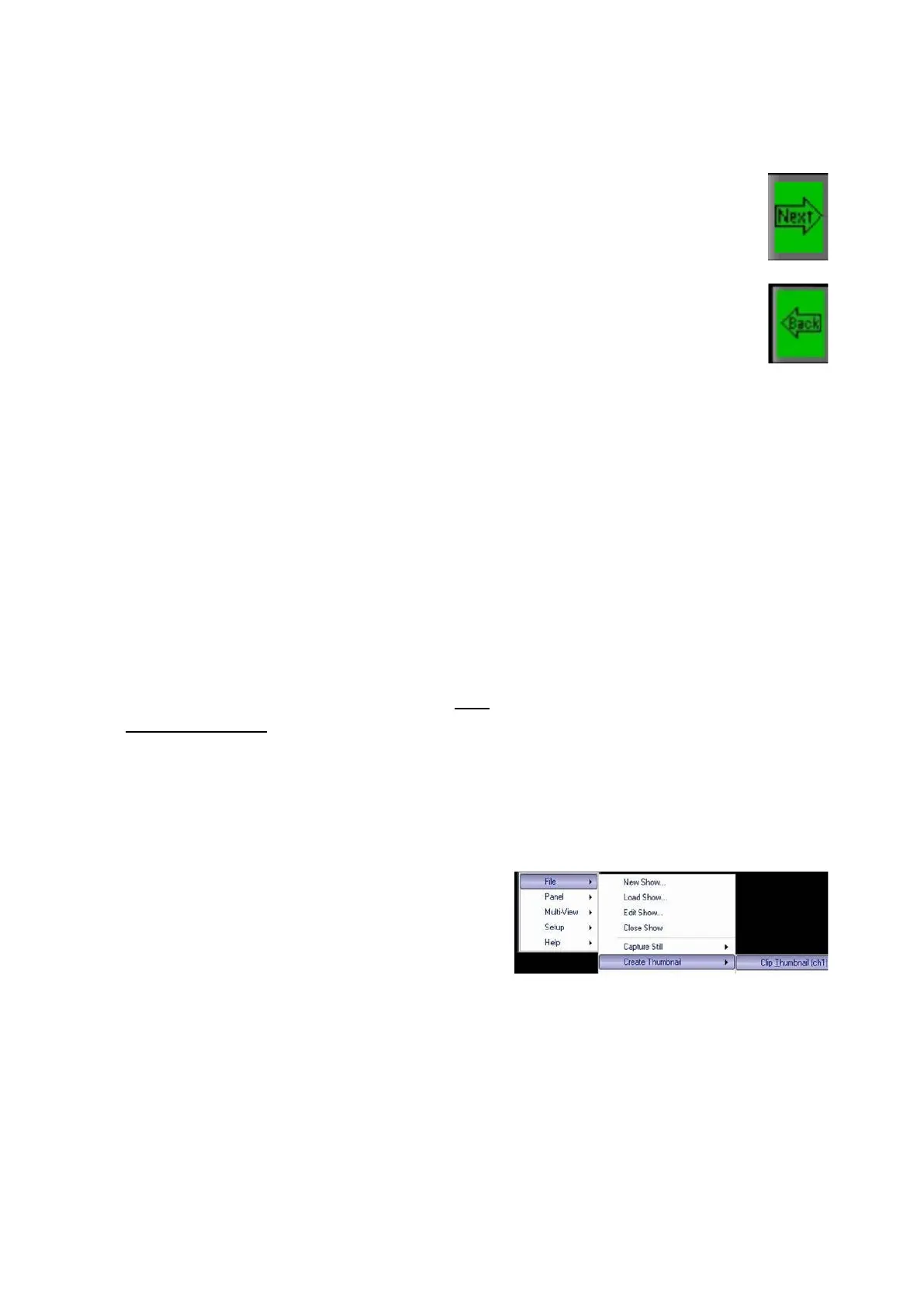
Click on the File menu in BPswitcher, then
click on the Create Thumbnail menu.
Select Clip Thumbnail (ch1), as shown
on the right. The Create clip thumbnail
window will appear.



 To Next Page